Choose your servers
A wallet talks to two servers:
- An Electrum server, to read the balance and the payments of your addresses and to send your payments to the bitcoin network.
- A login server, for the online features: contacts, chat, sending files and Smart Groups.
A new wallet uses our servers for its network. You can change them in the menu Config.
- Each wallet has its own servers. Changing them in one wallet does not change the others.
- Only the network of the wallet is shown. A RegTest wallet only shows its RegTest servers.
- The settings are stored encrypted inside the wallet, with its other files, so only who opens the wallet can see or change them. They are host names and ports, nothing secret, and they are restored with the wallet’s files when you back up the Wallets folder.
Open the Config page
Section titled “Open the Config page”-
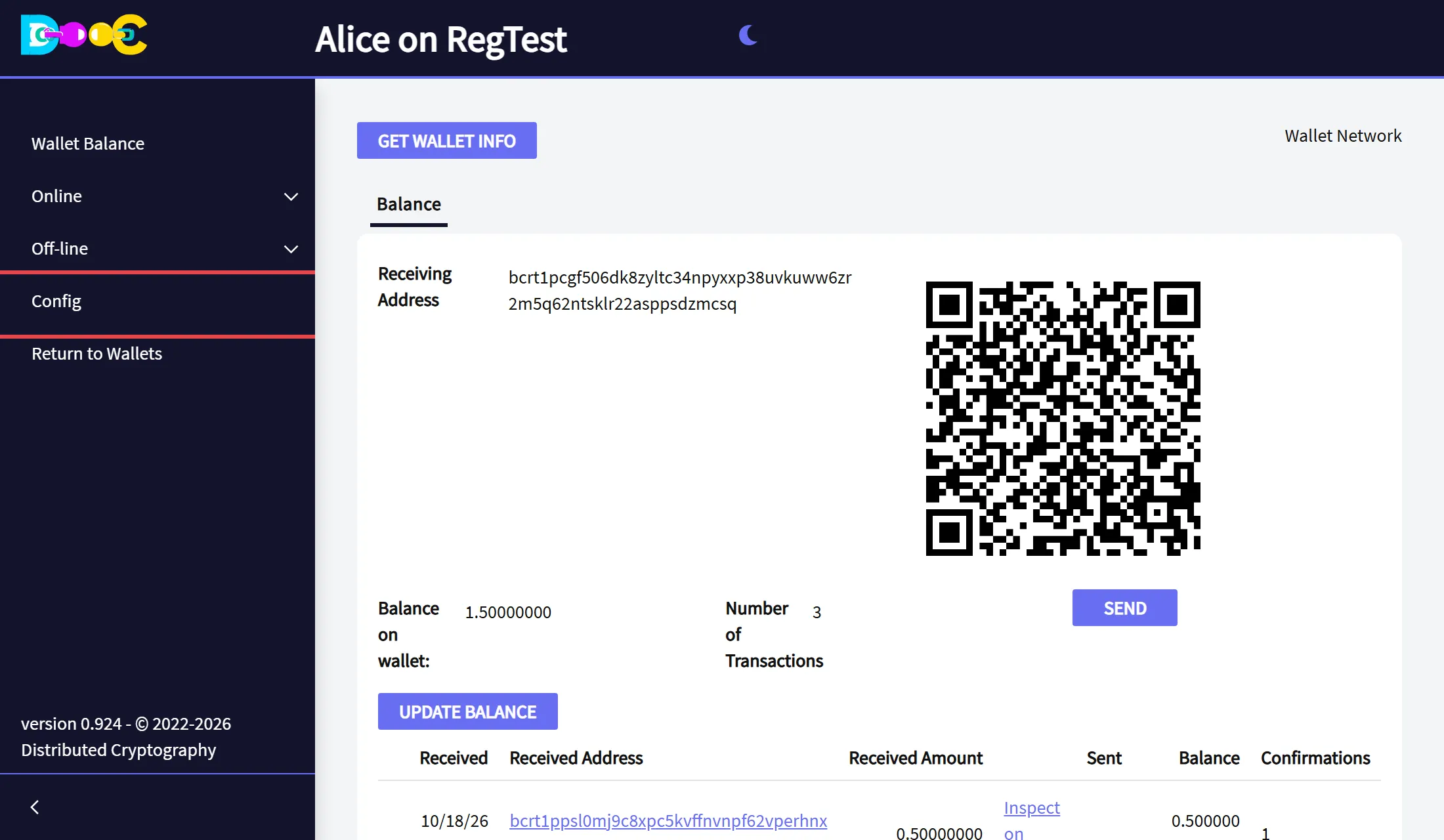
Click Config in the menu on the left.
-
The page shows the Electrum server and the login server of the wallet.
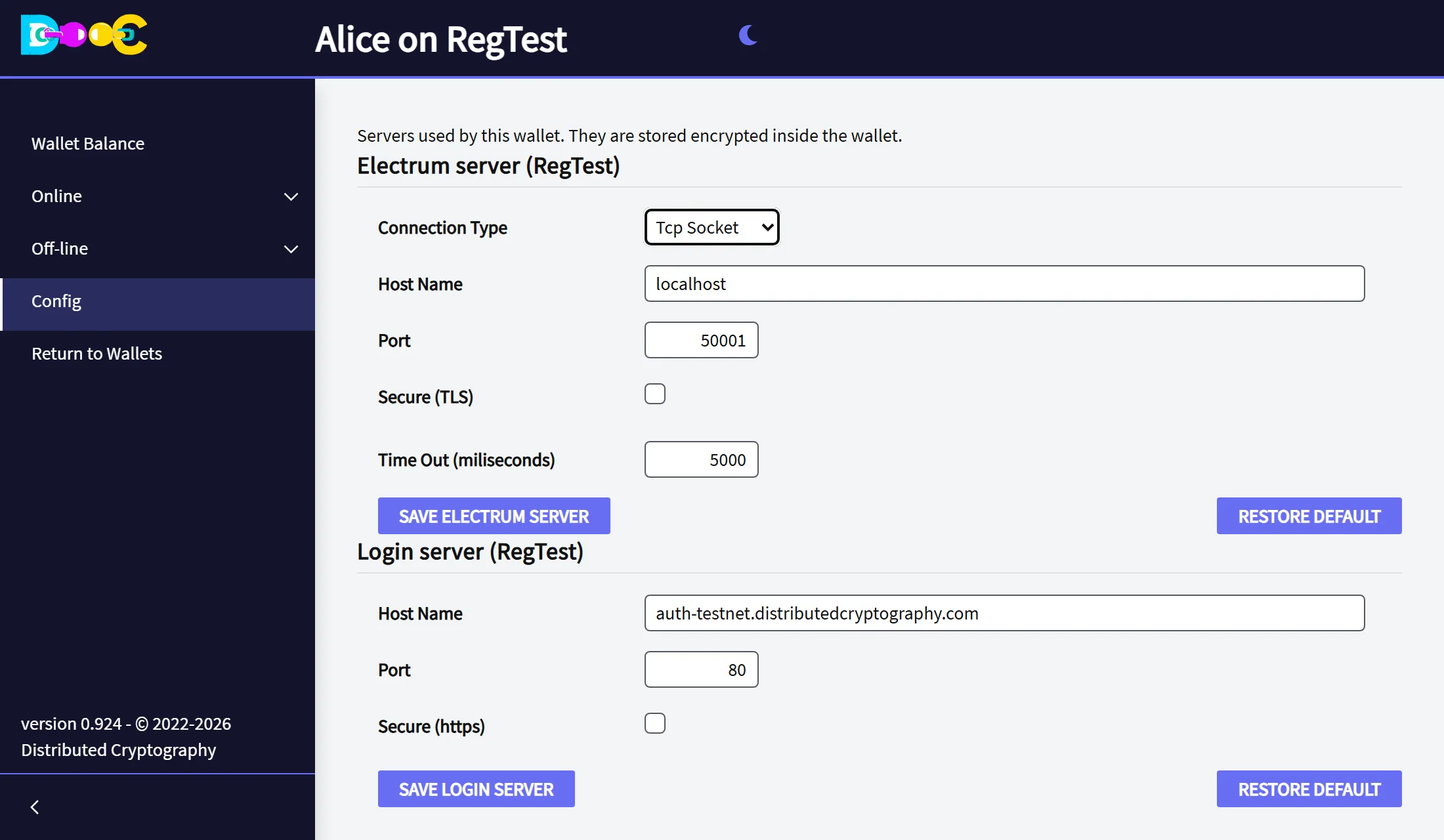
Electrum server
Section titled “Electrum server”| Field | What to type |
|---|---|
| Connection Type | Tcp Socket for a normal Electrum server, Web Socket for a server that only accepts web sockets. |
| Host Name | The name or the IP address of the server, without tcp:// or https://. |
| Port | The port of the server. Electrum servers often use 50001 without TLS and 50002 with TLS. |
| Secure (TLS) | Tick it when the server uses TLS on that port. |
| Time Out (miliseconds) | How long to wait for an answer. 5000 is 5 seconds. |
Click Save Electrum server. The wallet connects to the new server at once:
- When it connects, you see Electrum server saved - Connected.
- When it cannot connect, the server is saved anyway and the page tells you why it failed. Check the host name, the port and Secure (TLS), or click Restore default.
Login server
Section titled “Login server”| Field | What to type |
|---|---|
| Host Name | The name of the login server, without http:// or https://. |
| Port | The port of the server. |
| Secure (https) | Tick it when the server uses https on that port. |
Click Save login server.
- If you were logged in and the server changed, the wallet logs you out. The page tells you so. Click Login in the menu to log in to the new server.
- Your user on a server is your wallet’s key, so logging in to another server makes you a new user there. Your contacts and groups stay on the server where you created them.
The login server only appears in wallets of the standard type (BIP86, Taproot), the ones that use the online features.
Go back to the default servers
Section titled “Go back to the default servers”Each section has a Restore default button. It saves our server for the network of the wallet:
| Network | Electrum server | Login server |
|---|---|---|
| MainNet | electrs-mainnet.distributedcryptography.com, port 50100 |
auth.distributedcryptography.com |
| TestNet | electrs-testnet.distributedcryptography.com, port 50100 |
auth-testnet.distributedcryptography.com |
| RegTest | localhost, port 50001 (your own RegTest server) |
auth-testnet.distributedcryptography.com |