
Contacts
A contact is another user you have connected with. You need contacts to chat and to create Smart Groups.
Connecting takes two steps: one person invites, the other accepts. During that exchange the two wallets swap the public keys they will use later to encrypt chat and group messages for each other.
In this example Alice invites Bob.
Invite someone (Alice)
Section titled “Invite someone (Alice)”-
Ask the other person for their user name. They find it in Online → User Info (see Anonymous login).
-
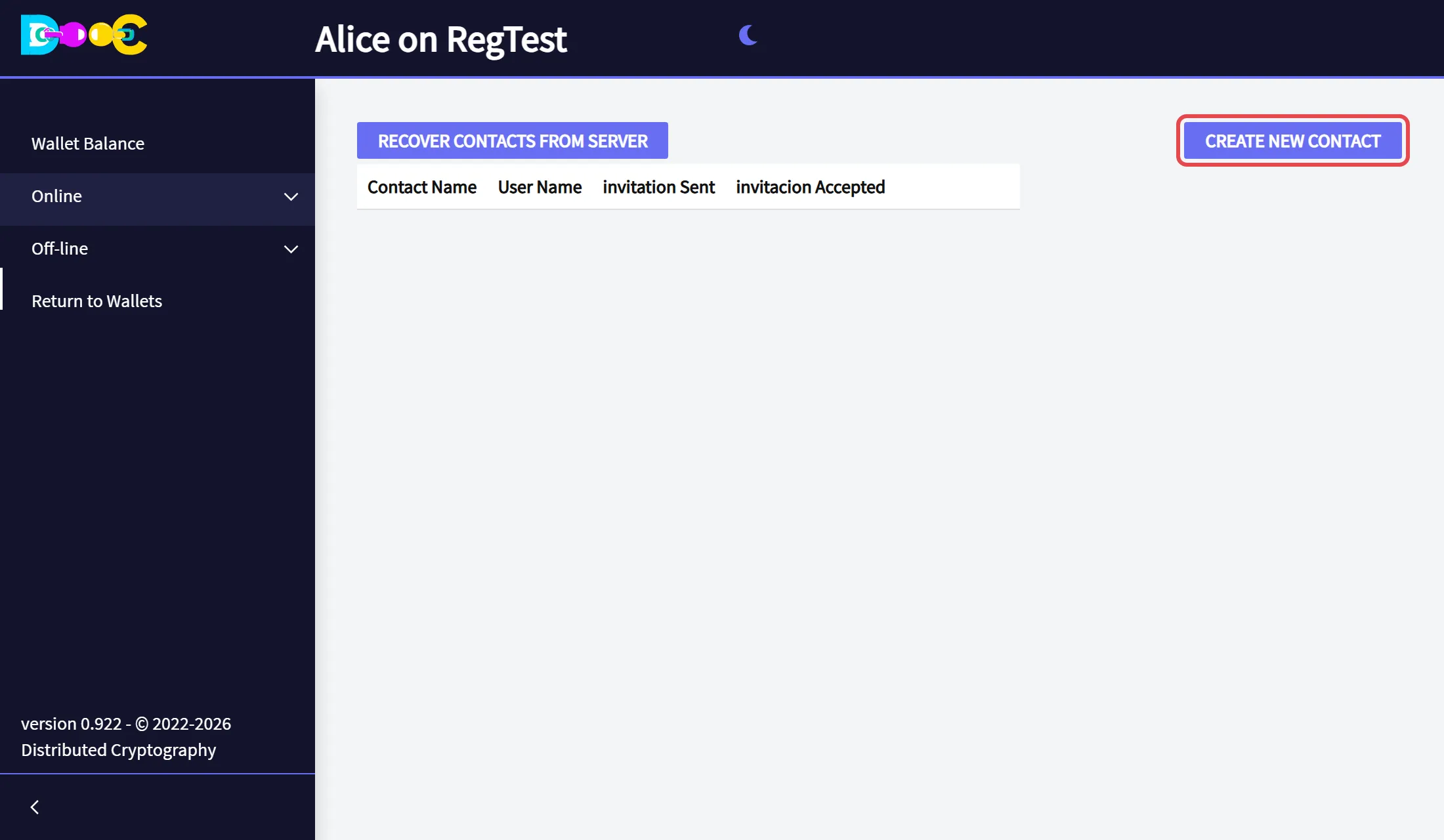
Open Online → Contacts and click Create new contact.
-
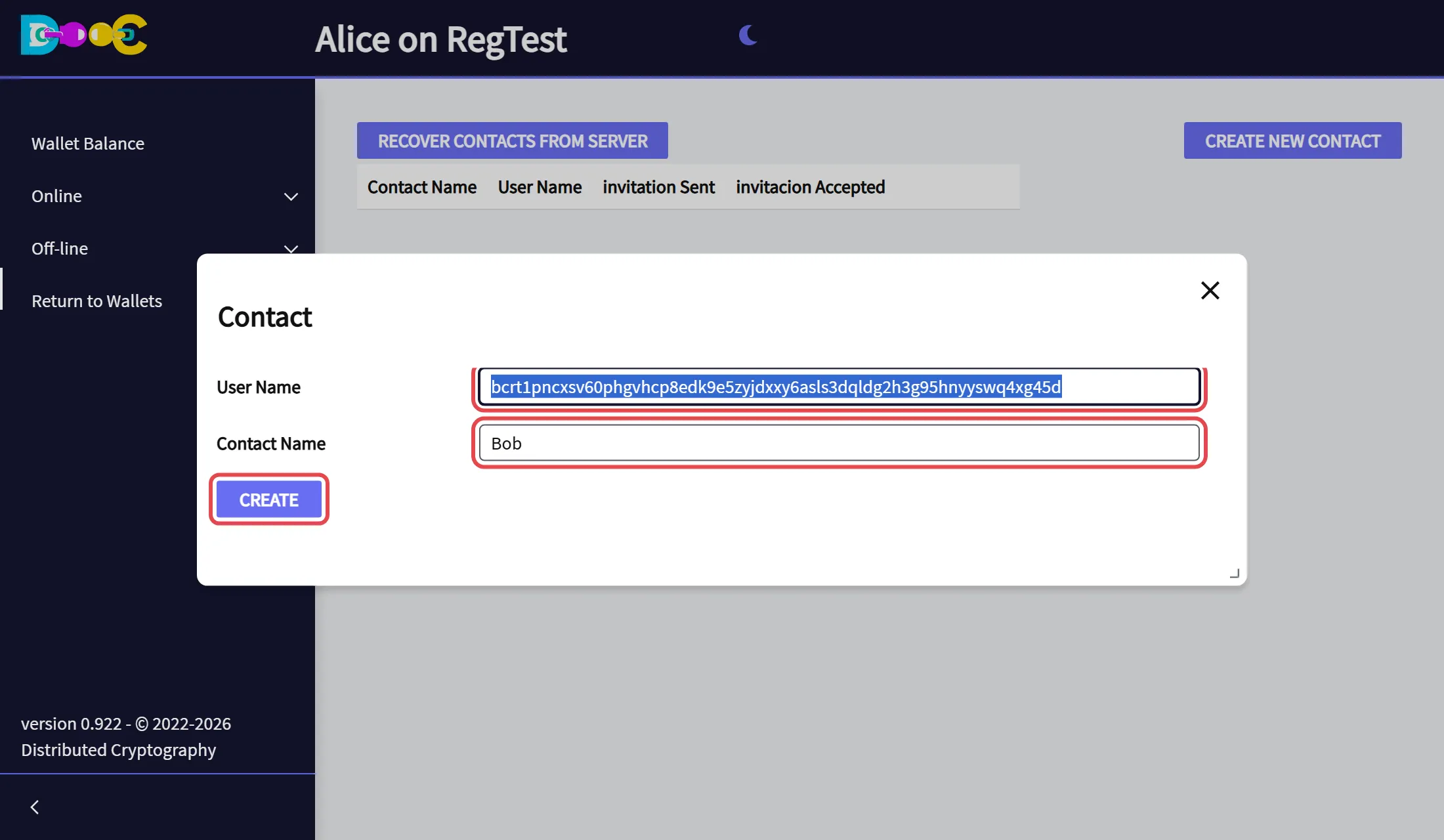
Paste their user name, and type a contact name: the name you want to see for this person. It is private; the other person never sees it. Click Create.
-
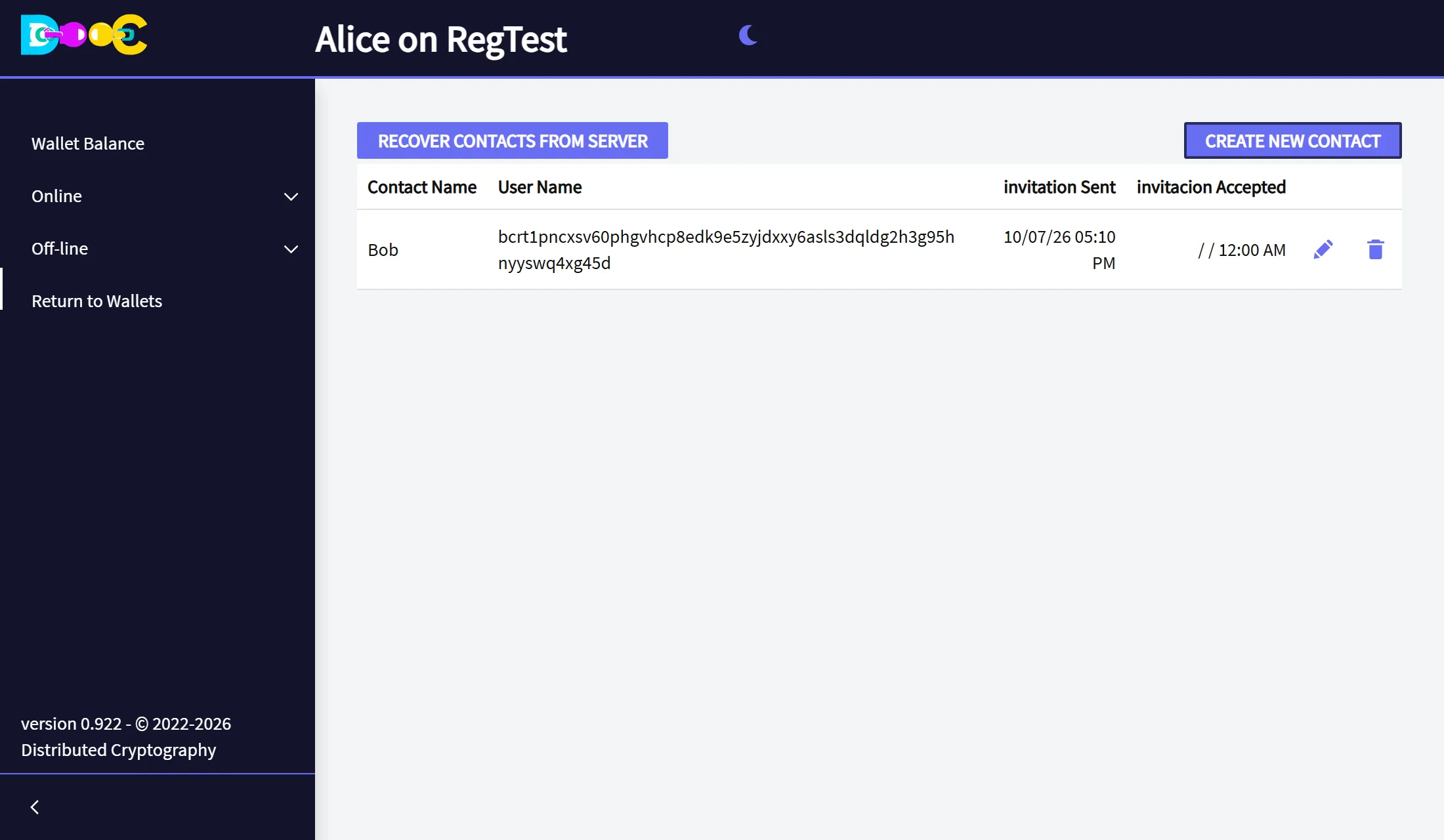
The contact is in your list, with the date in invitation Sent. invitacion Accepted is still empty.
Accept an invitation (Bob)
Section titled “Accept an invitation (Bob)”-
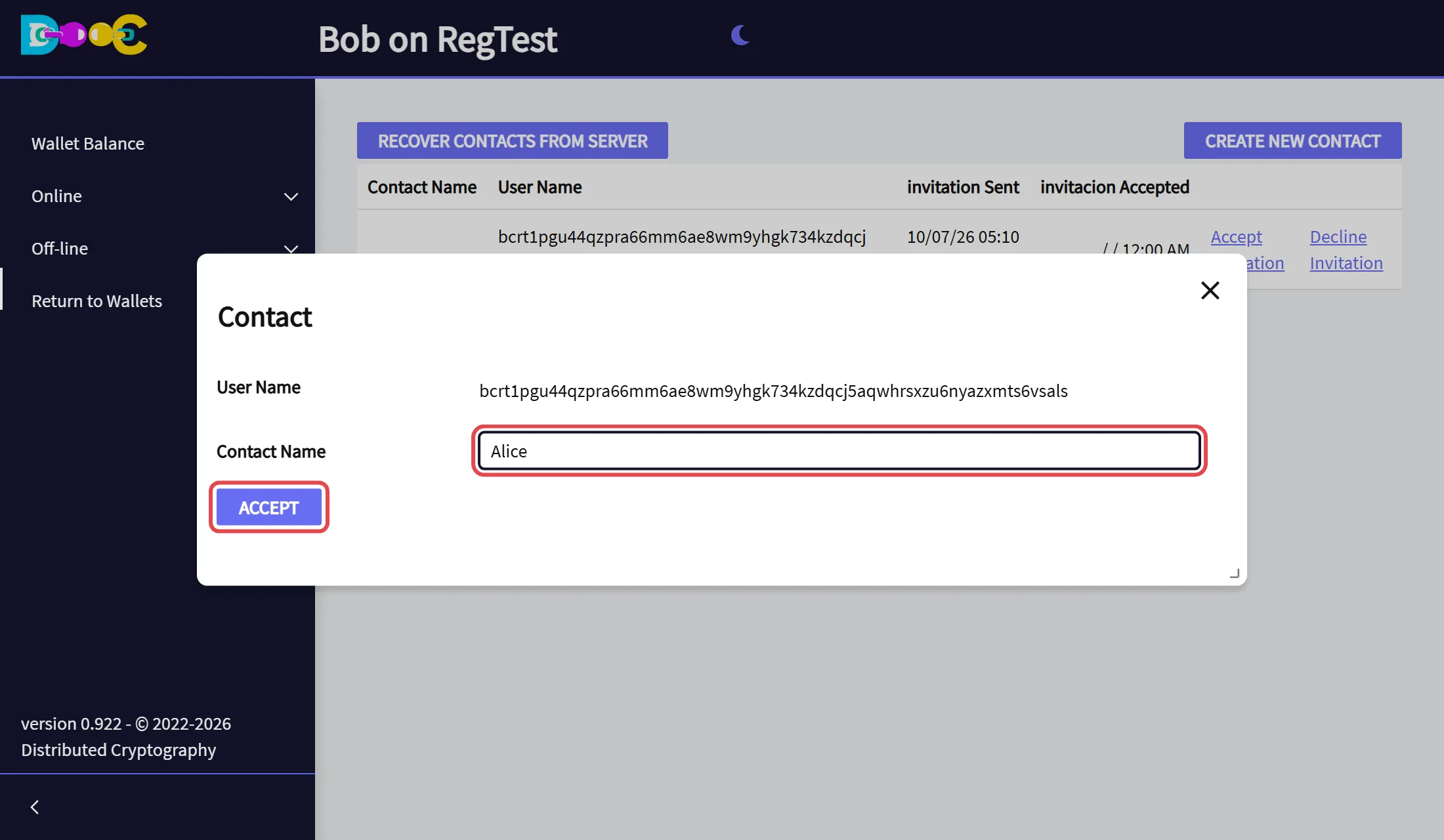
Open your wallet. When an invitation has arrived, the app shows the message There is a new Contact invitation, and Online → Contacts has a new line with the user name of the person who invited you. Click Accept Invitation.
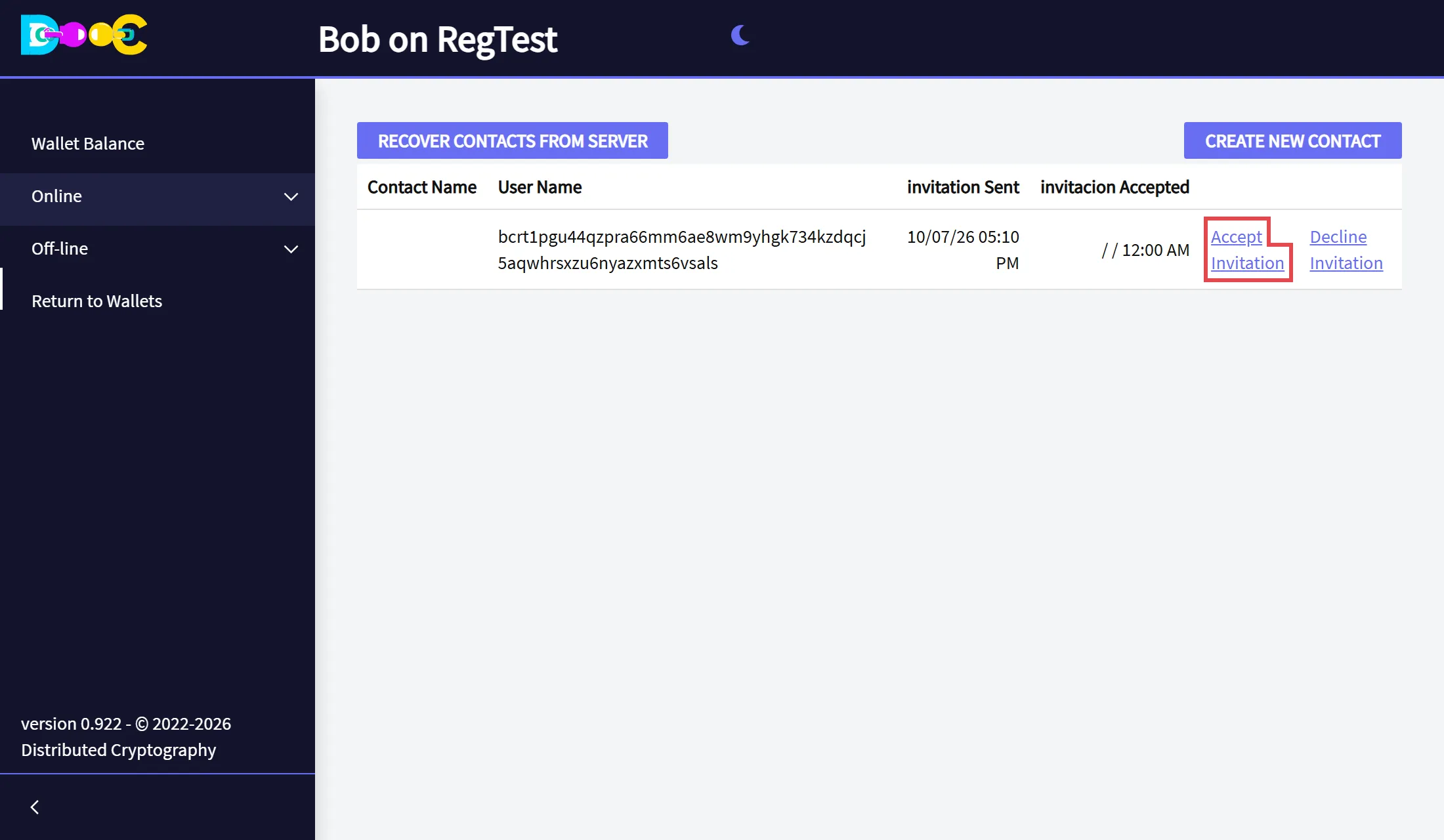
Check that the user name is the one that person gave you.
-
Type the contact name you want to give this person and click Accept.
-
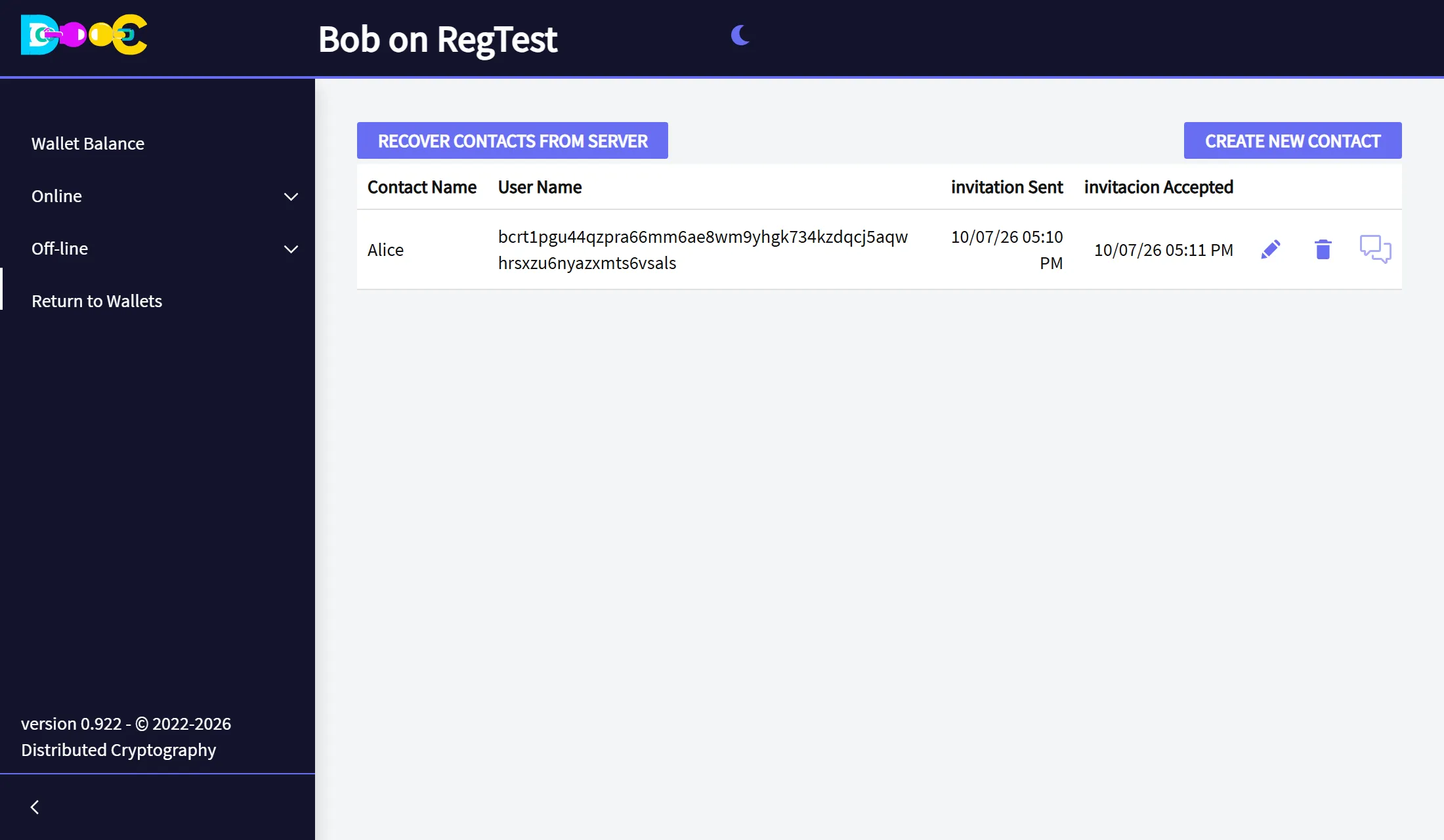
The contact now has a date in invitacion Accepted and three icons: edit, delete and chat.
Back on the side of the person who invited (Alice)
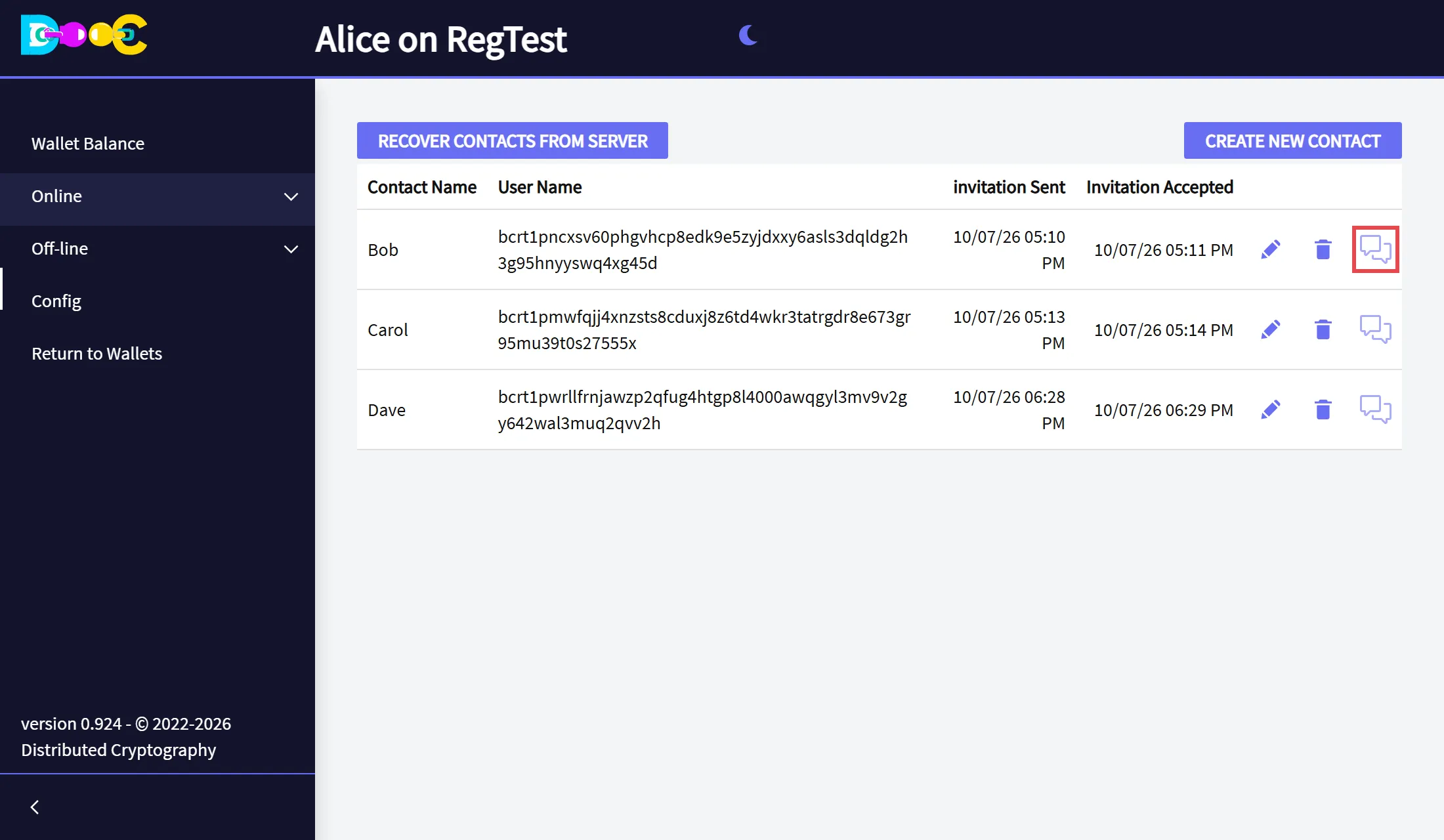
Section titled “Back on the side of the person who invited (Alice)”The next time Alice opens her wallet, her list shows the contact as accepted, with the chat icon. That icon is the sign that the contact is ready: you can chat and invite the person to Smart Groups.
Good to know
Section titled “Good to know”- Invite each person once. If both of you invite each other at the same time you end up with two crossed entries.
- Declining is silent. The person who invited you is not told.
- The pencil changes the name you gave the contact. The trash can deletes the contact.
- Recover contacts from server brings your contacts back on a new computer, after you restore your wallet and log in. The list is stored encrypted, and only your wallet can open it.