
Shared passwords
A shared password vault is a Smart Group of type Encrypted Passwords. The owner keeps all the passwords and decides, password by password, which members can see each one.
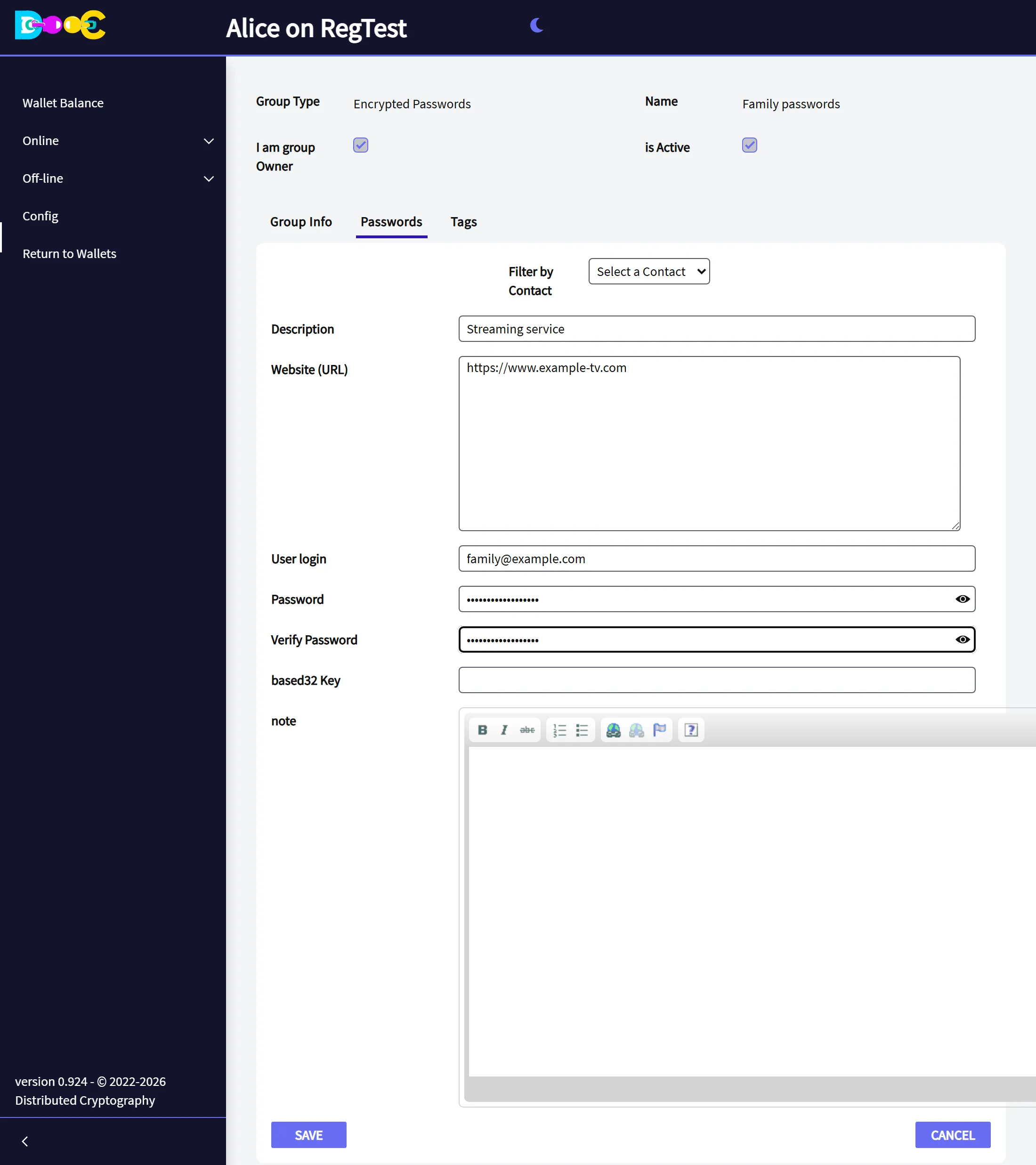
It holds the same kind of entry as your personal vault (Encrypted passwords): description, web address, login, password, authenticator key, a note and tags.
| Can do | |
|---|---|
| Owner | See everything. Add, edit and delete passwords. Choose who sees each one. Manage tags. |
| Member | See and copy only the passwords shared with them. Read-only. |
In this guide Alice creates the vault Family passwords with Bob and Carol. The streaming service is for both, the home router only for Bob, and the bank for nobody.
1. Create the vault and invite people (owner)
Section titled “1. Create the vault and invite people (owner)”-
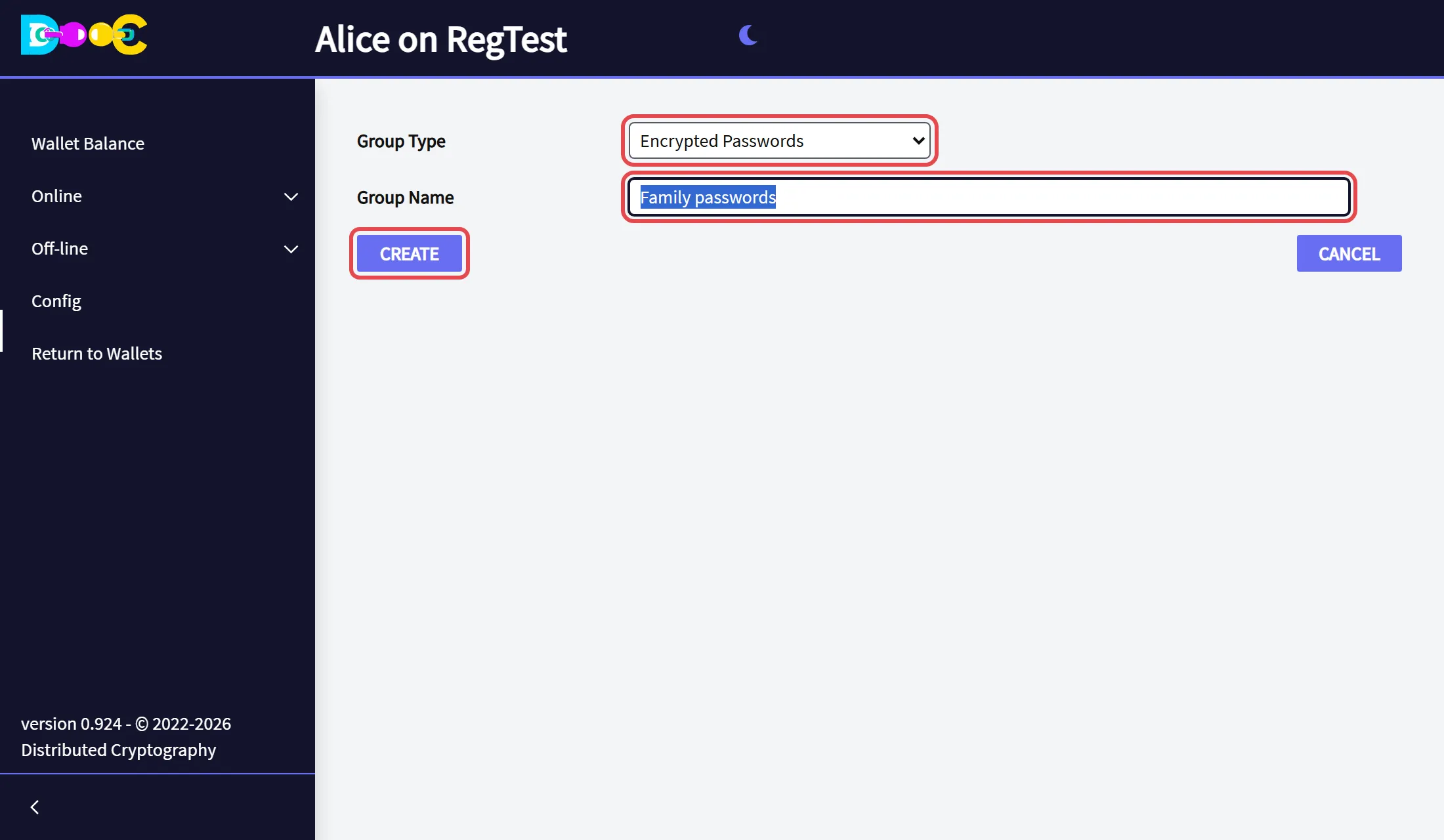
Open Online → Smart Groups, click Create Group, choose the type Encrypted Passwords, type a name and click Create.
-
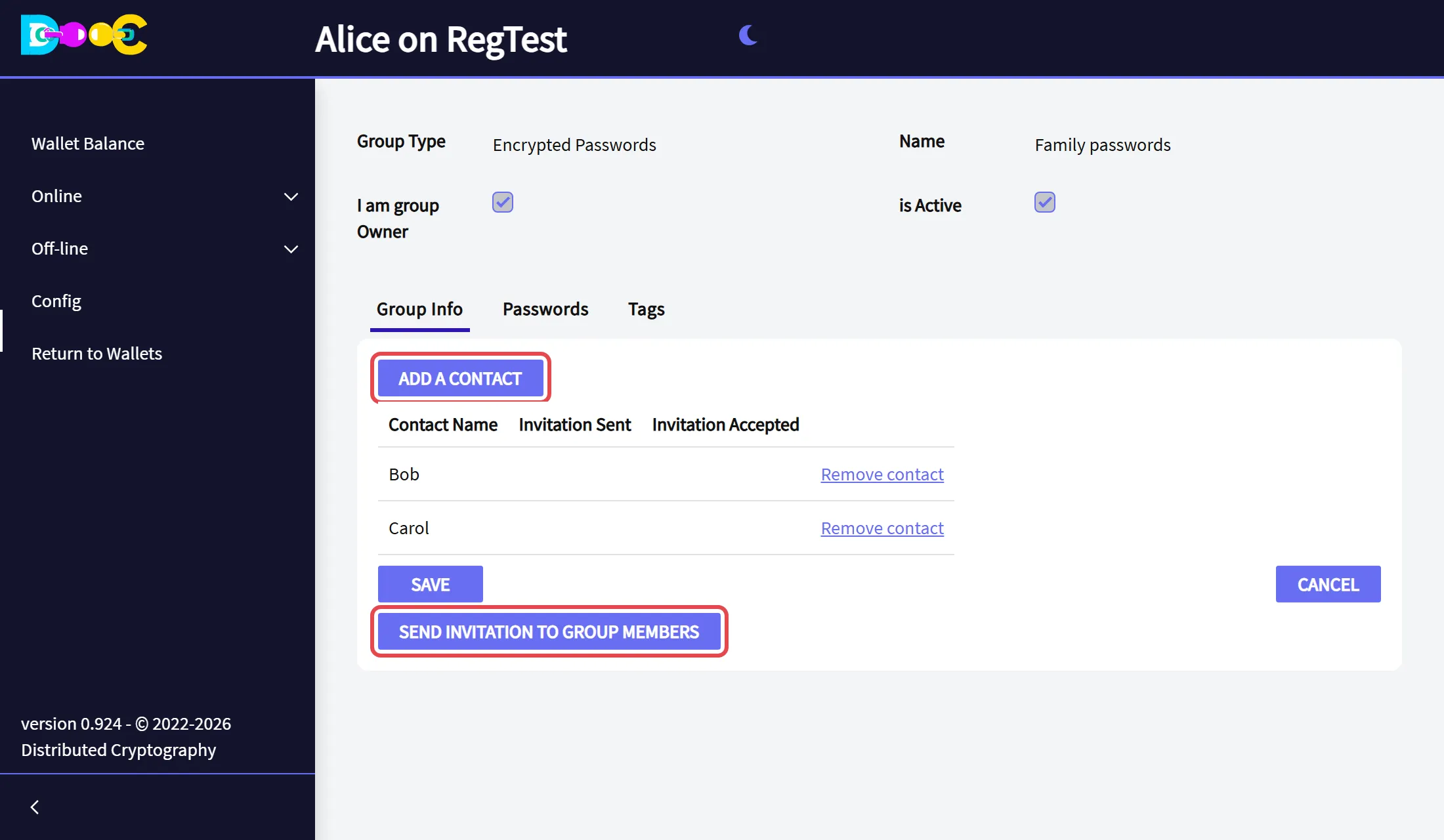
Open the group. In the tab Group Info, click Add a contact for each member, then Send invitation to group members.
-
Each member opens Online → Smart Groups in their own wallet and clicks Accept Invitation.
A password vault needs no activation: it is active from the start. A member can be given passwords once they have accepted.
2. Add a password (owner)
Section titled “2. Add a password (owner)”-
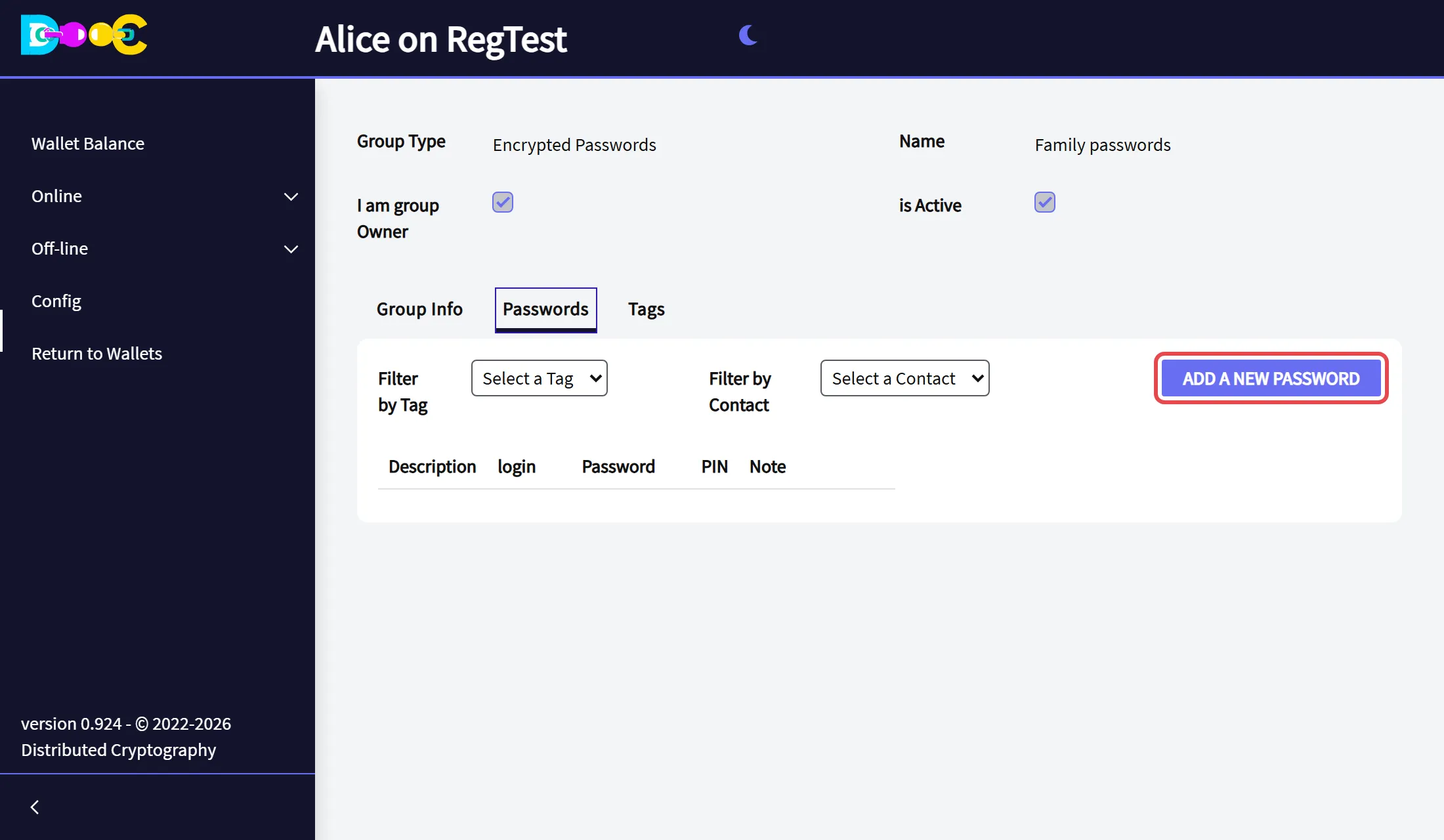
Open the group, go to the tab Passwords and click Add a new password.
-
Fill in the entry and click Save. The fields are the same as in Encrypted passwords.
A new password is only yours until you share it.
3. Choose who sees a password (owner)
Section titled “3. Choose who sees a password (owner)”-
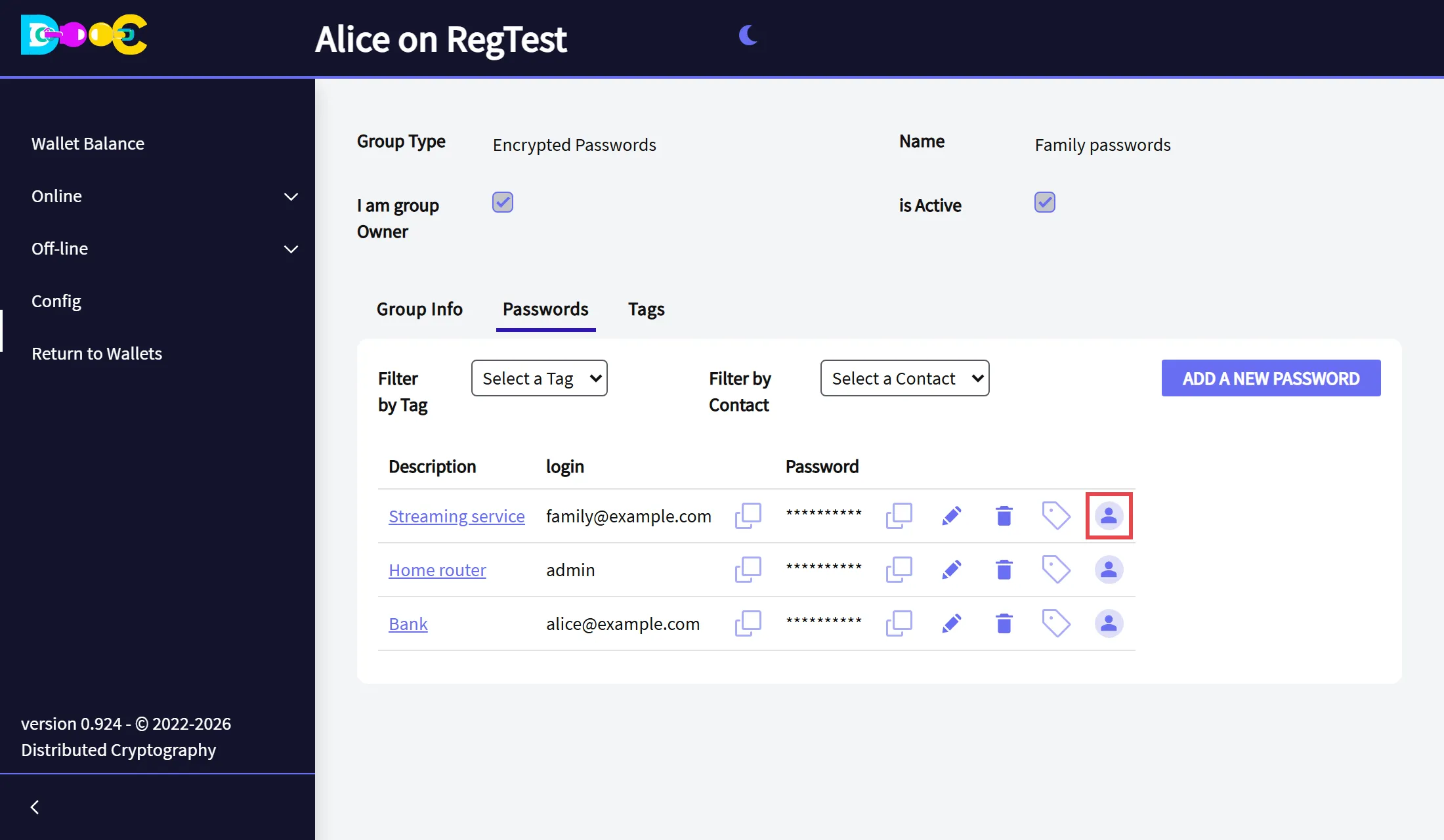
Click the person icon at the end of the entry’s row.
-
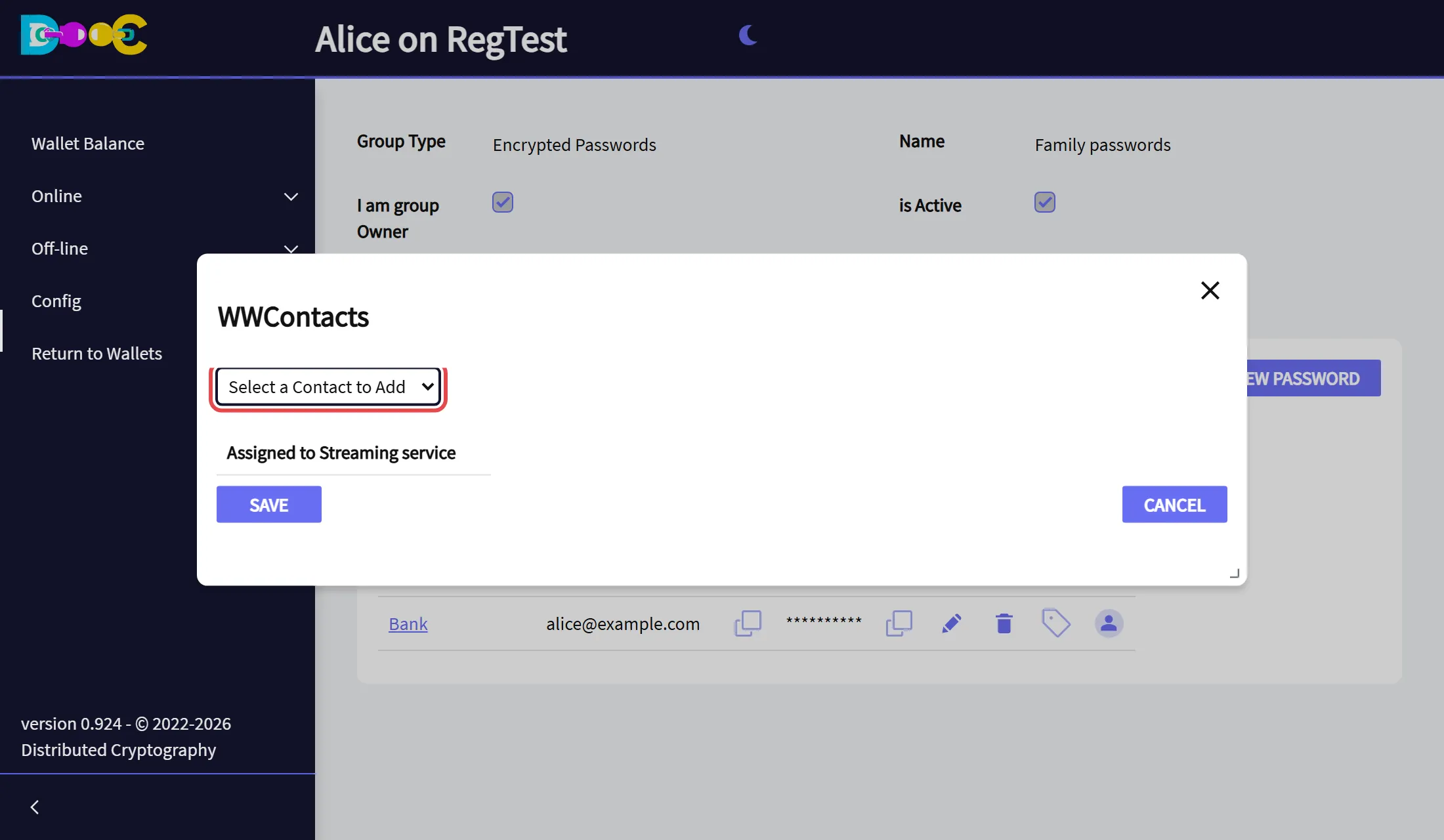
Choose a member in Select a Contact to Add. Repeat for each member who should see this password.
-
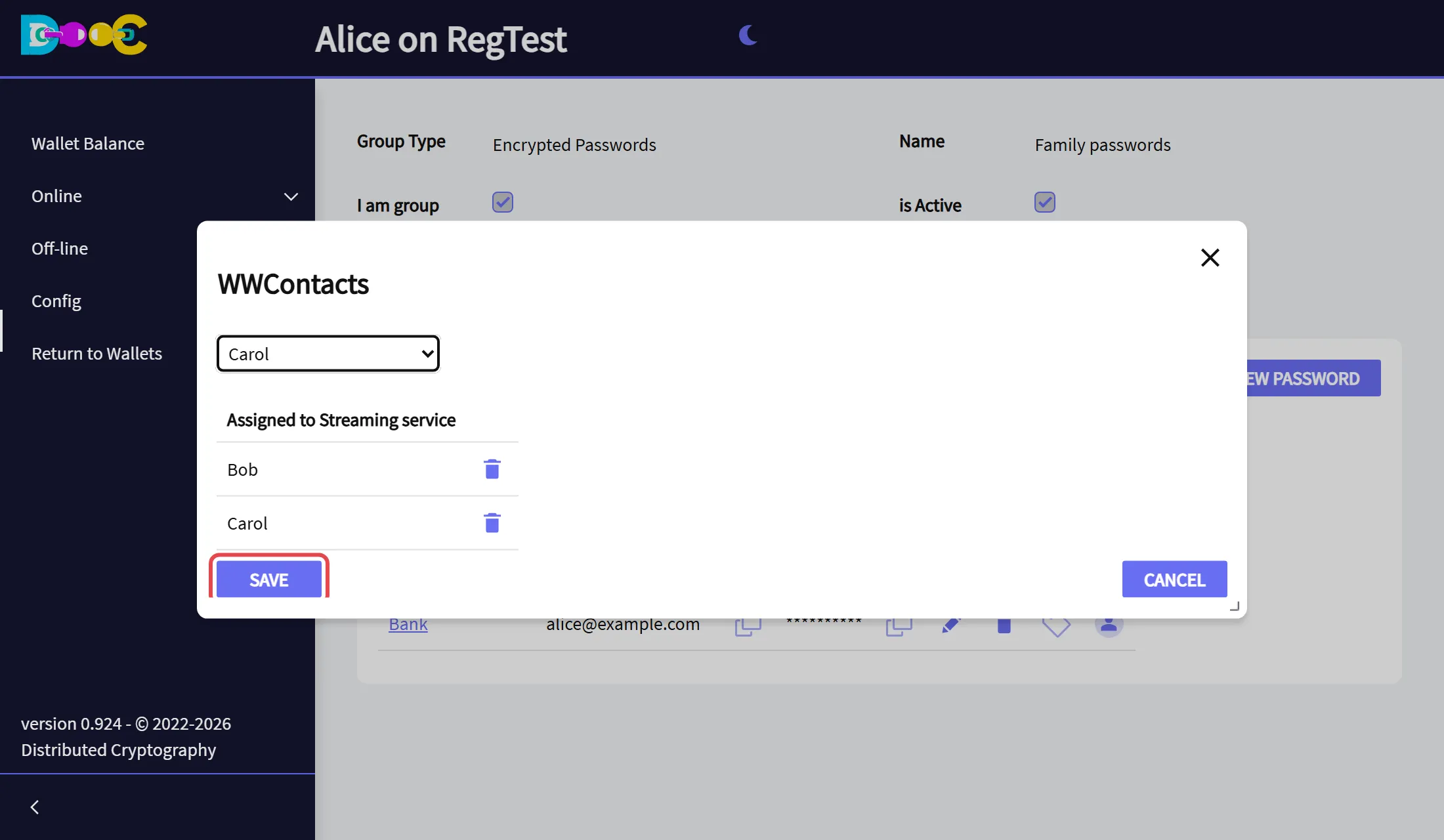
The members are listed under Assigned to …. Click Save.
The owner always sees every password:
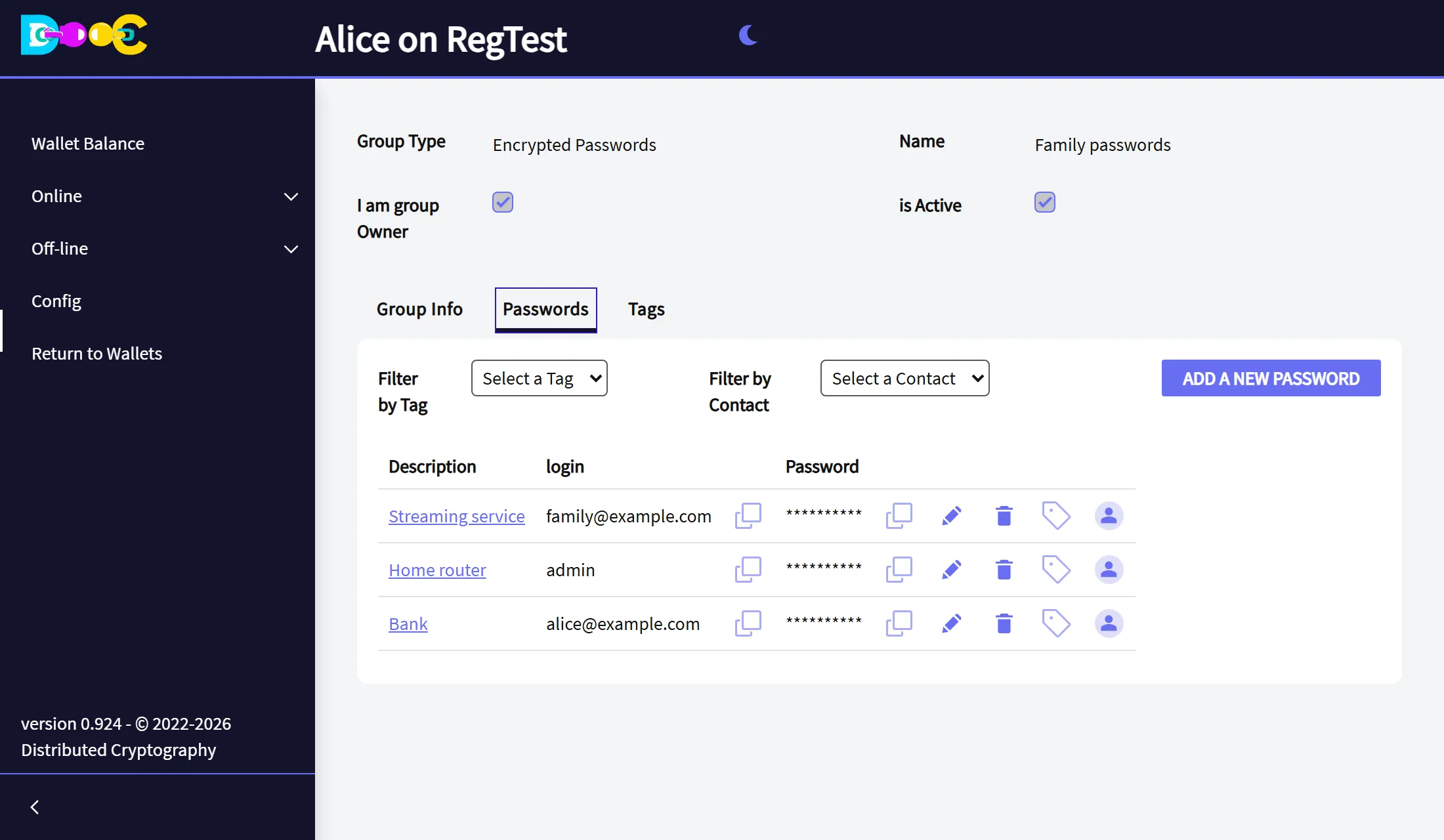
Filter by Contact shows the passwords shared with one member. Filter by Tag and the Tags tab organise the list; tags do not decide who sees a password.
What each member sees
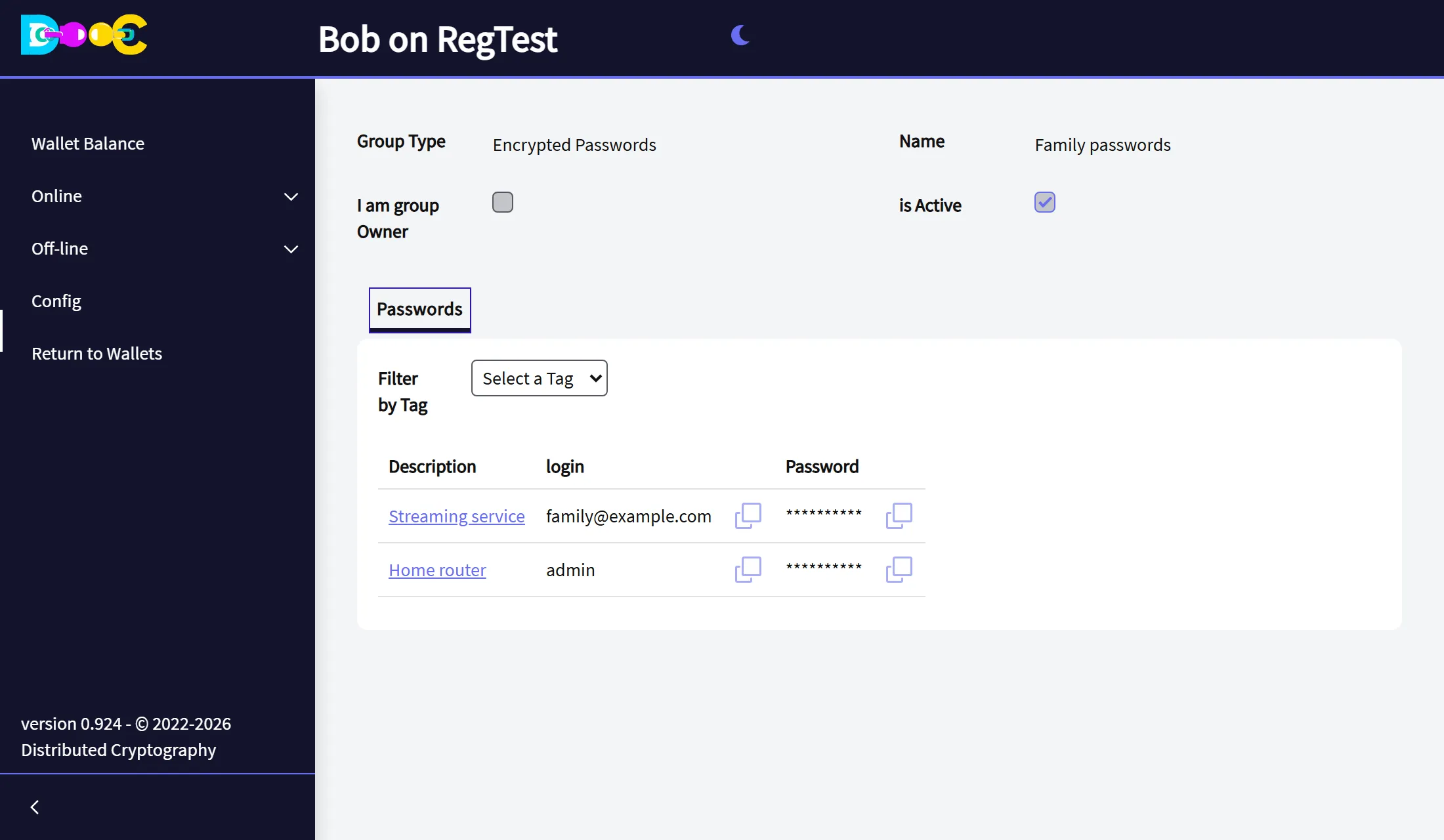
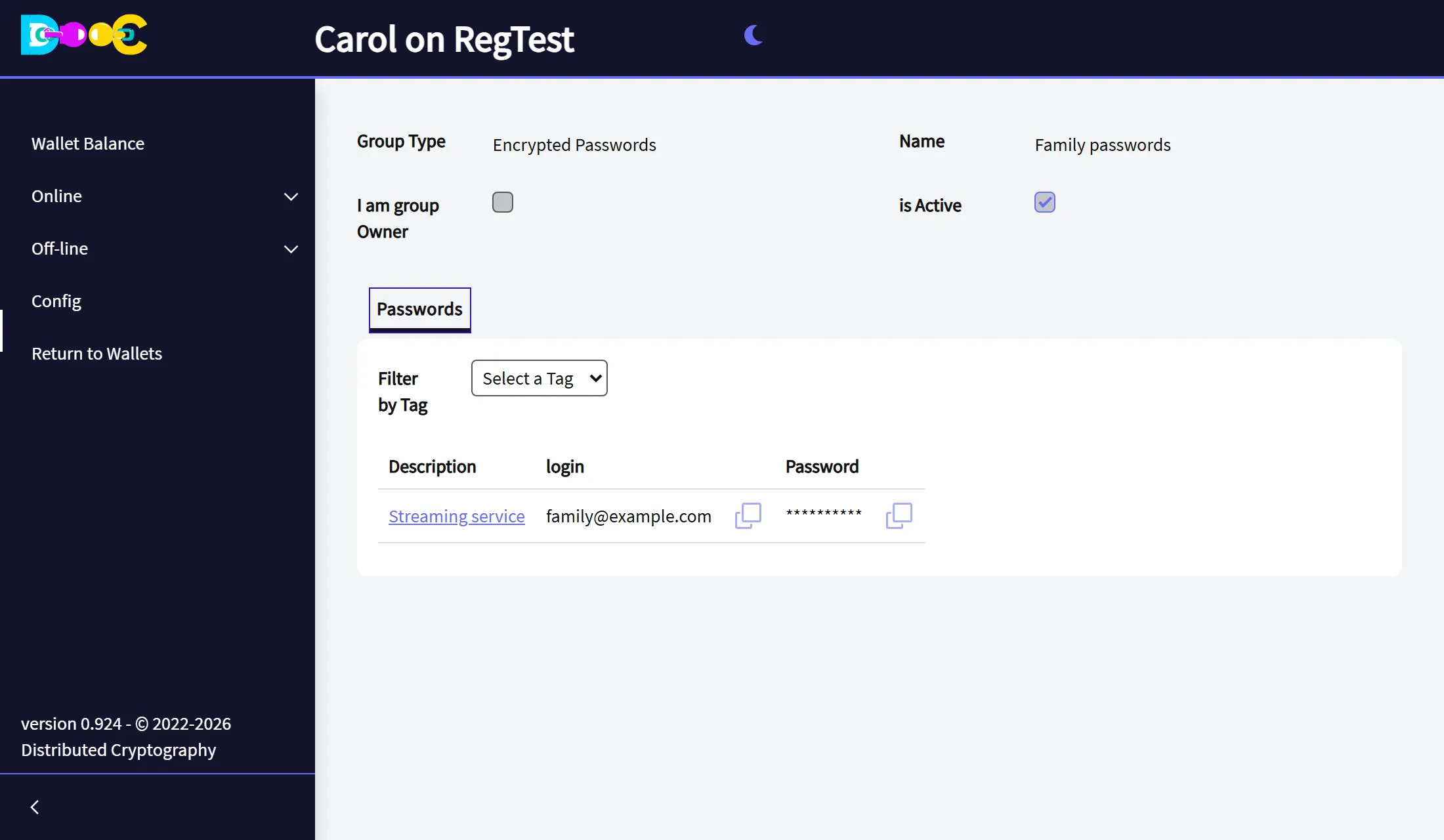
Section titled “What each member sees”A member opens the group and sees only the passwords shared with them, with the icons to copy the login and the password. There is nothing to add, edit or delete.
Bob has the streaming service and the home router:
Carol has only the streaming service:
Use a password
Section titled “Use a password”On each entry, owner and members can:
- Copy the login and the password to the clipboard, with the icon next to each one.
- Copy the PIN: if the entry has an authenticator key, this gives the current 6-digit code. The key itself is never shown.
- Open the note of the entry, if it has one.
Stop sharing
Section titled “Stop sharing”Click the person icon of the entry, click the trash can next to the member, and save. Their copy is rewritten without that password.
Remember that a person who could see a password may have copied it. When someone should no longer have access, change the password itself on the web site as well.
How it is protected
Section titled “How it is protected”- The whole vault is encrypted for the owner’s key. Only the owner’s wallet can open it.
- Each member receives their own copy, with only their passwords, encrypted for their own key. A member cannot read what was not shared with them, not even by looking at the stored data directly.
- Passwords are sent to the page one at a time, only when you ask to copy or see one.
- If the owner restores their wallet on another computer, the vault opens again there. The same is true for each member and their part.