
Encrypted passwords
Off-line → Encrypted Passwords is a password manager that only your wallet can open.
Add a password
Section titled “Add a password”-
Open Off-line → Encrypted Passwords and click Add a new password.
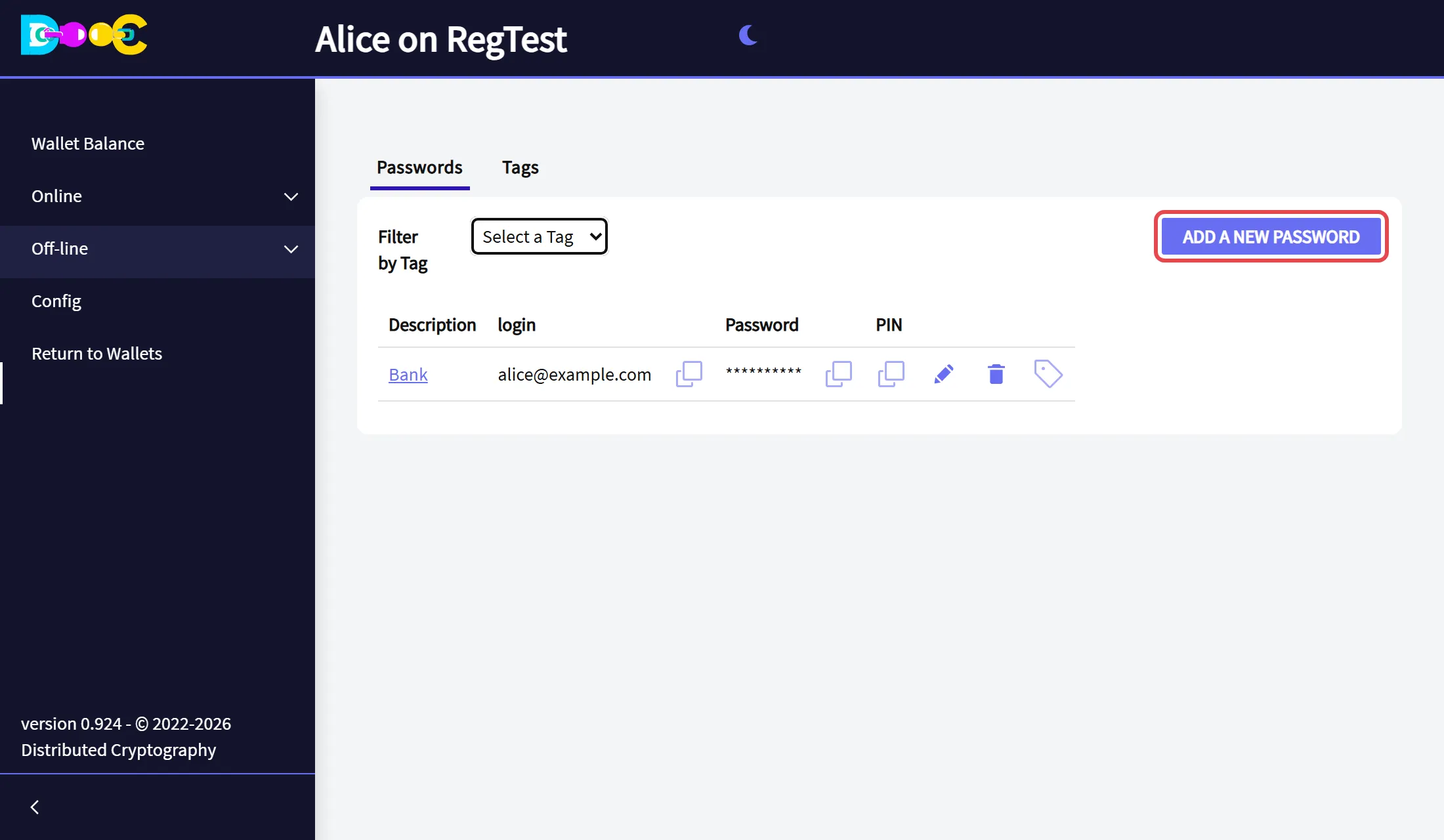
-
Fill in the entry and click Save.
Field What to type Description The name you will see in the list Website (URL) The address of the site User login Your user or e-mail on that site Password and Verify Password The password, twice. The eye shows what you typed. based32 Key Optional. The key of the site’s two-factor authentication, to get its 6-digit codes here. note Optional. Anything else you want to keep with this entry. 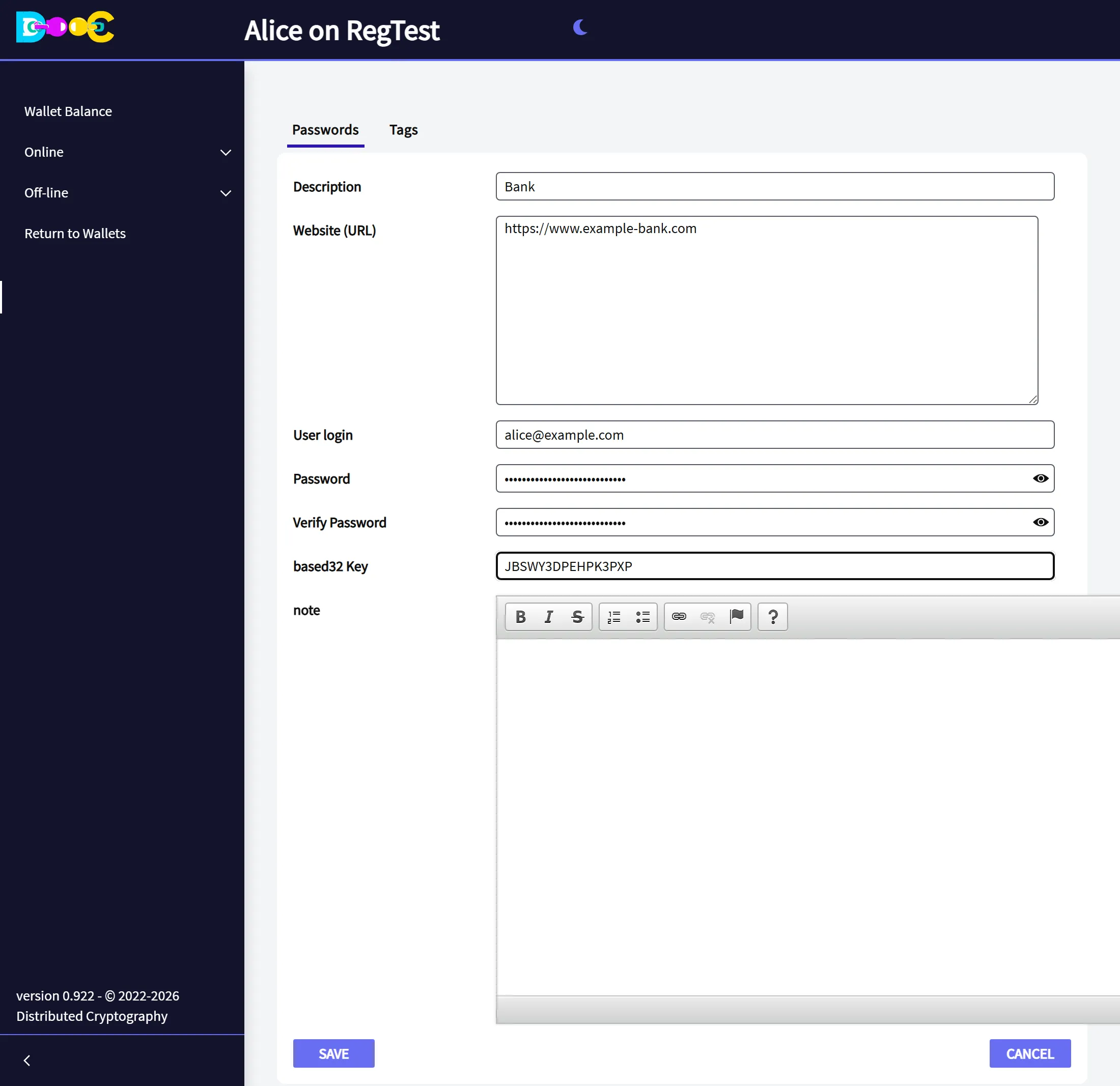
-
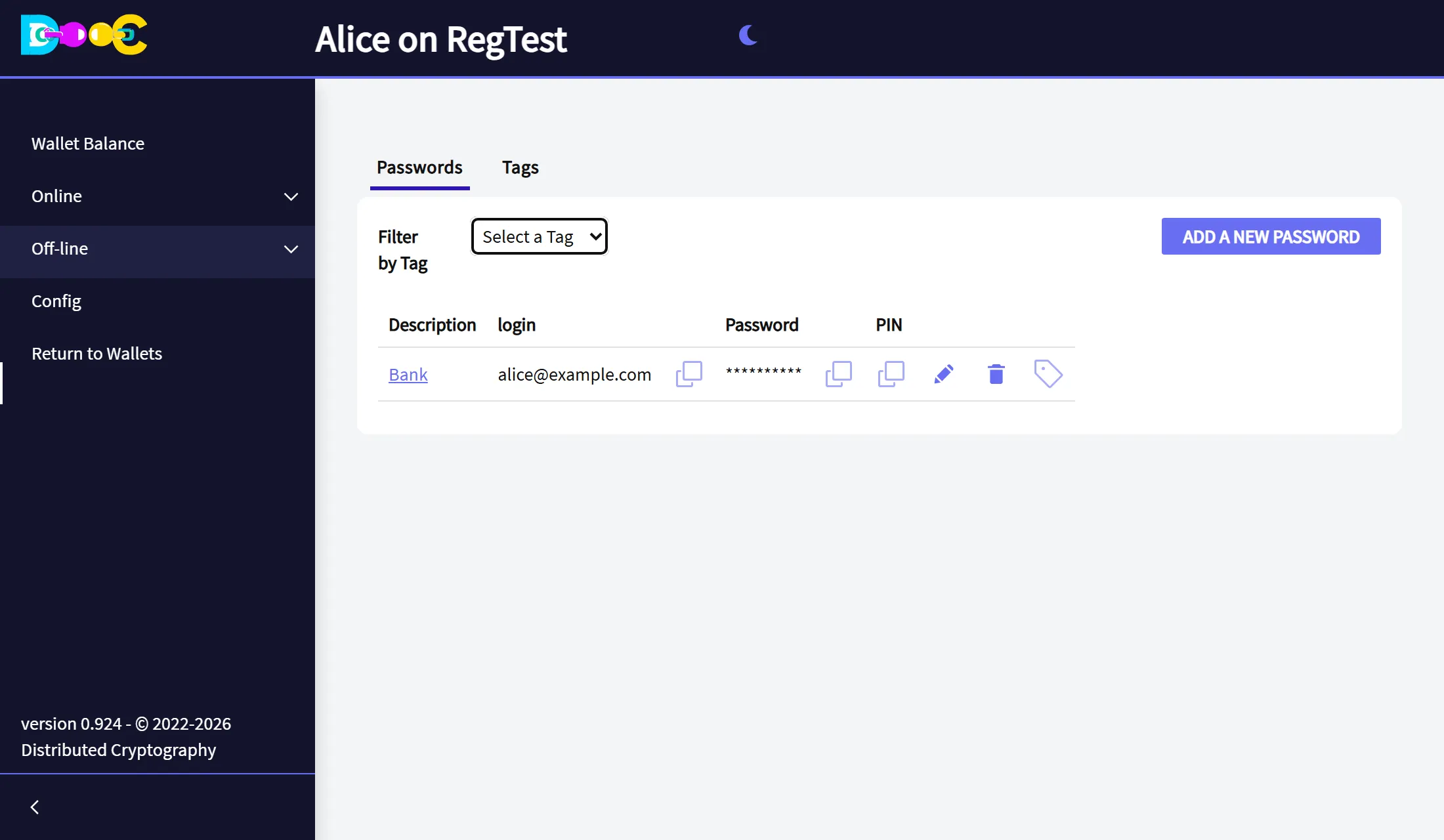
The entry is in the list. The password is not shown.
Use an entry
Section titled “Use an entry”The icons on each row, from left to right:
- Copy next to the login: puts the login on the clipboard.
- Copy next to the password: puts the password on the clipboard.
- Copy under PIN: puts the current 6-digit code on the clipboard, if the entry has a based32 Key.
- Pencil: edit the entry.
- Trash can: delete the entry.
- Tag: choose the tags of the entry.
Passwords are never shown on the list. One is read only when you ask to copy it.
Tags organise the list when it grows: Banks, Work, Family. Create them in the Tags tab, give them to an entry with its tag icon, and use Filter by Tag to see only the entries with one tag.
Where it is kept
Section titled “Where it is kept”In your wallet folder, encrypted with a key that comes from your wallet. Include that folder in your backups.
Share passwords with other people
Section titled “Share passwords with other people”To share some passwords with your family or your team, and decide who sees which one, use a shared password vault.