
Authenticators
Many sites protect your account with an authenticator app on your phone that shows a 6-digit code. If you lose the phone, you lose the codes, and often the account.
Off-line → Authenticators keeps a copy of those authenticators inside your wallet. You can read the current code from the wallet, and put the authenticator back on a new phone.
Add an authenticator
Section titled “Add an authenticator”You need the key of the authenticator. When a site turns on two-factor authentication it shows a QR code, and usually a link such as “can’t scan the code?” that shows the same key as text (letters and numbers). Copy that text when you set up the site; most sites never show it again.
-
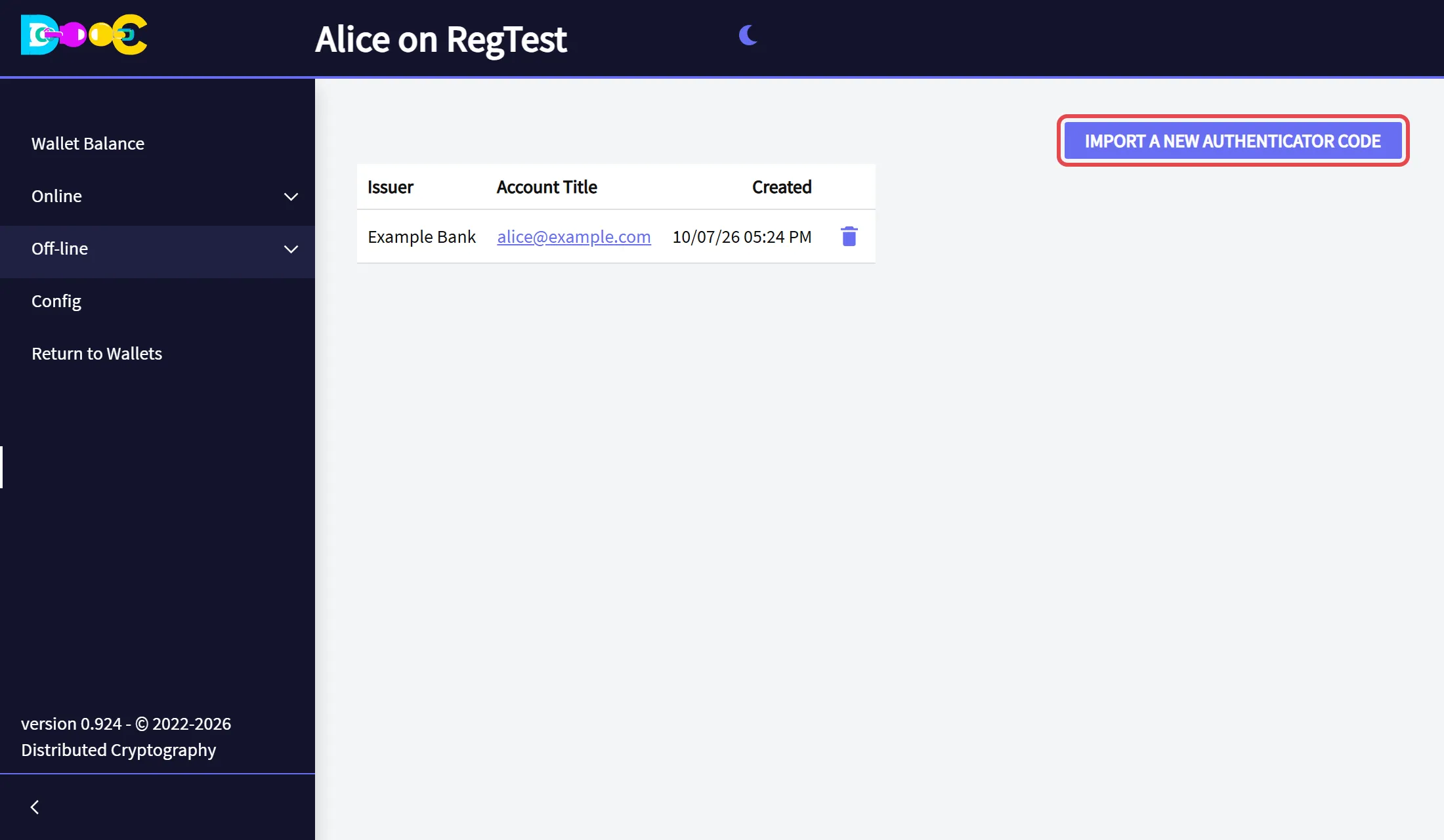
Open Off-line → Authenticators and click Import a new Authenticator Code.
-
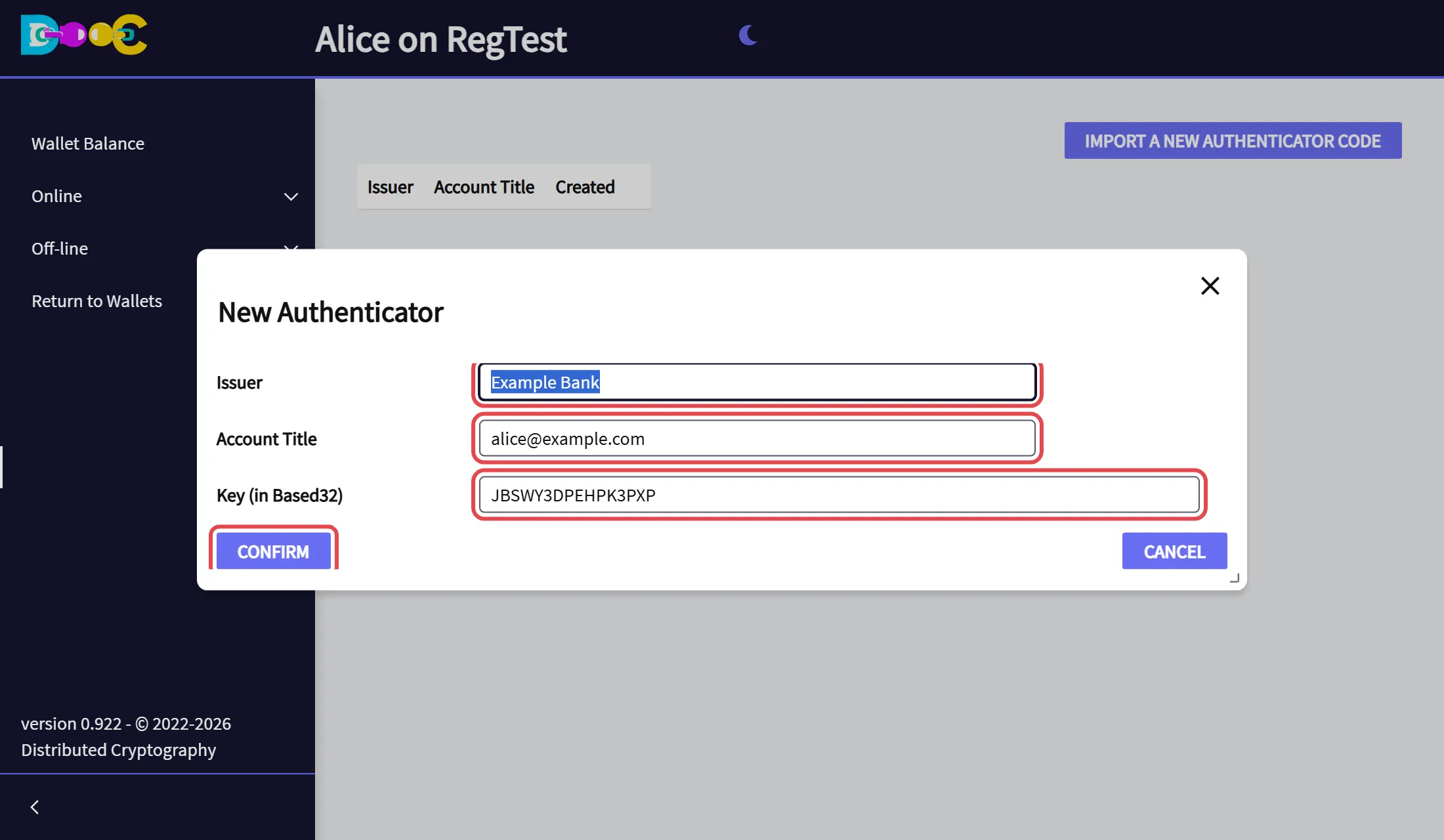
Type the issuer (the site), the account title (your user on that site) and the key. Click Confirm.
-
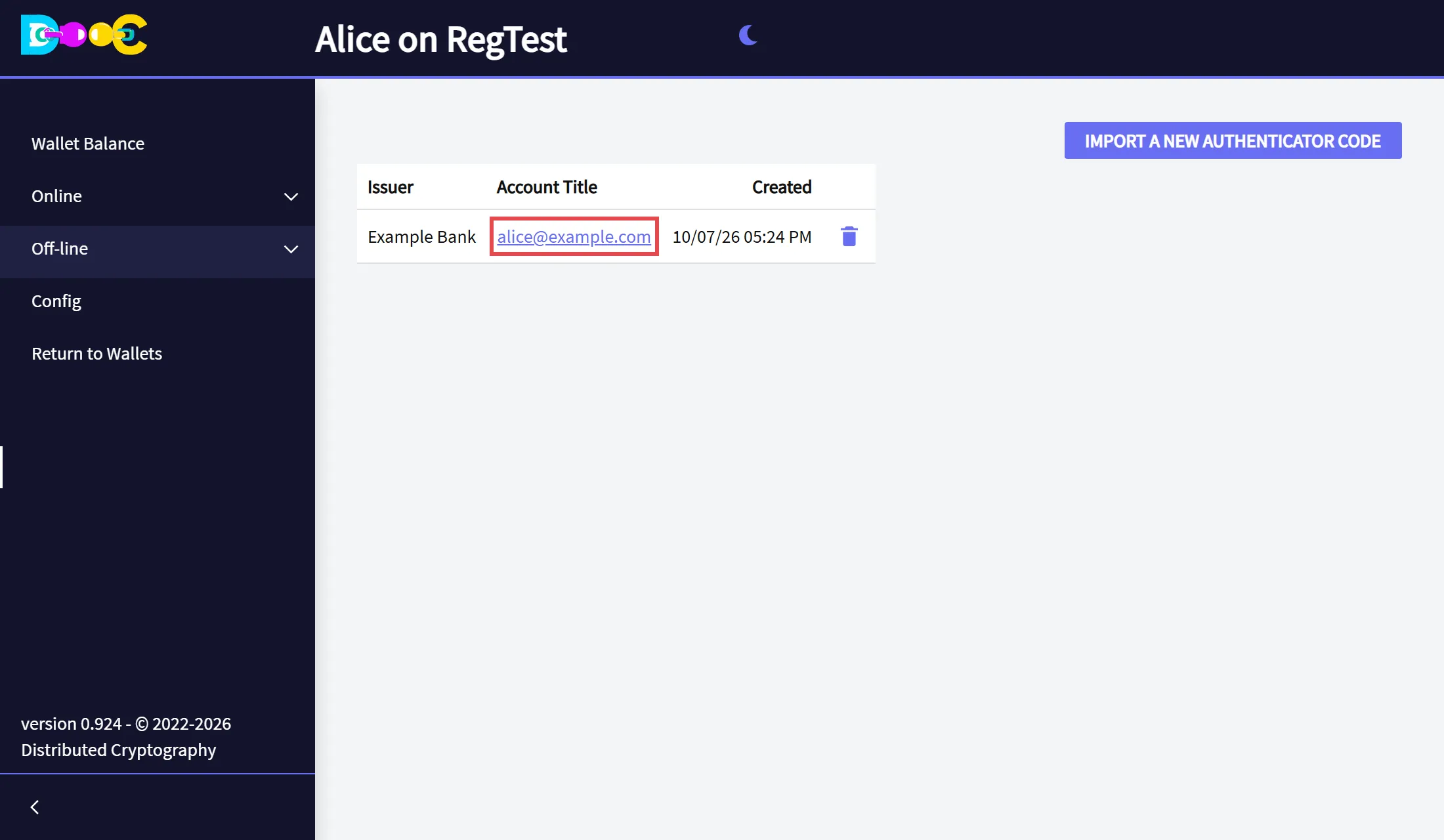
The authenticator is in the list.
Get a code
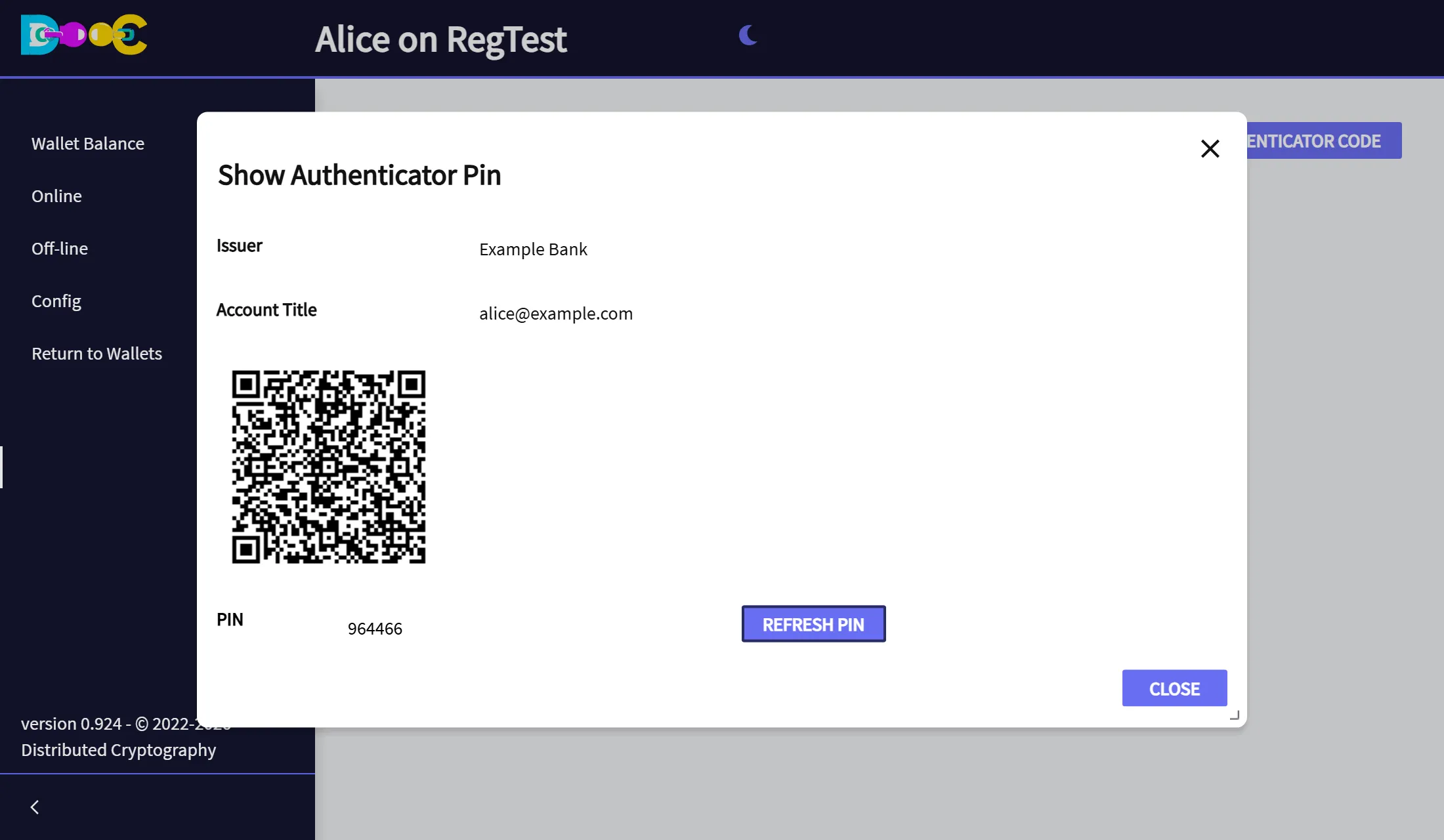
Section titled “Get a code”Click the account title in the list. The window shows the current PIN. A code is valid for a short time: click Refresh PIN to get the current one.
Put an authenticator on a new phone
Section titled “Put an authenticator on a new phone”The same window shows a QR code. Scan it with the authenticator app of the new phone, and the app shows the same codes as before.
Delete an authenticator
Section titled “Delete an authenticator”Click the trash can on its row and confirm.
Good to know
Section titled “Good to know”- Whoever has the key can produce the codes. That is why it is kept encrypted, in your wallet folder.
- This list is separate from the based32 Key of an entry in Encrypted Passwords. Use whichever you find more convenient.
- Include your wallet folder in your backups.