
Consensus Backup
A Consensus Backup lets people you trust restore your wallet, but only if enough of them agree. In the app this type of group is called Wallet Backup.
Your wallet secret is cut into pieces called shares. Each member has one or more votes (shares), and a minimum number of votes is needed to put the secret back together. With fewer votes nothing can be learned about it. Nobody can restore your wallet alone, and you do not depend on any single person either.
Example: you give one vote each to five people and set the minimum to three. Any three of them can restore your wallet. Two cannot.
In this guide Alice backs up her wallet with Bob and Carol: one vote each, minimum two.
Before you start
Section titled “Before you start”1. Create the group (owner)
Section titled “1. Create the group (owner)”-
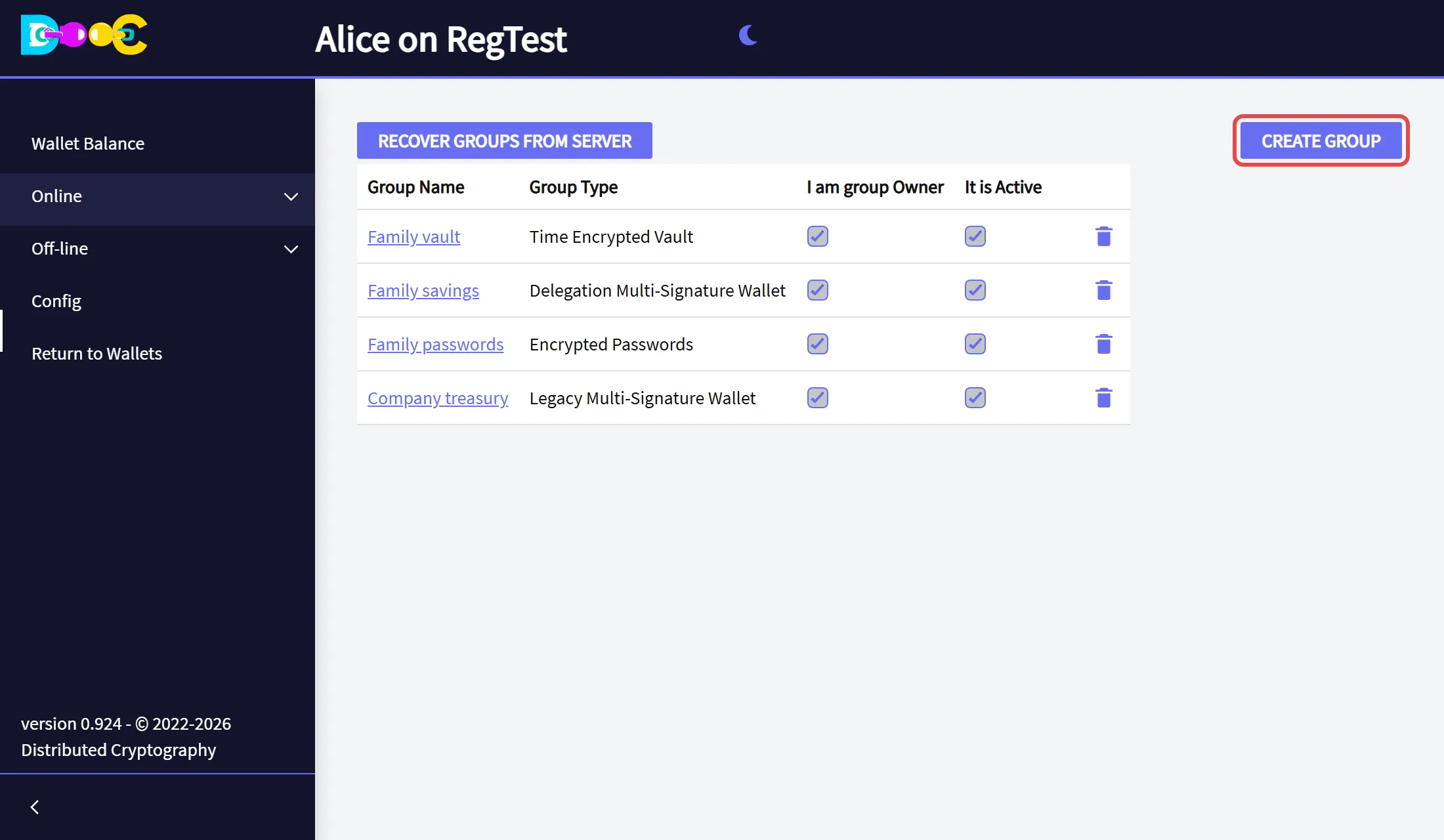
Open Online → Smart Groups and click Create Group.
-
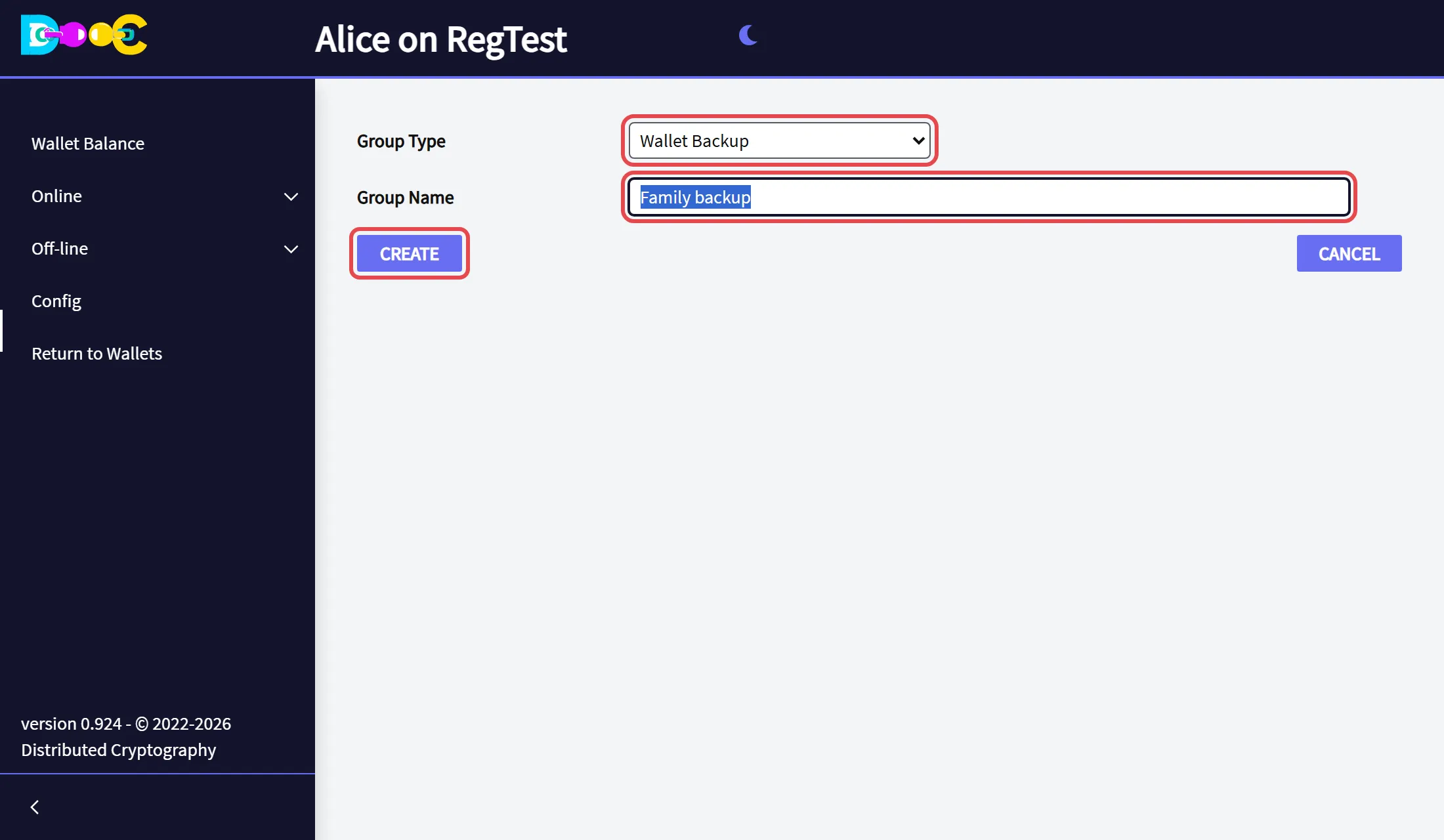
Choose the group type Wallet Backup, type a name for the group and click Create.
-
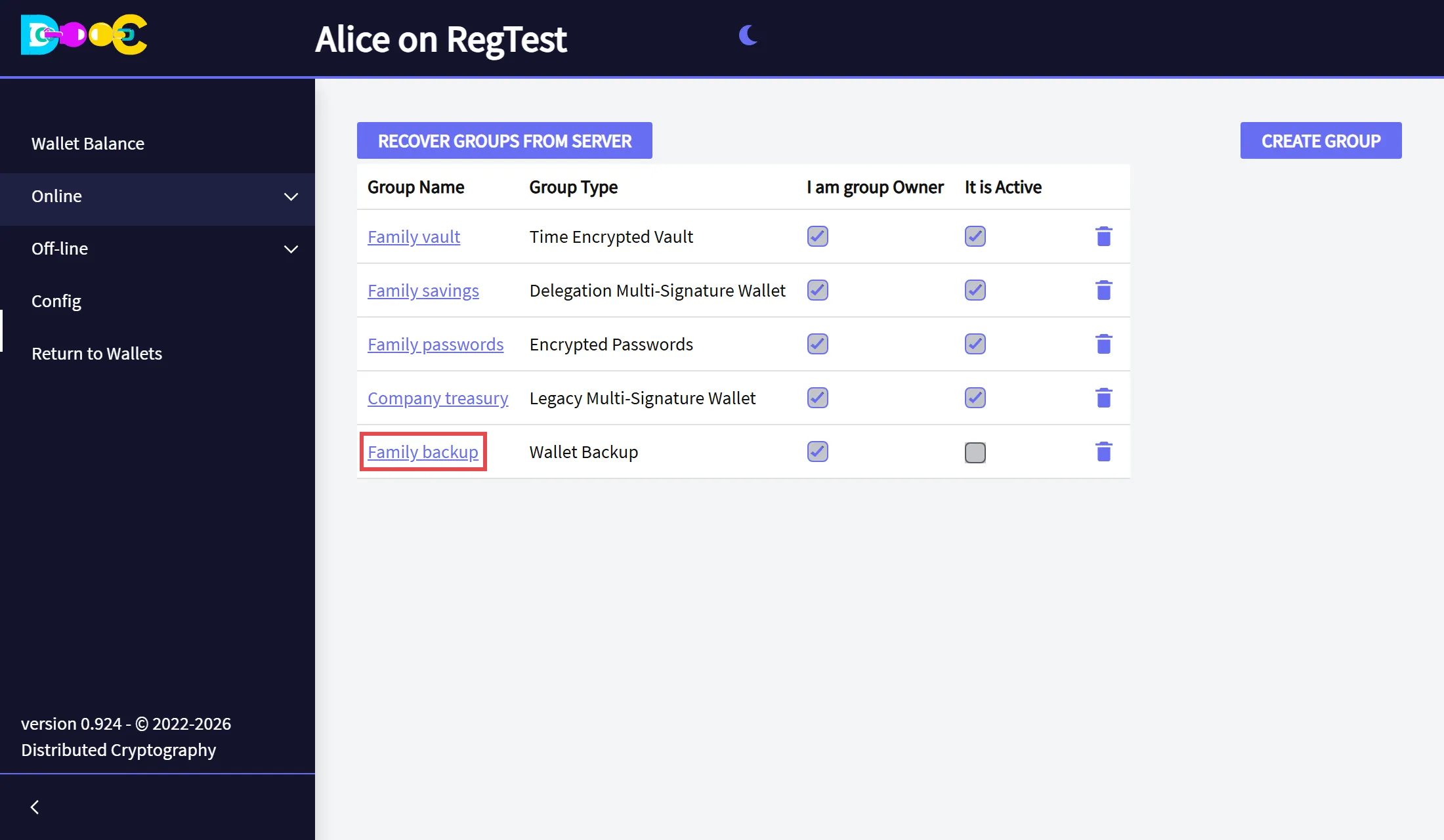
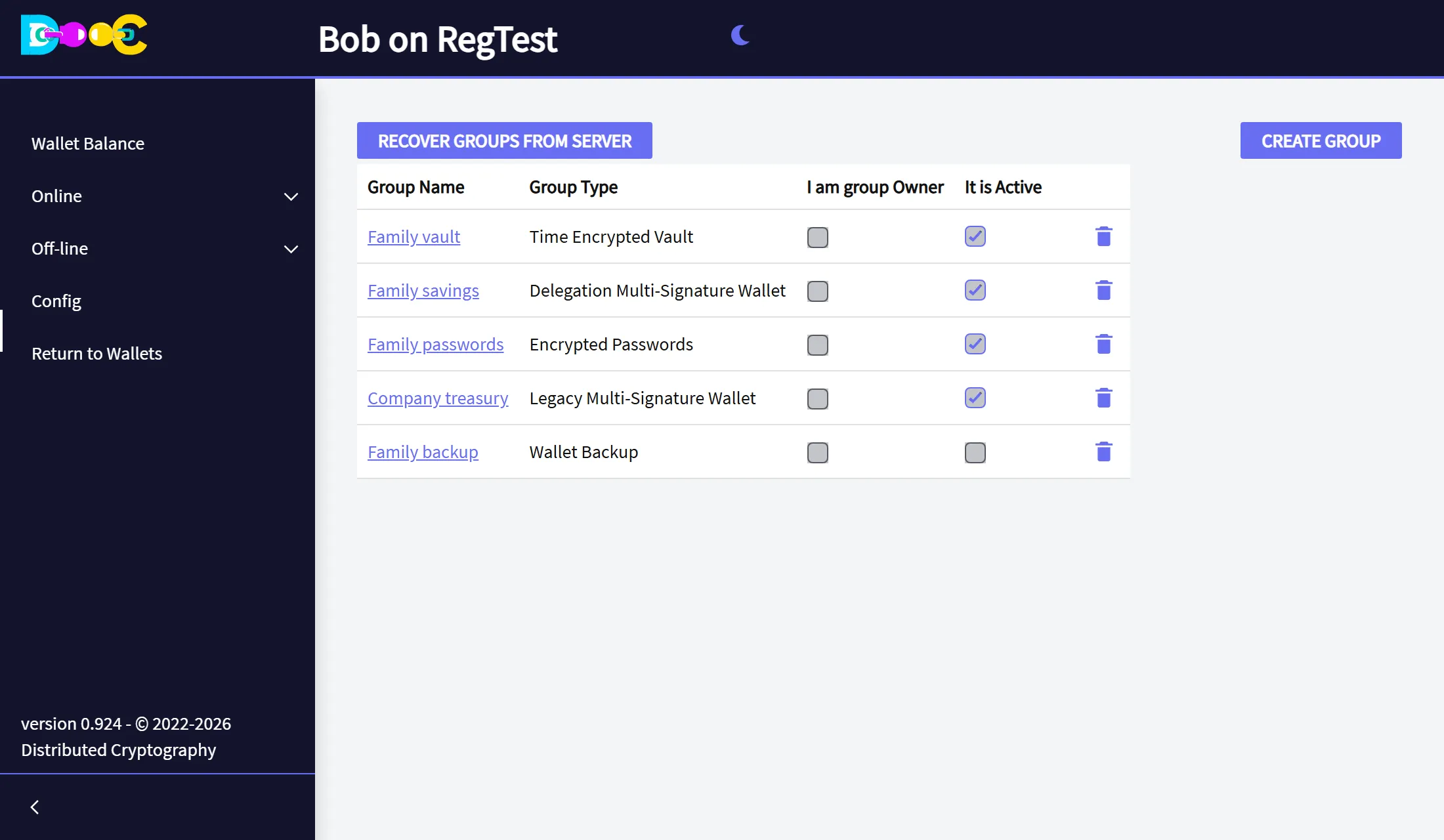
The group is in your list. Click its name to open it.
2. Add the members and invite them (owner)
Section titled “2. Add the members and invite them (owner)”-
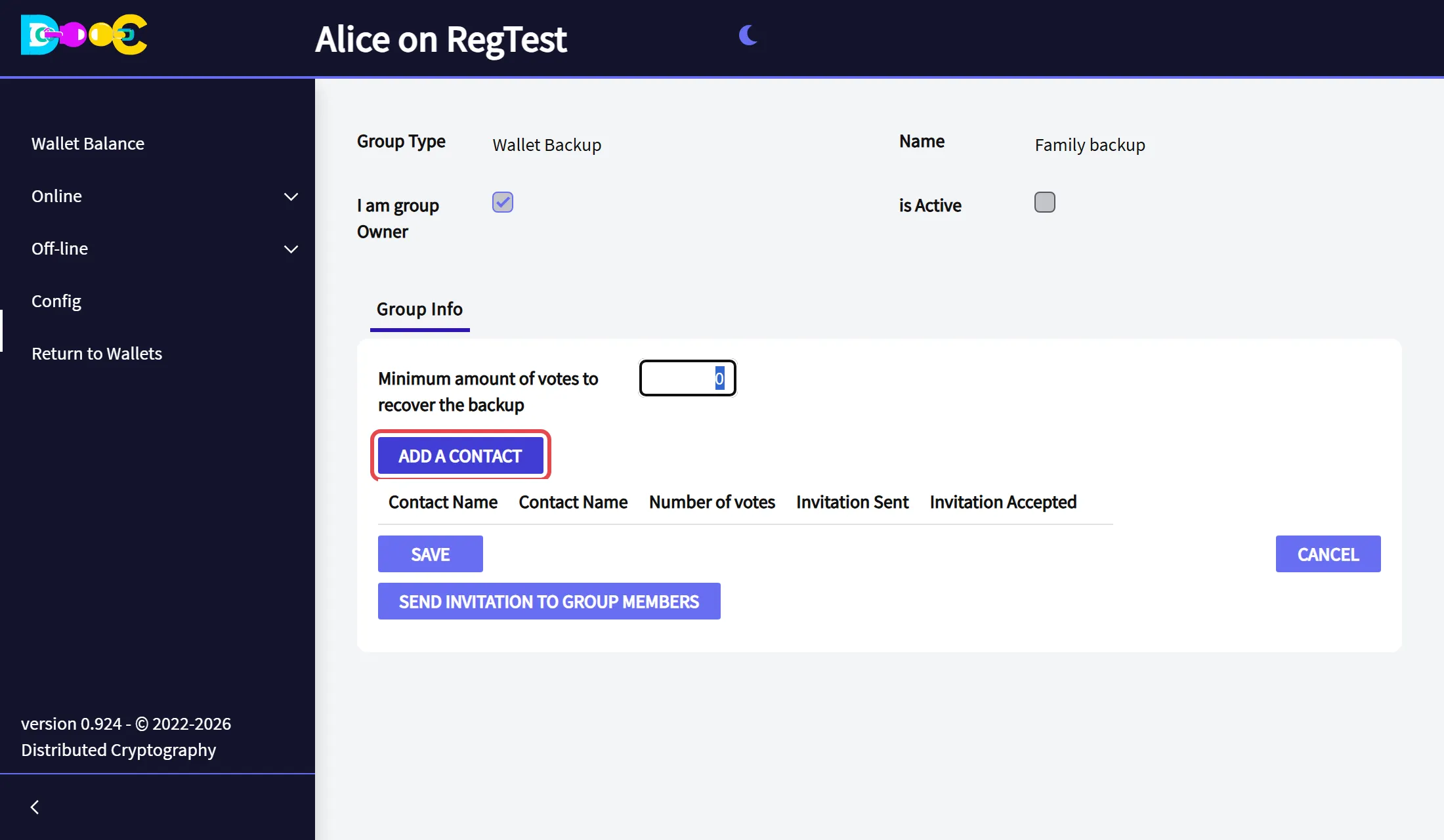
Click Add a contact.
-
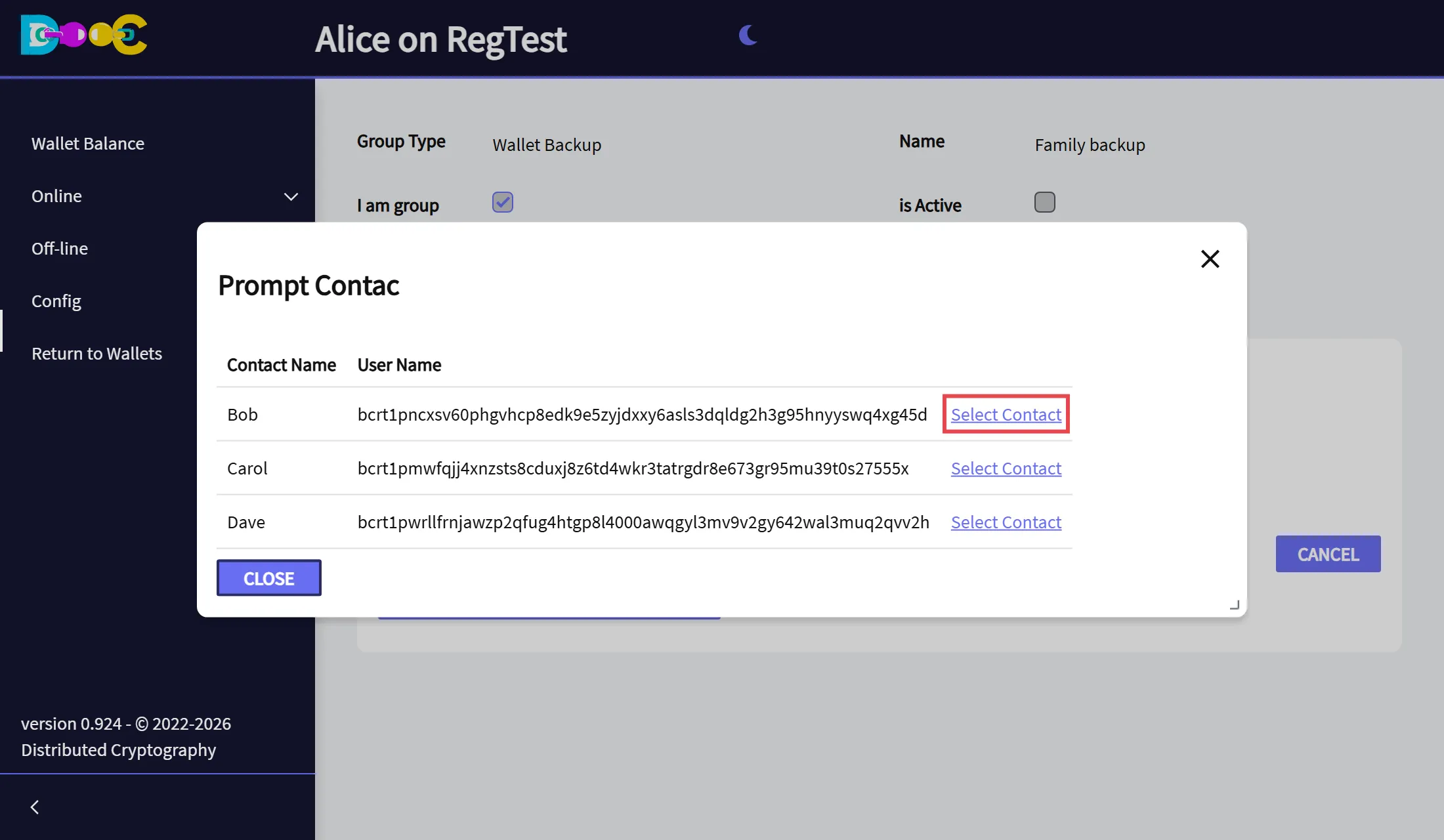
Click Select Contact next to the person. Repeat Add a contact for each member.
-
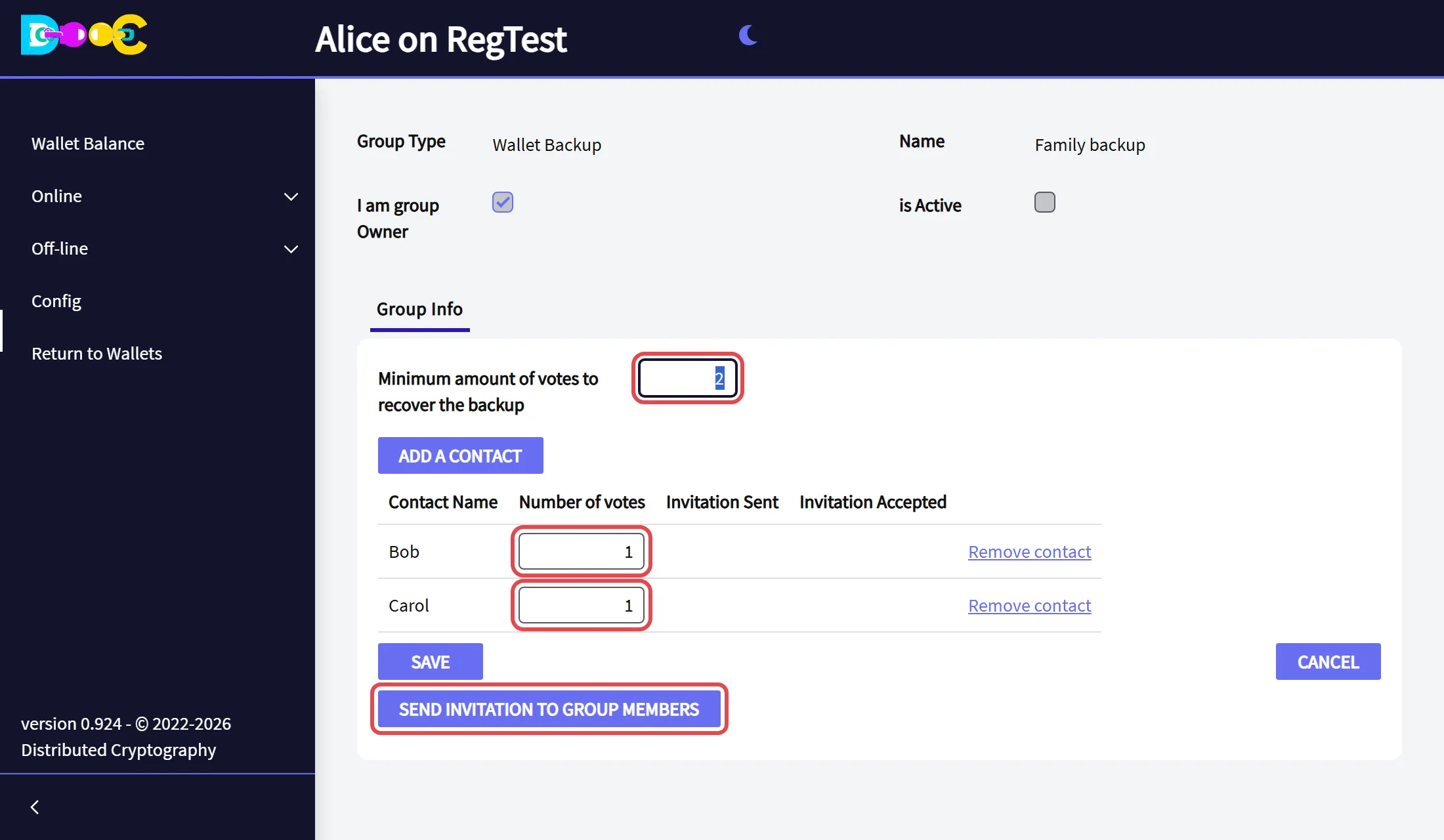
Set the number of votes of each member, and the minimum amount of votes to recover the backup. The minimum must be more than one. A member with more votes has more weight.
Then click Send invitation to group members.
-
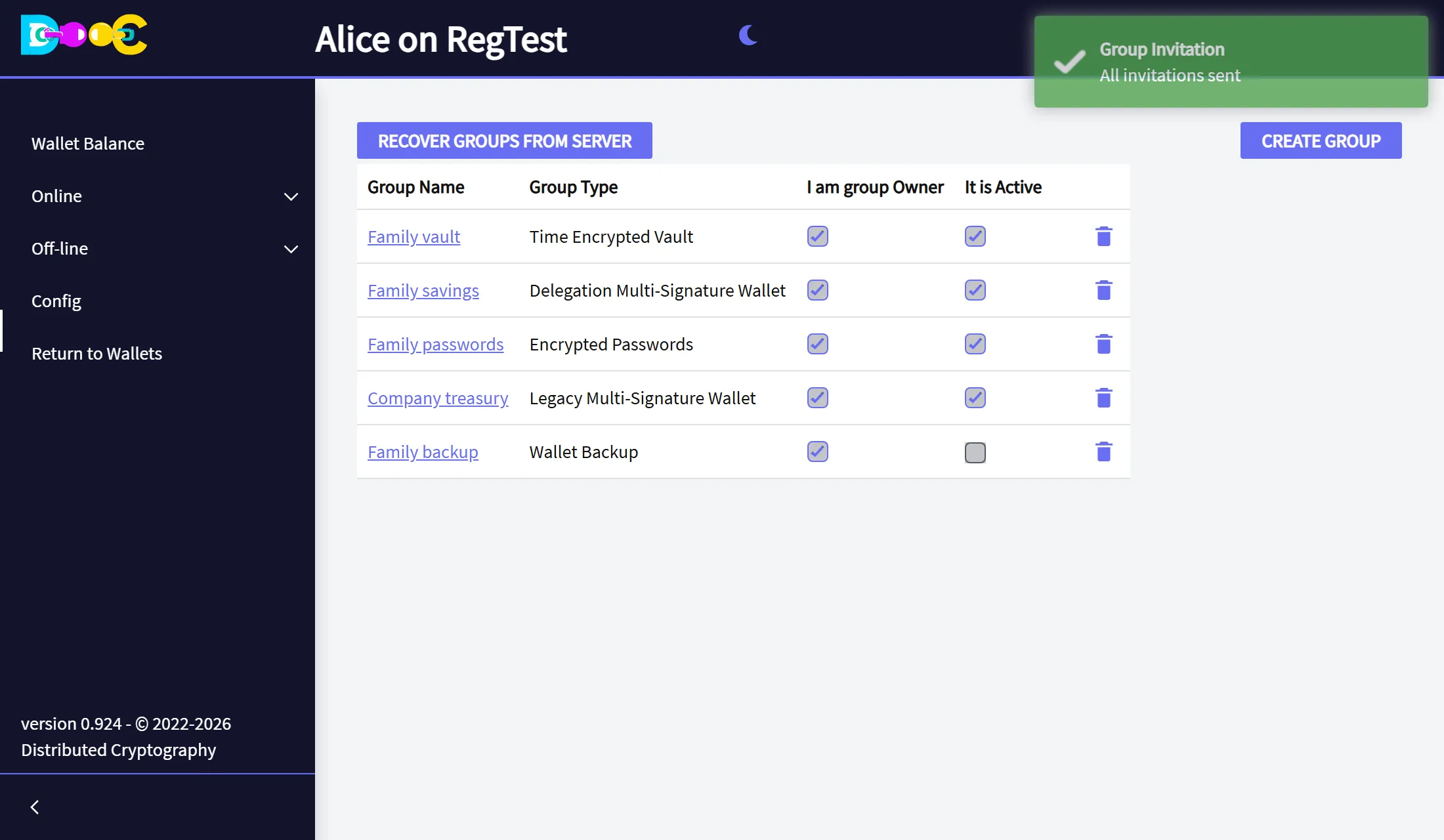
The app shows All invitations sent.
3. Accept the invitation (each member)
Section titled “3. Accept the invitation (each member)”-
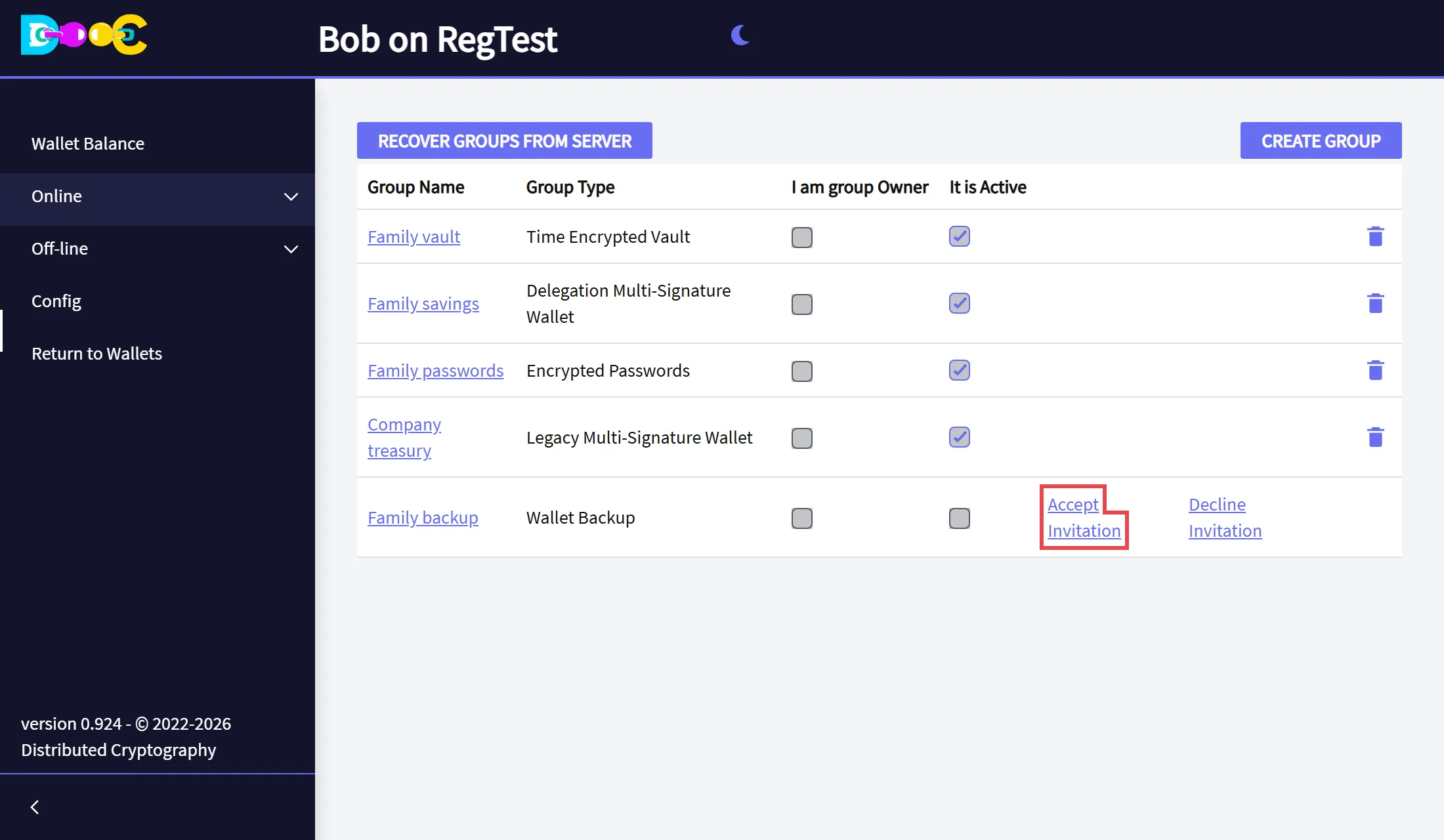
Open your wallet and open Online → Smart Groups. The group is in your list. Click Accept Invitation.
-
The group stays in your list. It is not active yet: the owner has to activate it.
Invitations arrive when the member opens their wallet. If the group is not in the list yet, go back to the wallets page and open the wallet again a little later.
4. Activate the group (owner)
Section titled “4. Activate the group (owner)”-
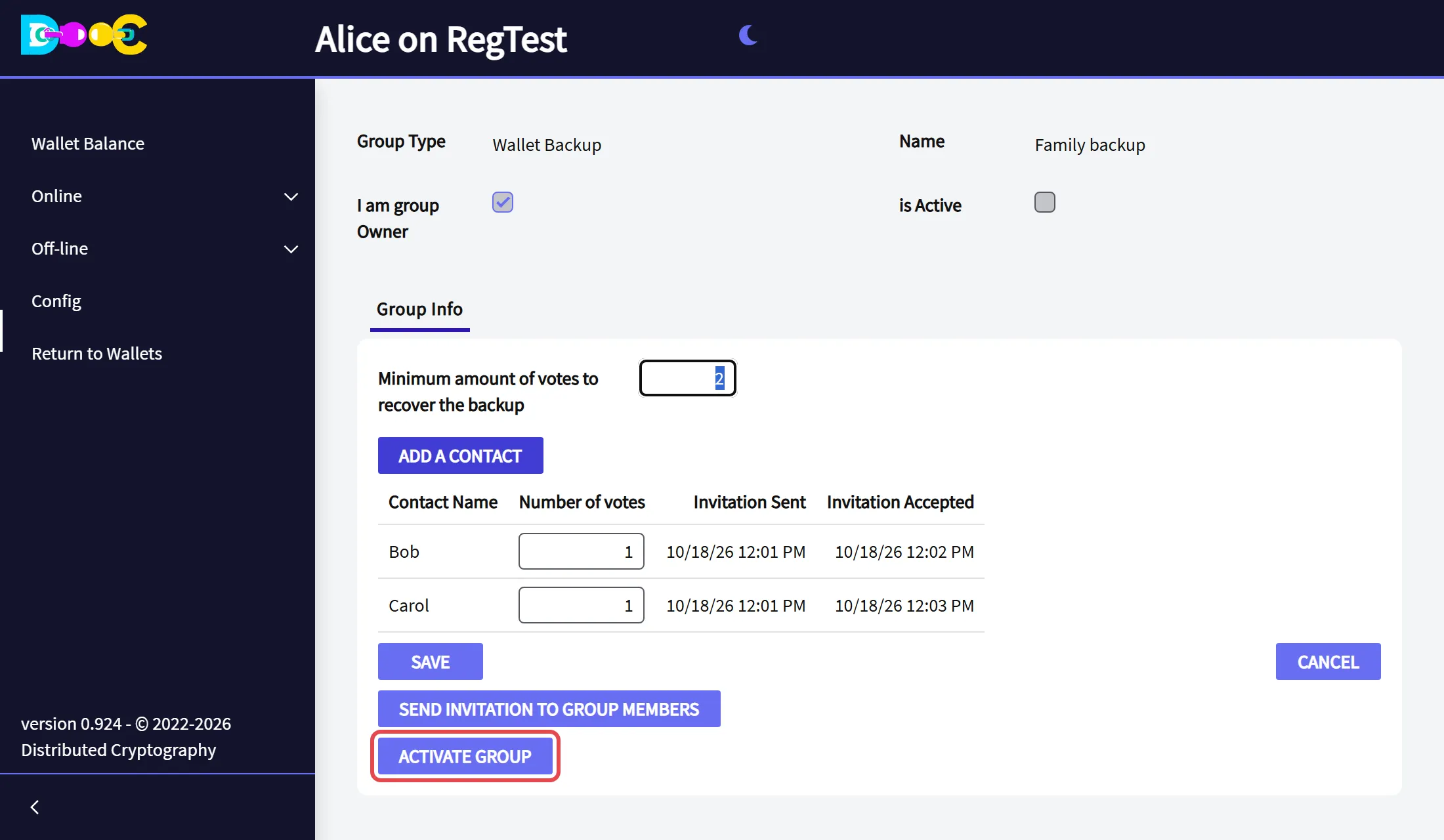
Open the group again. When every member has accepted, the list shows the date each one accepted and the button Activate Group appears. Click it.
-
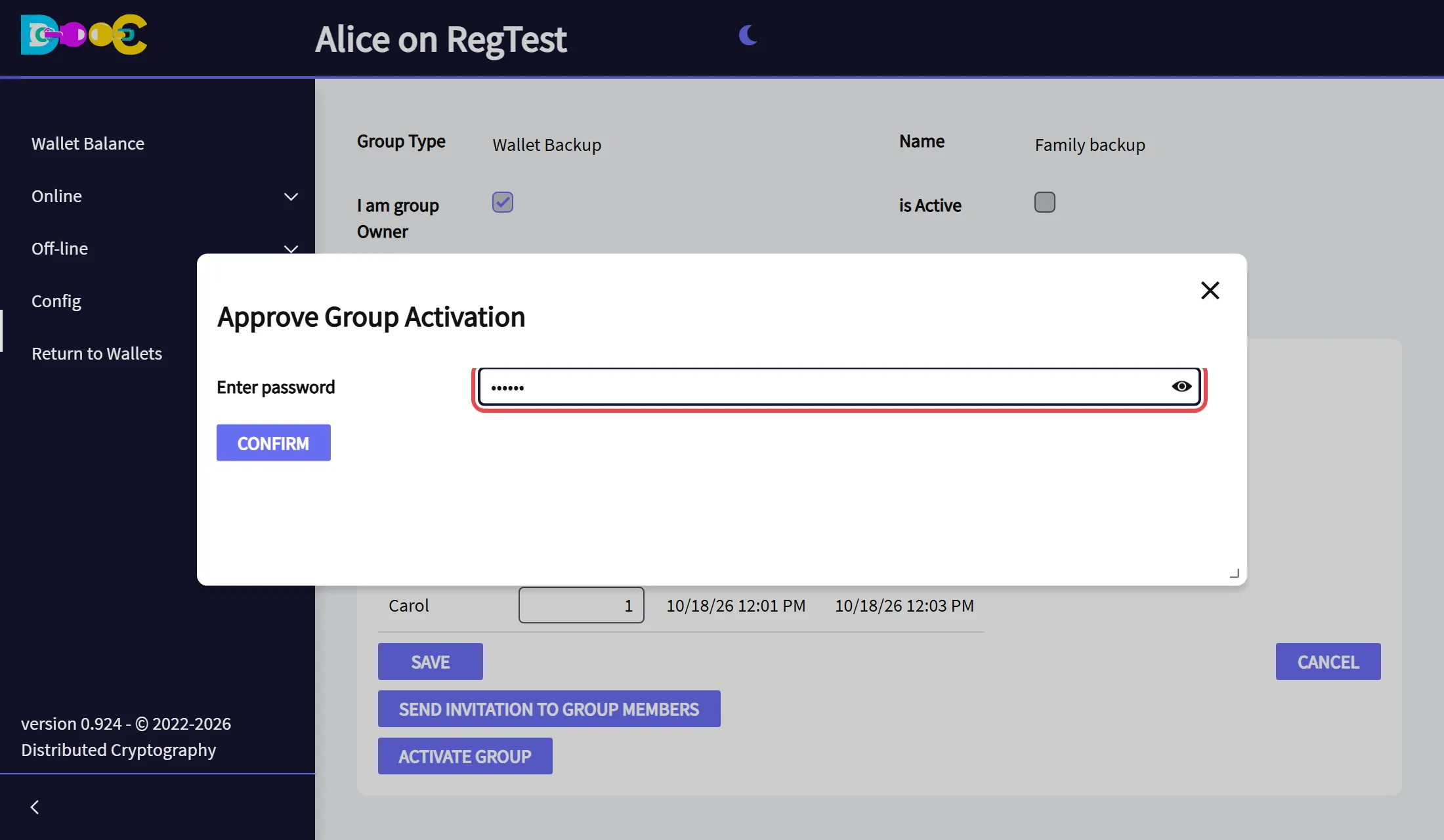
Type your wallet password and click Confirm.
-
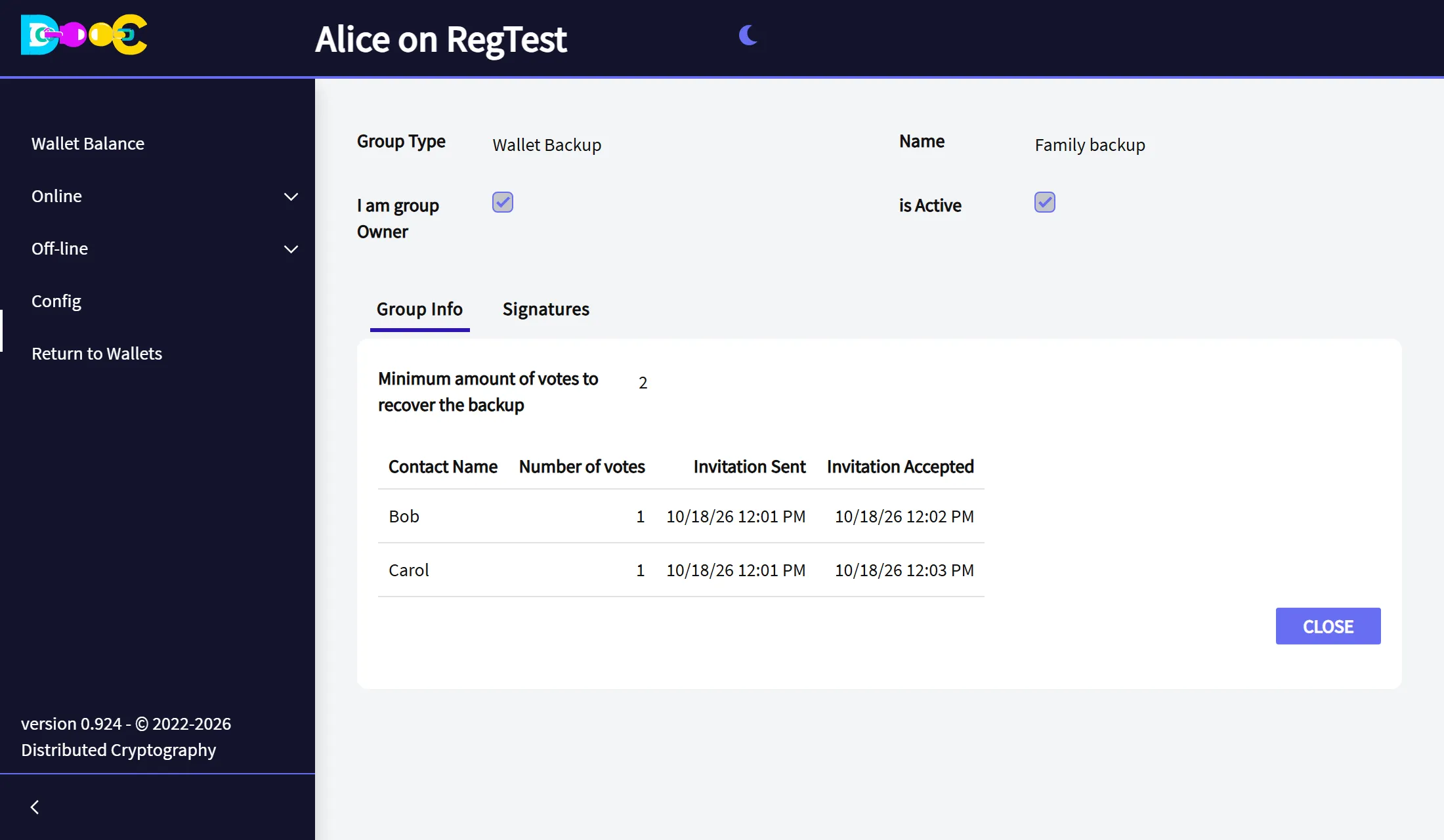
The group is now active, and it has a second tab, Signatures.
On activation your wallet secret is split on your computer. Each member’s shares are encrypted for that member before they leave it. Not even we can read them.
Restore the wallet (members)
Section titled “Restore the wallet (members)”-
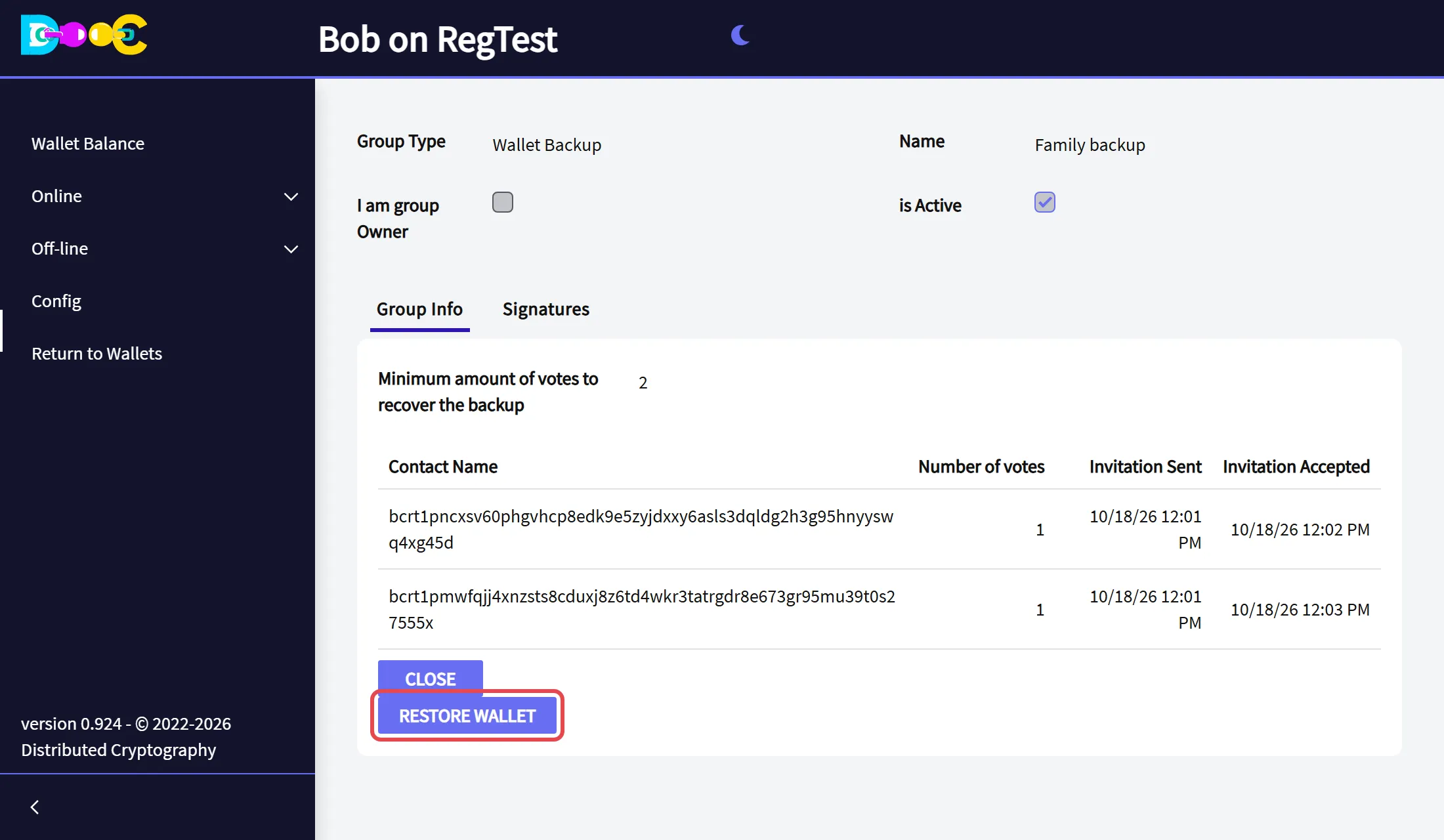
Each member who takes part opens the group in their own wallet and clicks Restore Wallet. This “signs” the restore: it reveals that member’s shares to the other members.
-
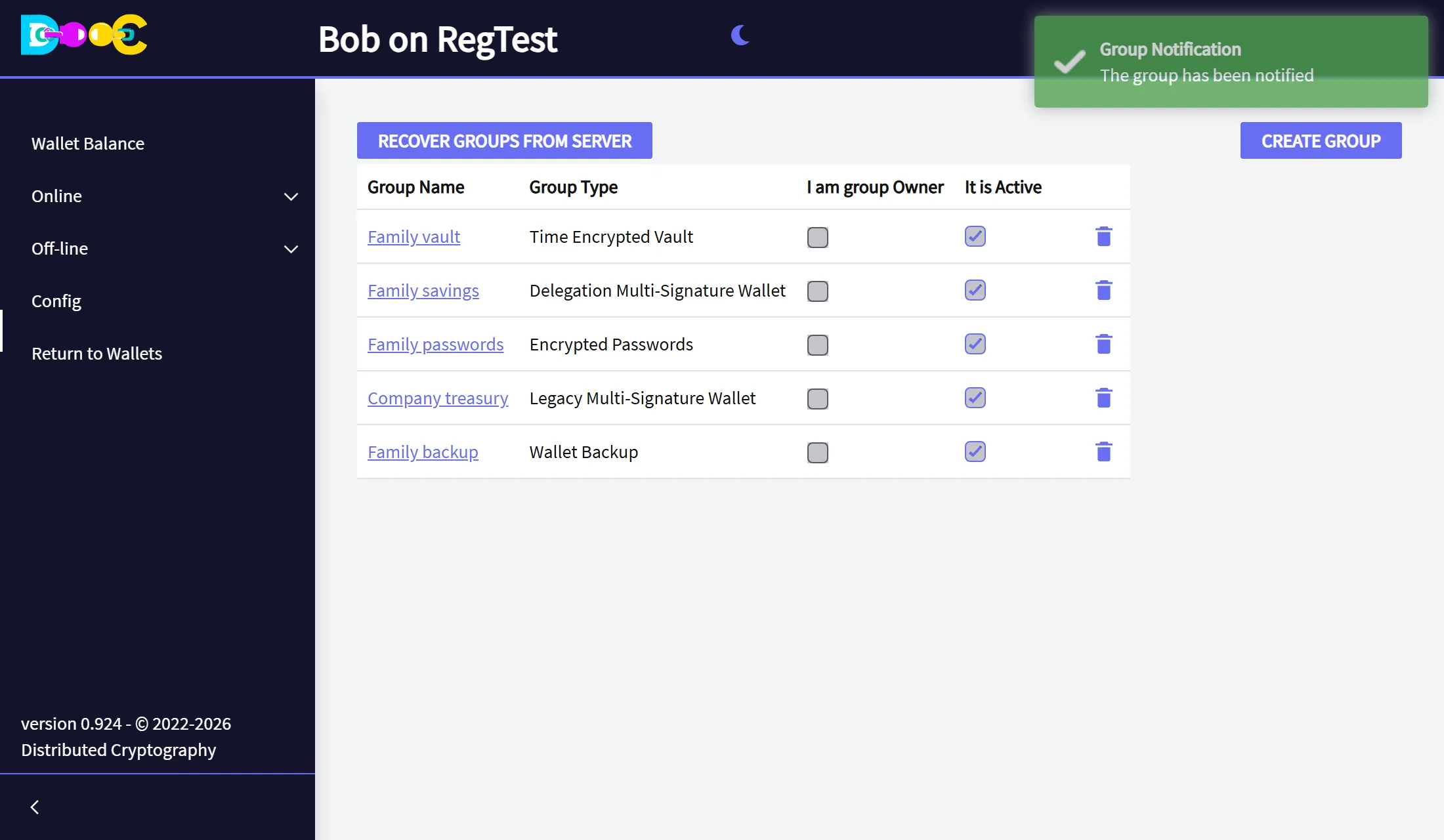
The app shows The group has been notified.
-
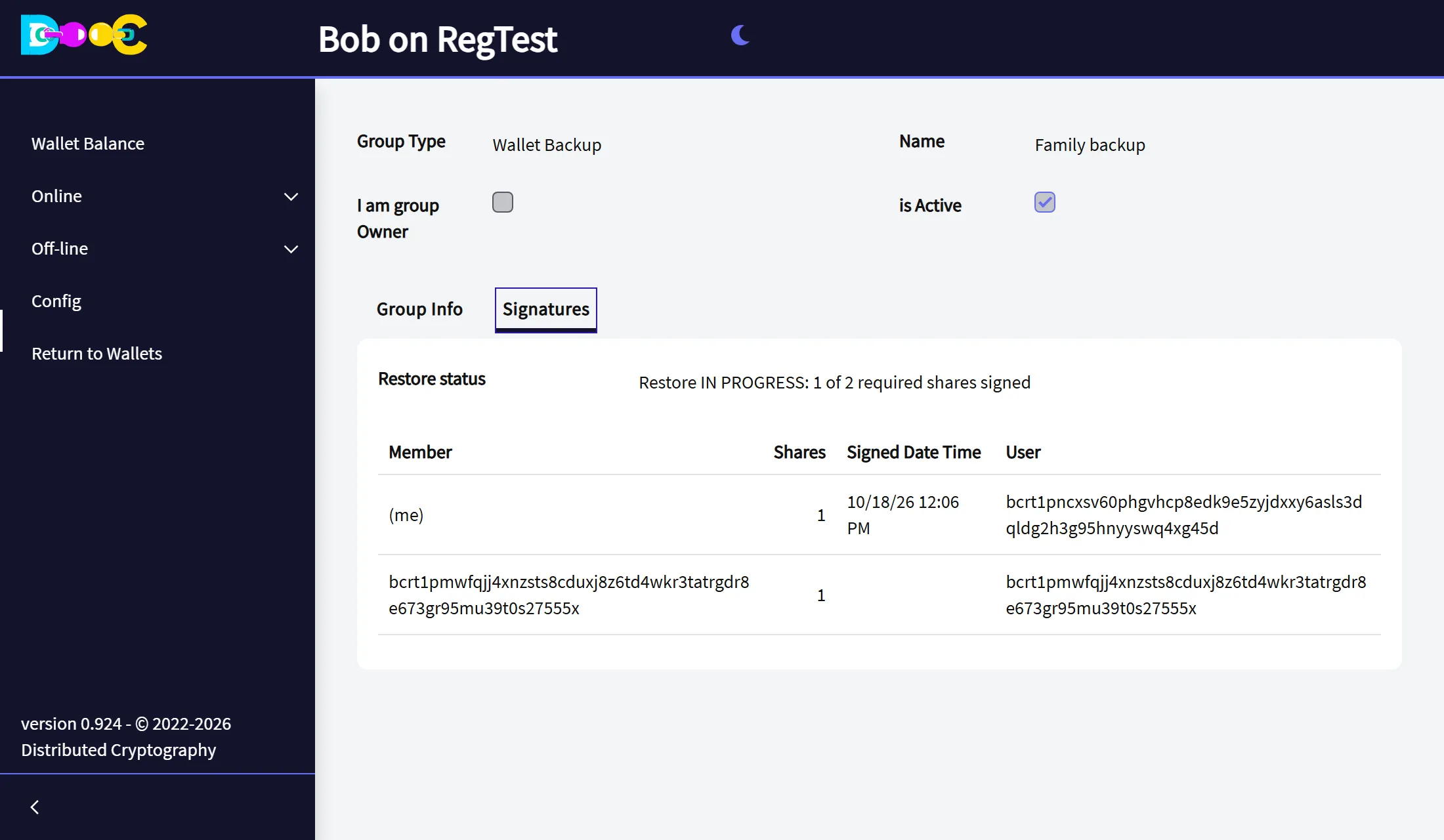
The Signatures tab of the group shows how far the restore is: here, 1 of 2 required shares signed.
-
When the minimum has been reached, the button Create recovered wallet appears. A member clicks it, types a name and a new password, and the wallet is restored on that member’s computer.
You stay in control: the Signatures tab (owner)
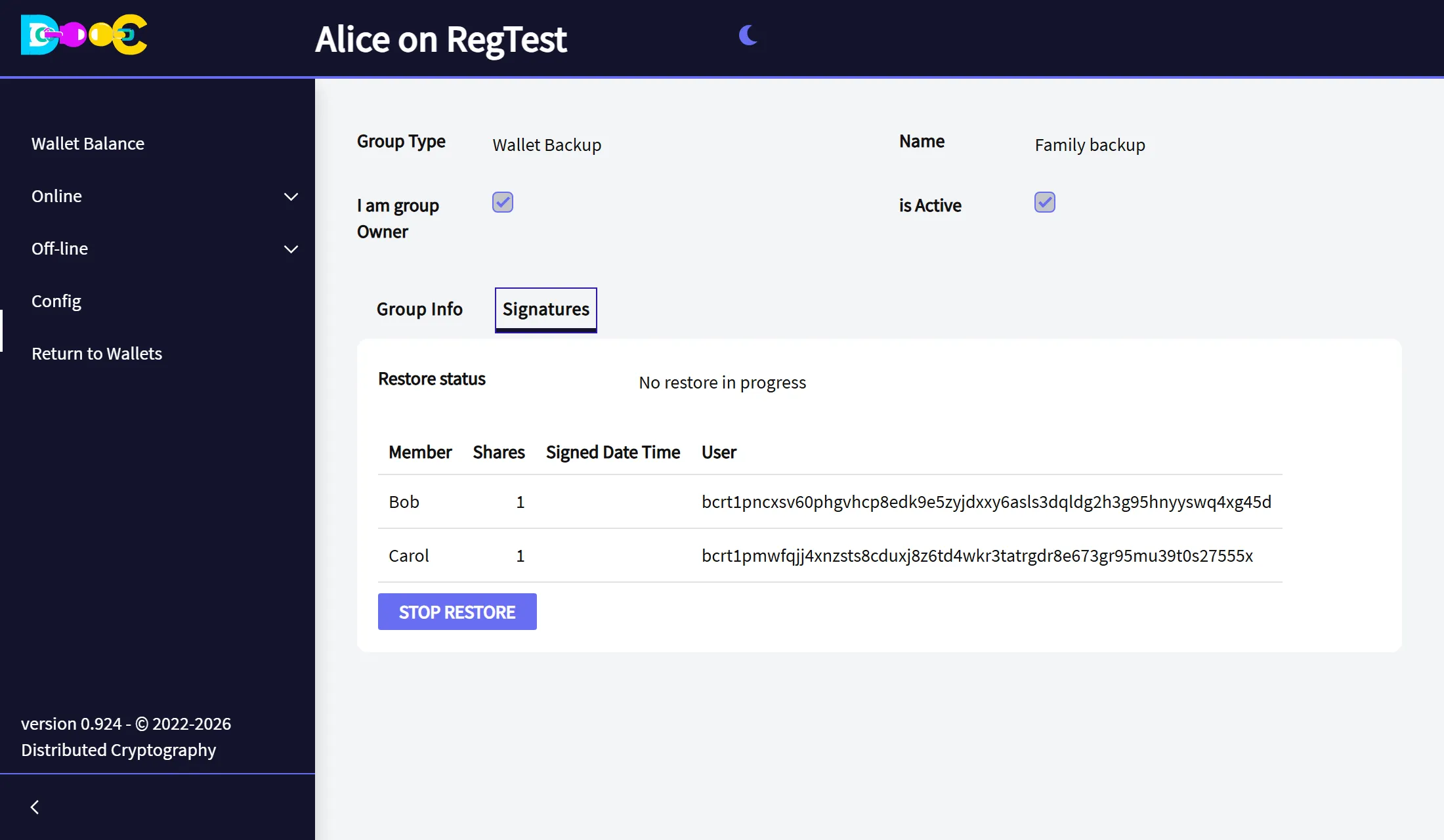
Section titled “You stay in control: the Signatures tab (owner)”The Signatures tab shows who has signed a restore and when. While nothing is happening it says No restore in progress.
As the owner you get a warning as soon as any member signs, the next time you open your wallet. The tab then shows Restore IN PROGRESS, with the member who signed and the time.
If you did not ask for the restore, click Stop Restore.
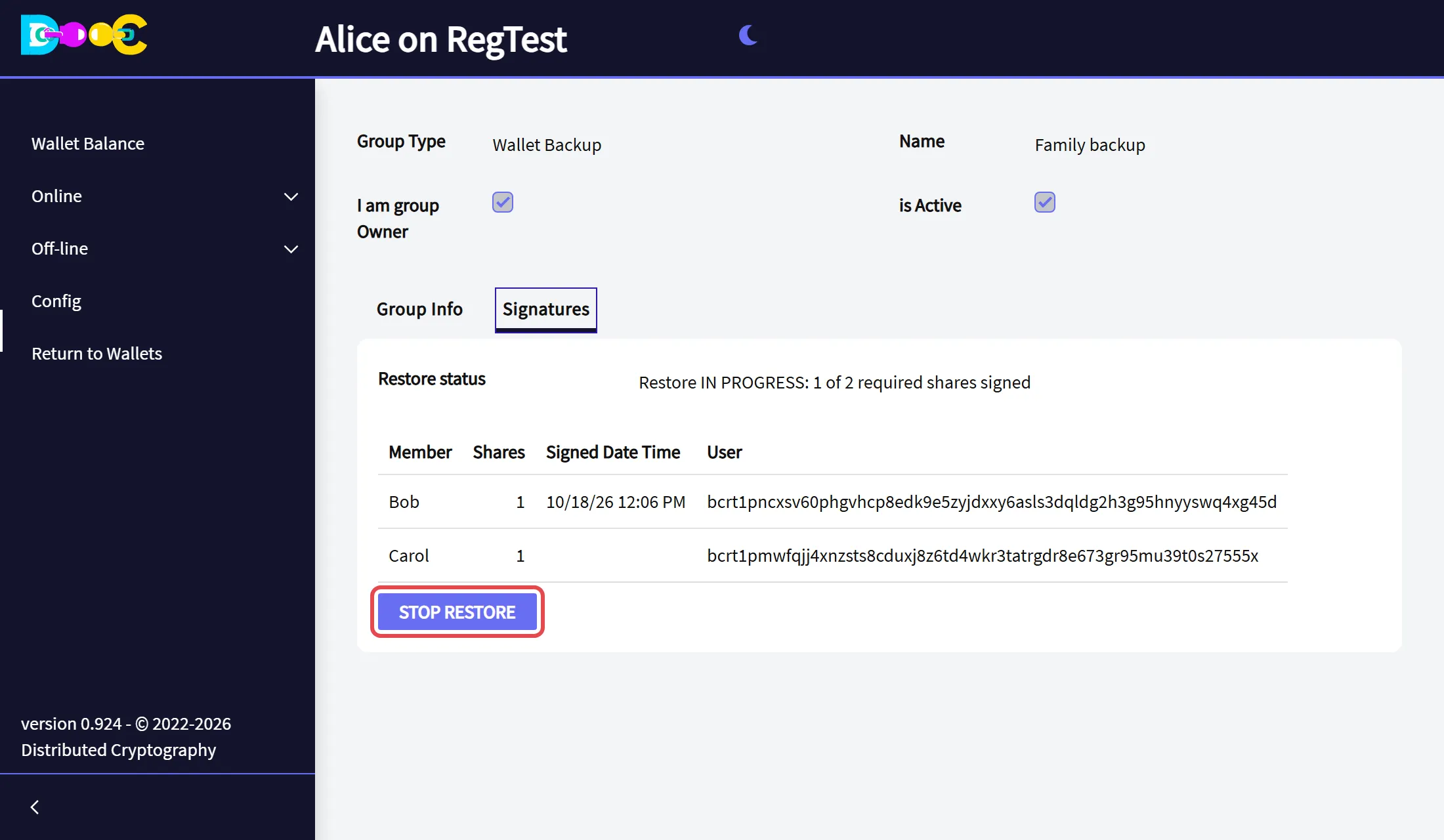
From then on members can neither sign nor create the recovered wallet, and the shares already revealed are erased. The status changes to Restore STOPPED by the owner.
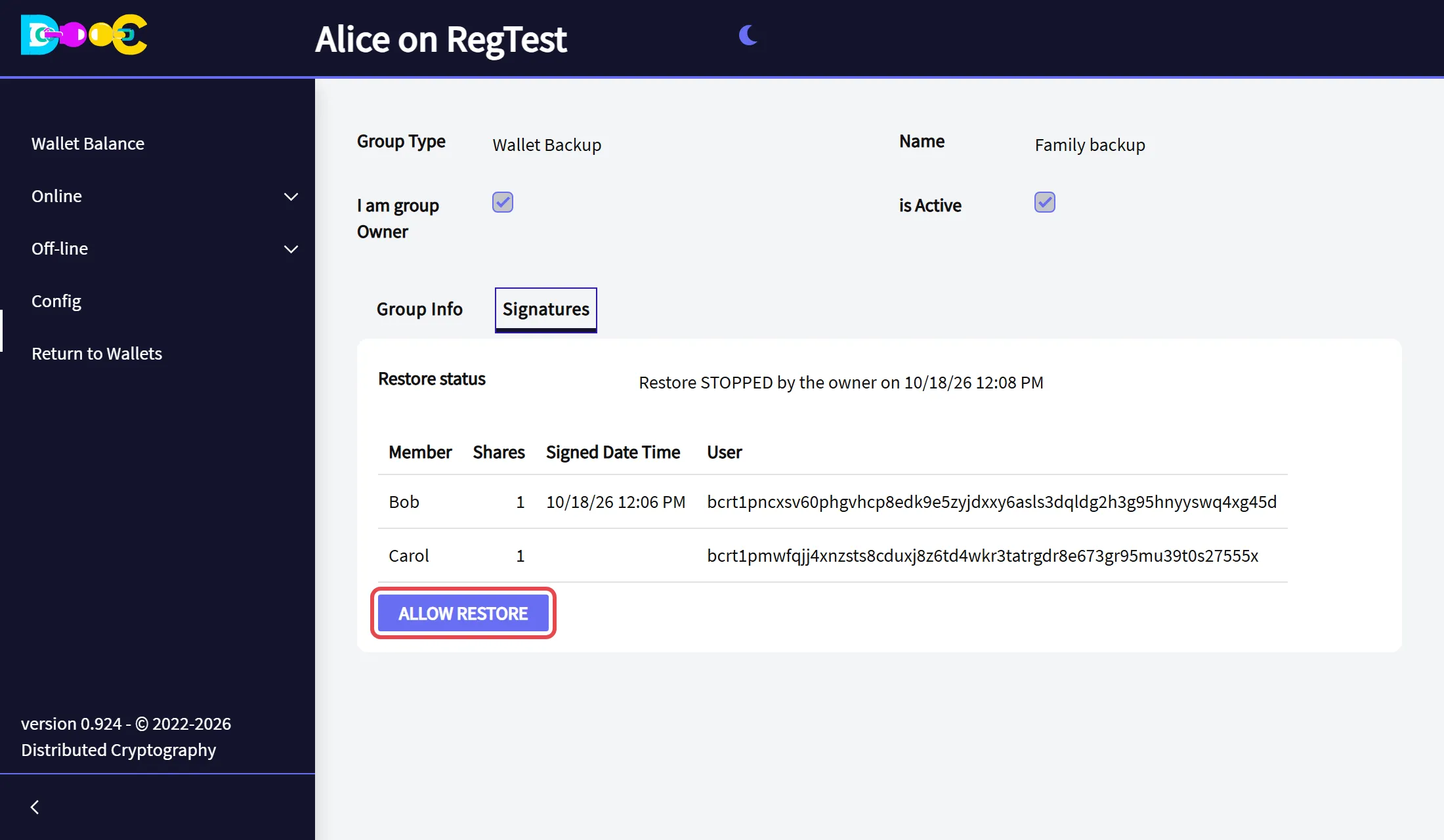
Allow Restore opens the group again and starts a new round of signatures.
What you are trusting
Section titled “What you are trusting”Be clear about what this backup means before you choose the members:
- Enough members together can restore your wallet without you. That is the purpose. Choose people you trust, and choose a minimum high enough that it takes a real agreement.
- After the minimum is reached, any member of the group can create the recovered wallet, not only the ones who signed.
- The members of a group can see the user names of the other members.
The videos were recorded with an earlier version. The pages look a little different today.
Related
Section titled “Related”- Restore a wallet
- Time-Encrypted Vault: the same idea, but the members can only restore after a date.