
Create a wallet
In the pictures, the red frame shows what to click or fill in at each step.
Create the wallet
Section titled “Create the wallet”-
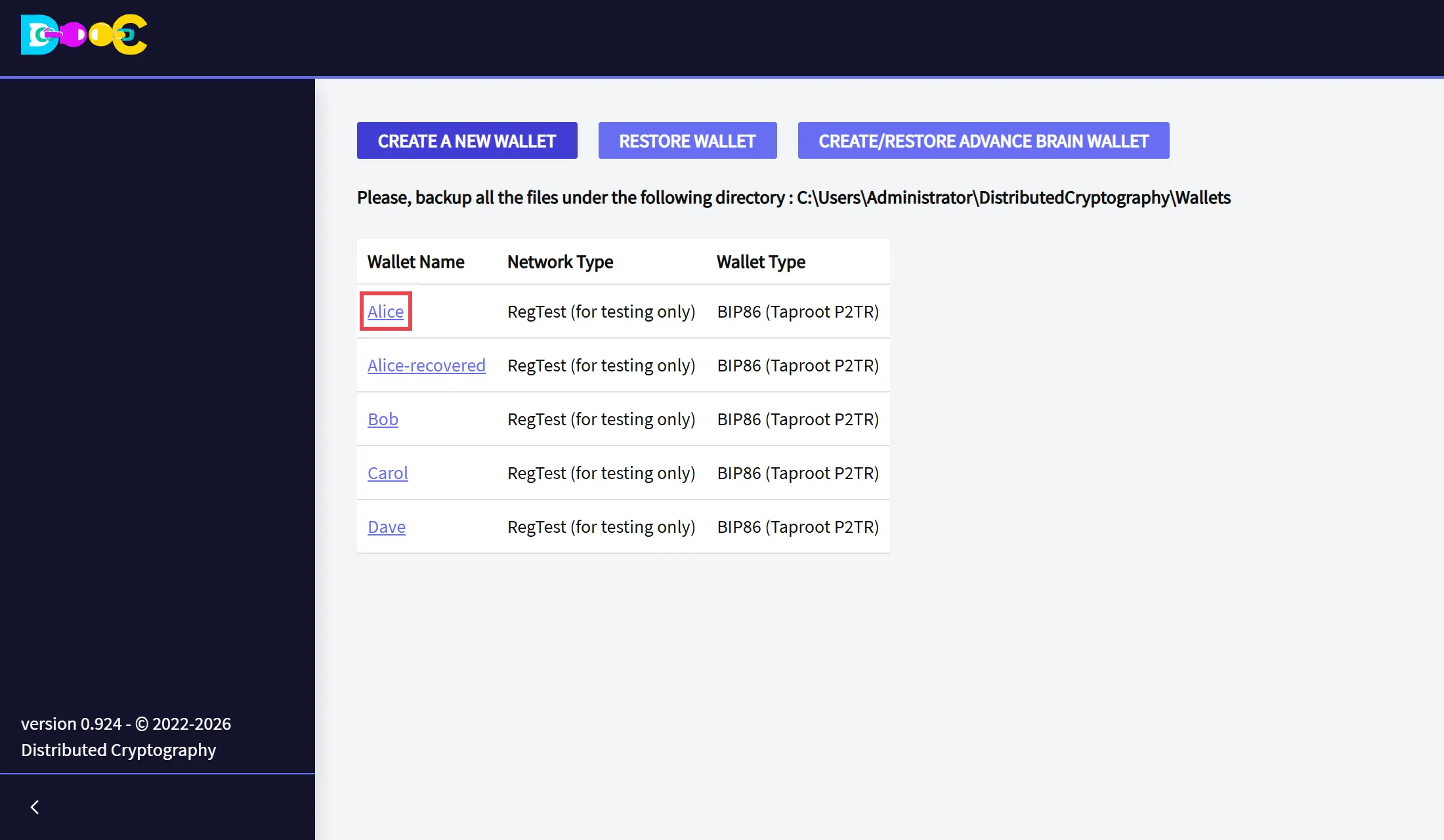
Open the application. The first page lists the wallets of this computer. Click Create a New Wallet.
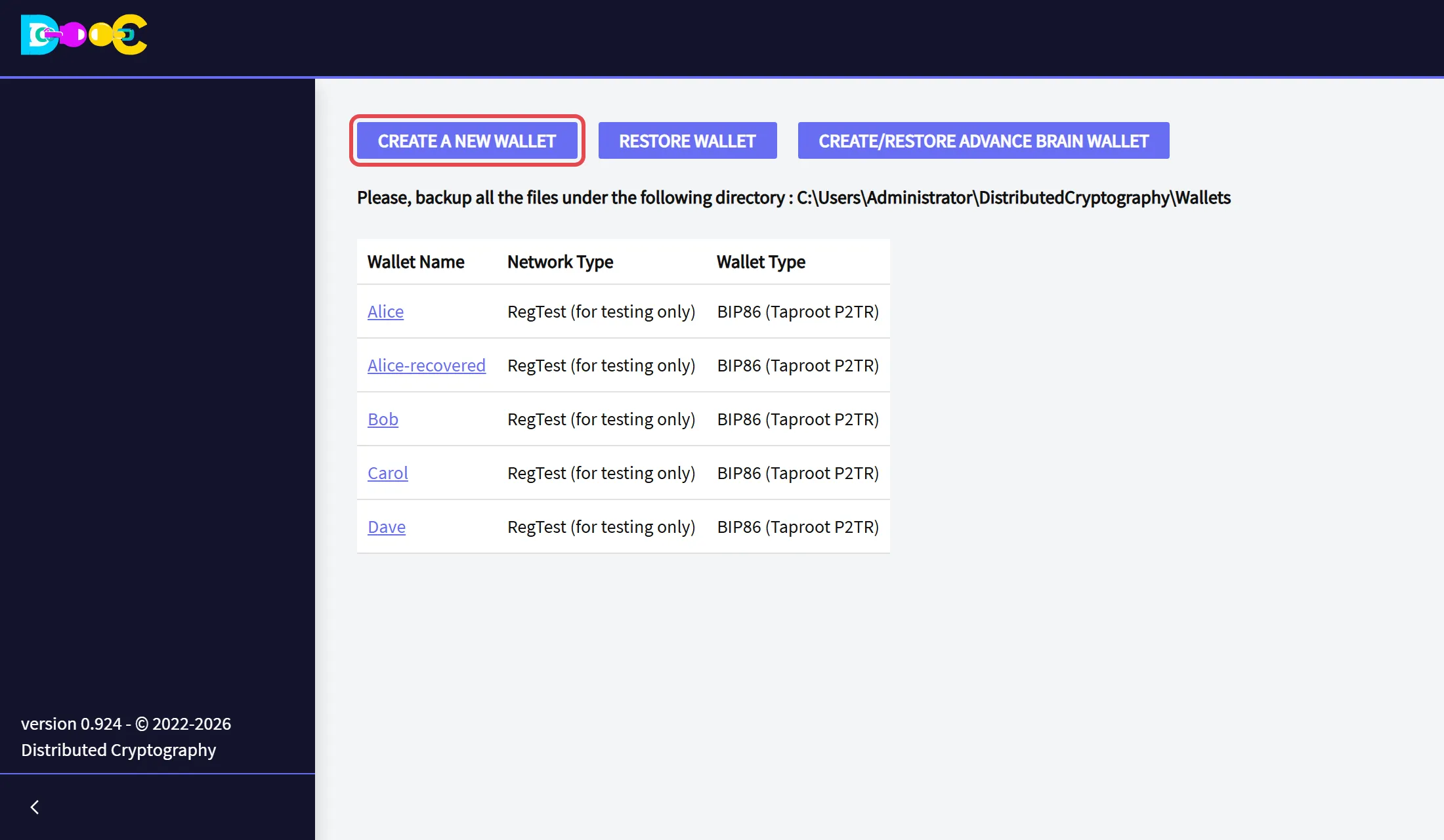
The page also shows the folder where your wallets are stored. Back it up from time to time.
-
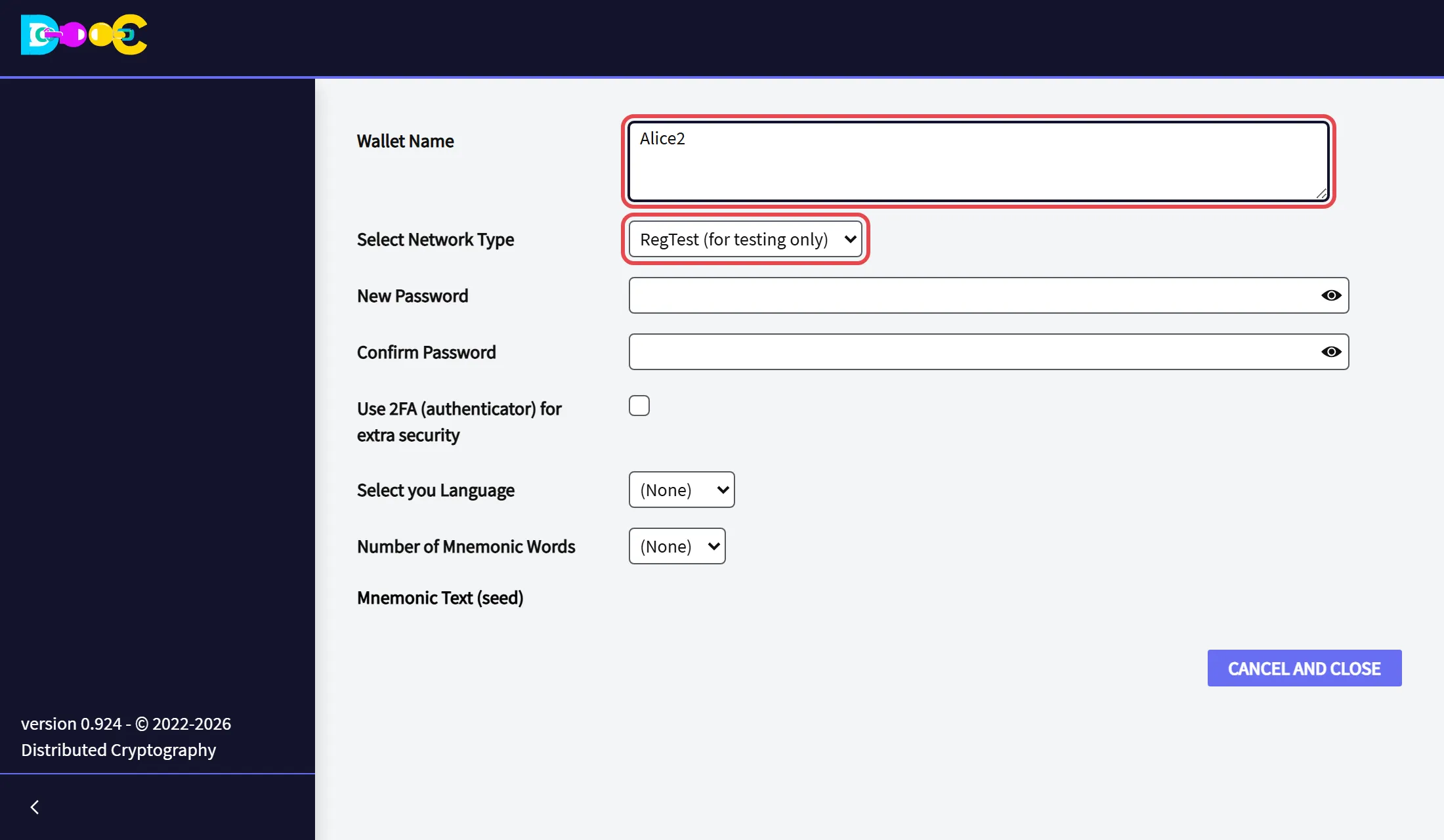
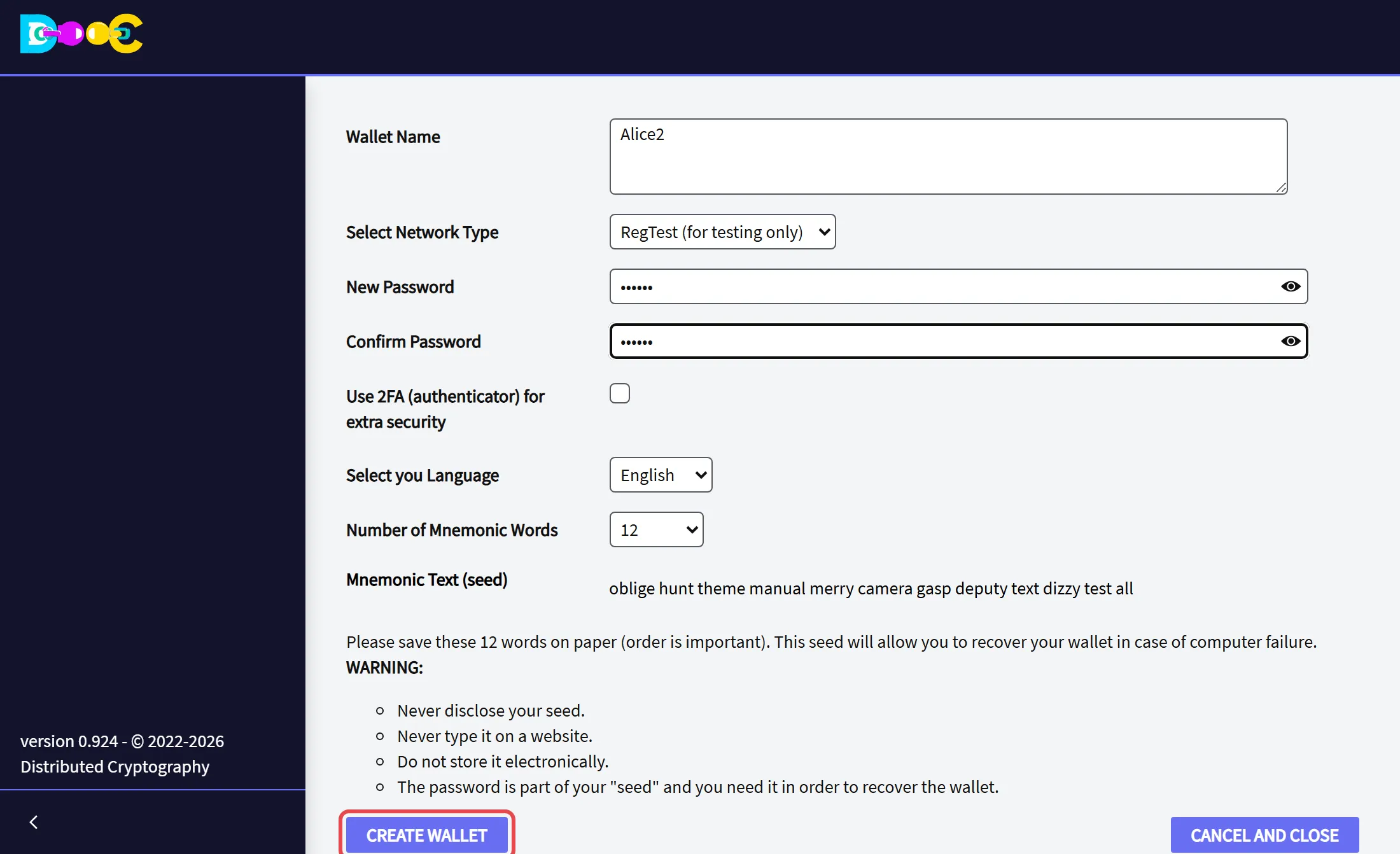
Type a name for the wallet and choose the network.
- MainNet is for real bitcoin.
- The test networks use coins that have no value. They are for trying things out; this guide uses one of them.
-
Type a strong password, twice, and choose the language of the words.
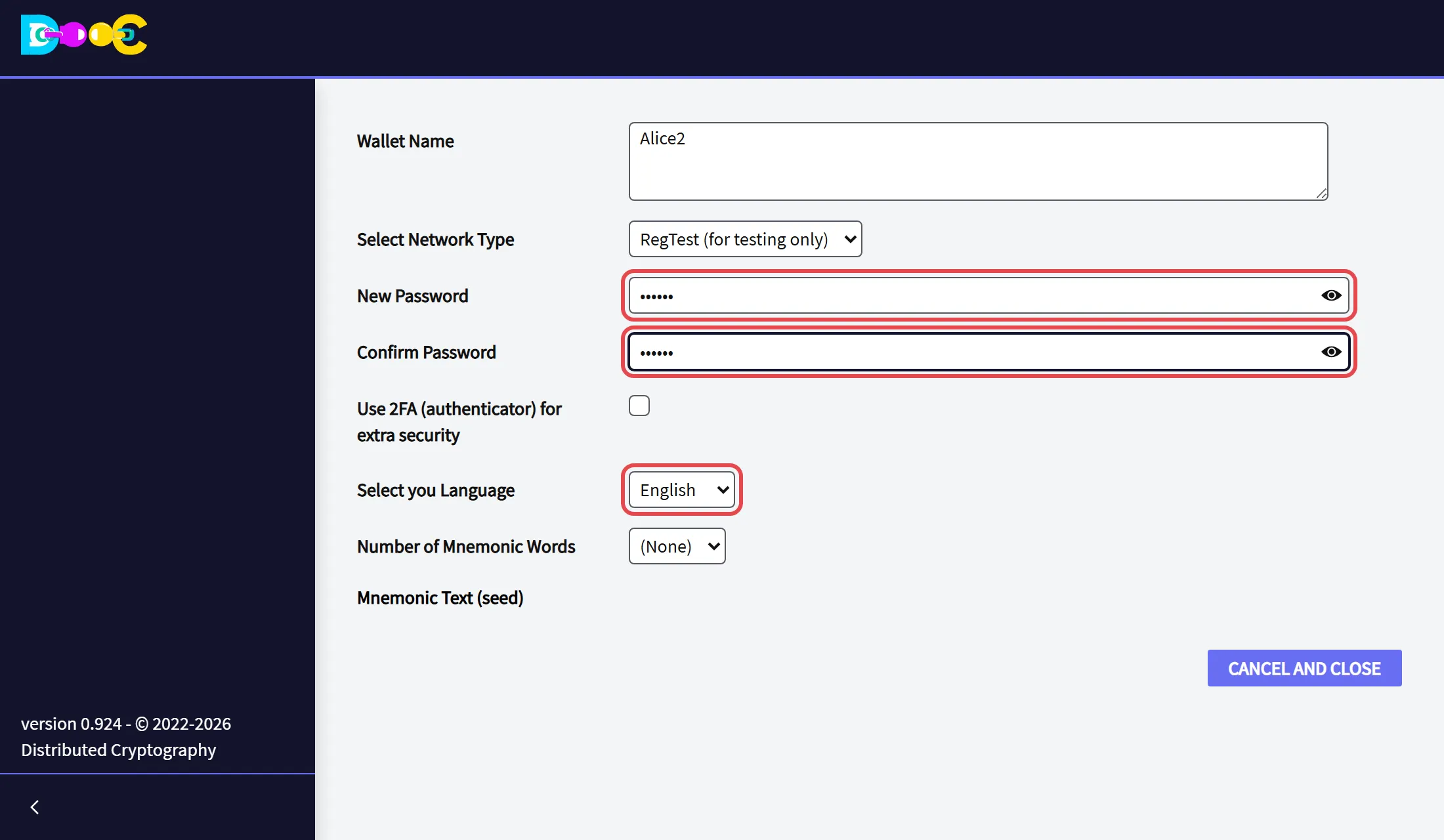
Use 2FA (authenticator) for extra security is optional: see Protect the wallet with an authenticator.
-
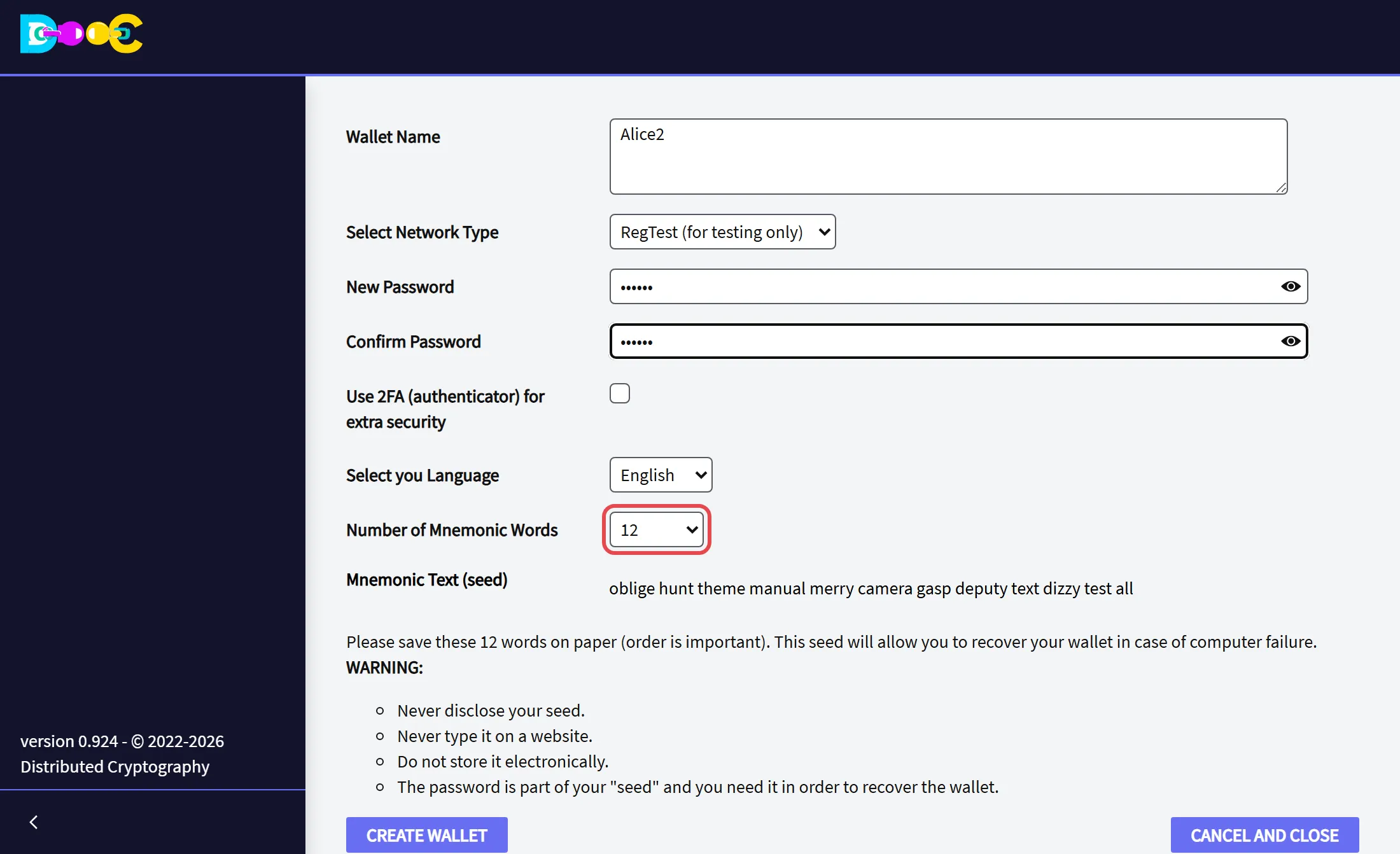
Choose the number of words (12 to 24). The wallet creates the words and shows them.
-
Write the words down on paper, in order. With them and your password you can restore the wallet if something happens to your computer.
- Never show them to anybody.
- Never type them on a web site.
- Do not keep them in a file, a photo or an e-mail.
-
Click Create Wallet. It takes a few seconds: the wallet is being encrypted with your password.
-
The new wallet appears in the list.
Open the wallet
Section titled “Open the wallet”-
Click the name of the wallet in the list.
-
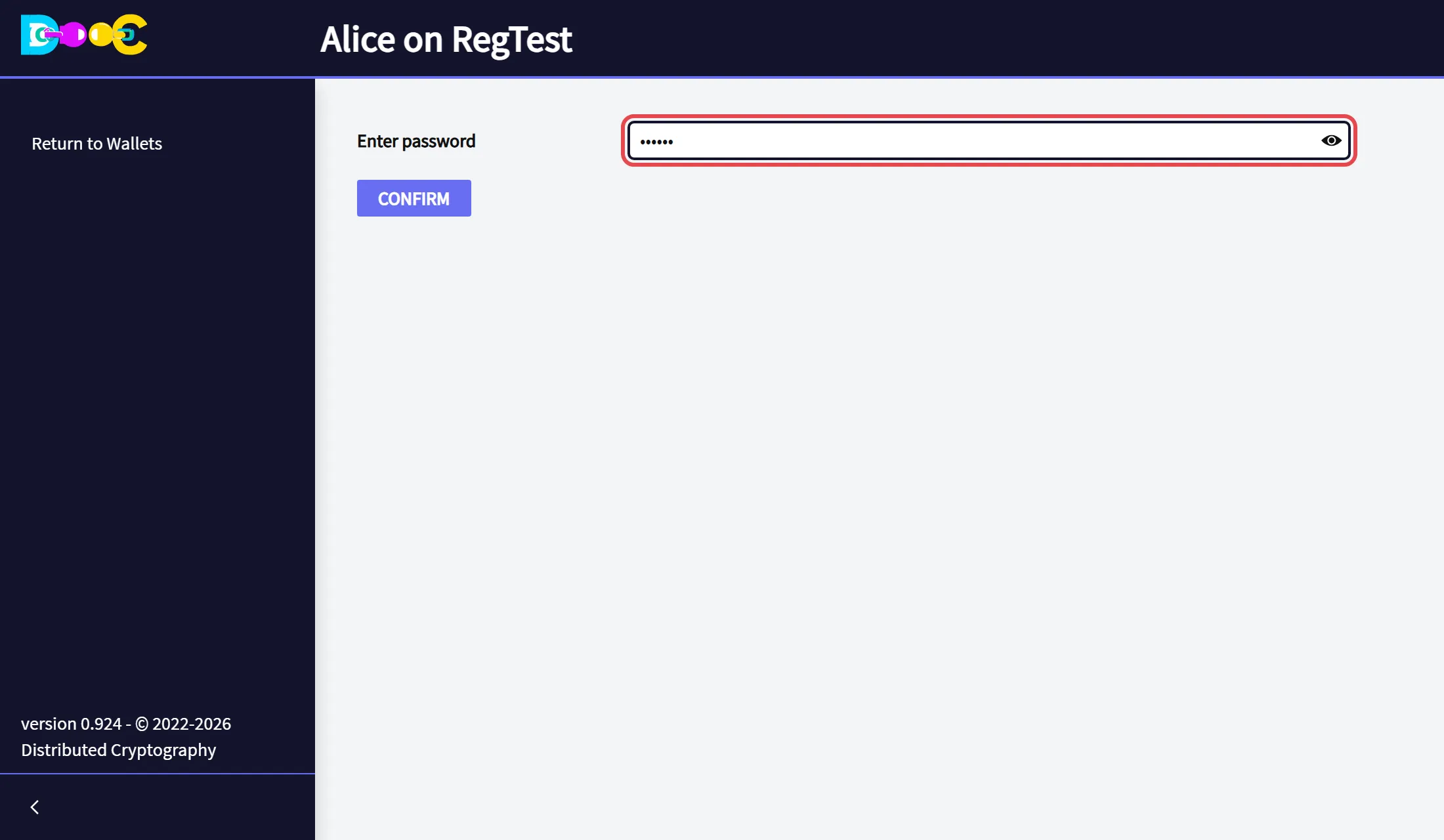
Type your password and press Enter.
-
The wallet opens on Wallet Balance. The top of the page shows the name of the wallet and its network.
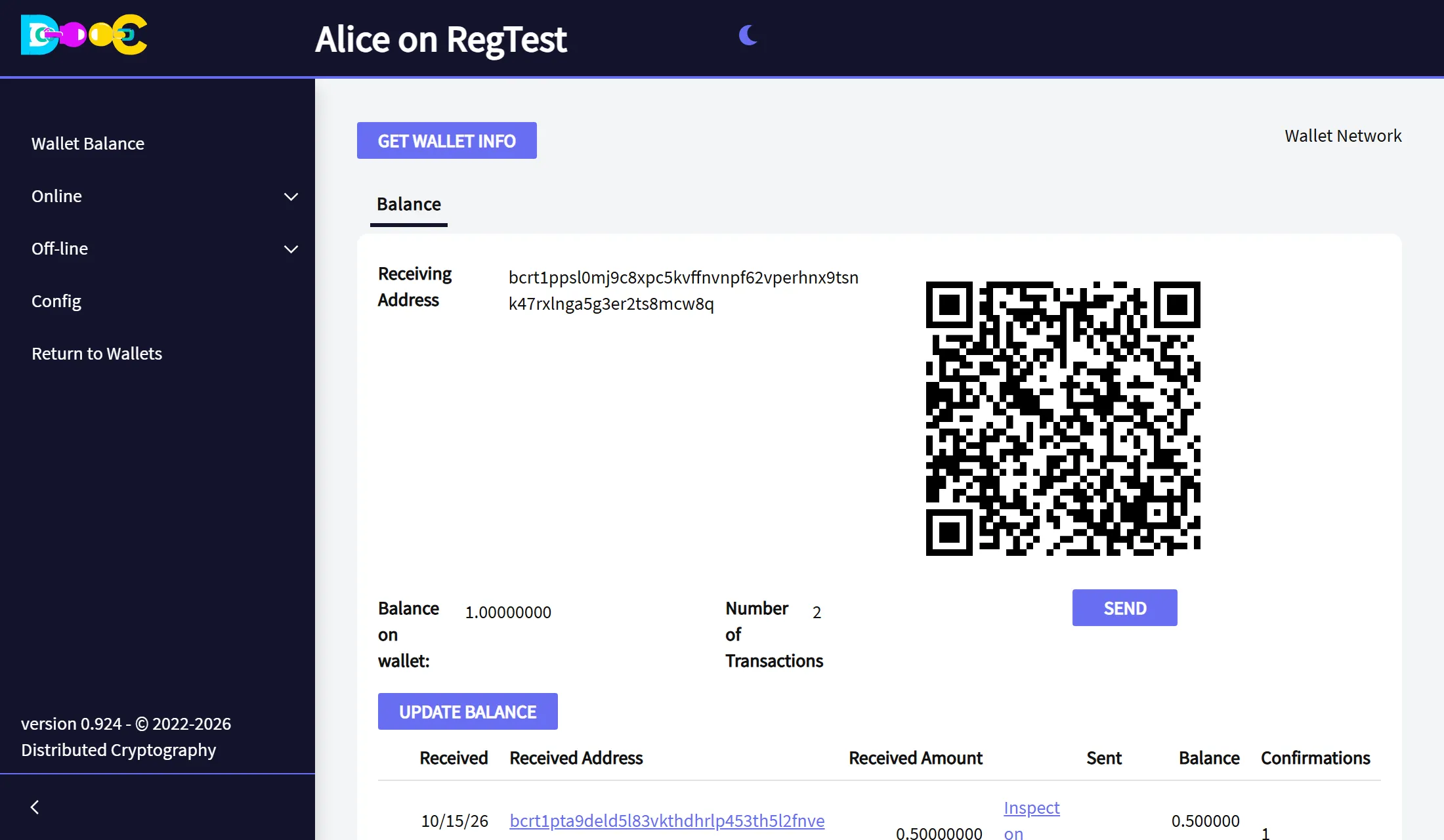
The menu on the left has:
- Wallet Balance: this page.
- Login: log in anonymously to use contacts, chat and Smart Groups. After you log in, this entry becomes Online.
- Off-line: the offline tools.
- Config: the Electrum server and the login server of this wallet.
- Return to Wallets: closes the wallet.
Receive bitcoin
Section titled “Receive bitcoin”-
Give the receiving address to the person who pays you: copy the text, or let them scan the QR code.
-
After the payment has been sent, click Update Balance.
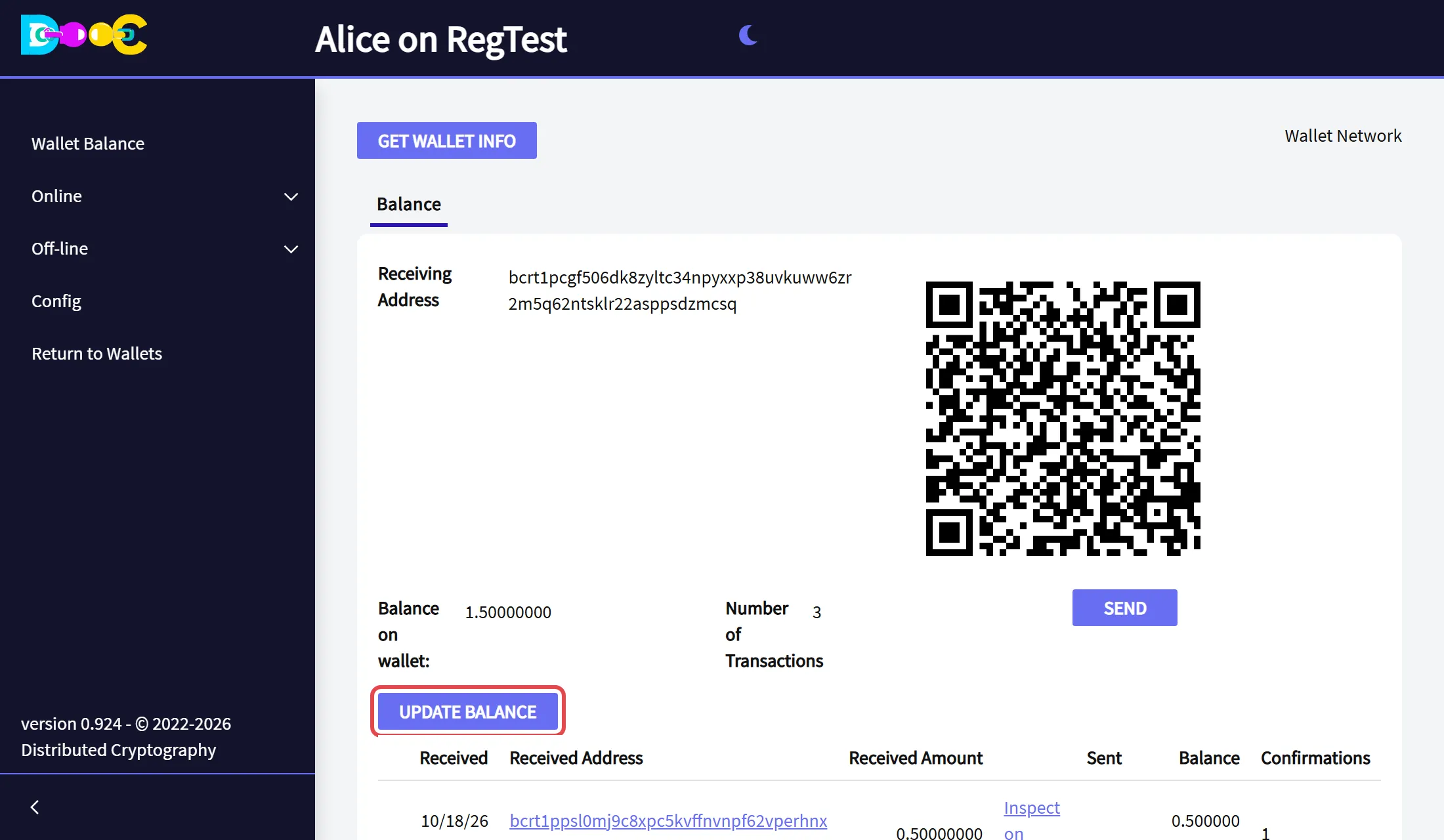
The page shows the balance, the number of transactions, and one line for each payment with its amount and its confirmations. Inspect on Chain shows the payment on the blockchain.
After a payment arrives, the wallet shows a new receiving address. Using a new address for each payment protects your privacy. The old addresses keep working.
Send bitcoin
Section titled “Send bitcoin”Click Send on the balance page. Type the amount and the address and click Next. The wallet shows three fees, from slow and cheap to fast (or tick the box to type your own). Choose one and click Send Coins.
Every payment asks for your password again, at the very end: the payment is signed and sent at that moment, and if you close the password window nothing is sent.
Optional: protect the wallet with an authenticator
Section titled “Optional: protect the wallet with an authenticator”When you create the wallet you can tick Use 2FA (authenticator) for extra security. The page shows a QR code to scan with an authenticator app (Google Authenticator, for example). From then on the wallet asks for the password and the current 6-digit code of the app.
The video was recorded with an earlier version. The pages look a little different today, but the steps are the same.
What comes next
Section titled “What comes next”- Protect the wallet with a Consensus Backup.
- Try the offline tools: encrypted notes, files, passwords and more.
- Log in anonymously to use contacts, chat and Smart Groups.