
Delegated Multisignature
With Delegated Multisignature you delegate the spending of a wallet to a group of people you trust, without giving up your own control:
- You, the owner, can always pay alone, with one signature.
- The members can pay without you when the minimum number of them sign: K of the N members.
It fits money that must stay available if you are not: a family reserve, the funds of a company whose partners can act when the director is away, an inheritance that some of your heirs can reach together.
If nobody should be able to pay alone, the owner included, use Legacy Multisignature: there every member is an equal signer.
| Addresses | Taproot (they start with bc1p; with tb1p or bcrt1p on the test networks) |
| Who can pay | The owner alone, or K of the N members together |
| Members | Any number, as long as the group has at most 2000 combinations of K members (for example 2 of 60, 3 of 23, 5 of 12) |
| Keys | From each person’s own wallet; no private key ever leaves it |
| Standards | BIP341 Taproot, BIP342 scripts, BIP386 / BIP387 descriptors, PSBT (BIP174) |
In this guide Alice owns the wallet Family savings. Bob, Carol and Dave are the members, and any two of the three can pay without Alice.
The video shows an earlier version of the screens.
Why it costs less and shows less
Section titled “Why it costs less and shows less”When the owner pays, the payment looks like any other Taproot payment: one signature, and nothing on the blockchain says that a group exists.
When the members pay:
- Only the keys of the members who signed are shown. The members who did not sign stay hidden, and so does the size of the group.
- The payment is smaller than a classic multisignature one in most cases, so the fee is lower.
For measured sizes of many K-of-N combinations, see Bitcoin multisignature: a practical guide.
Before you start
Section titled “Before you start”1. Create the group and invite the members (owner)
Section titled “1. Create the group and invite the members (owner)”-
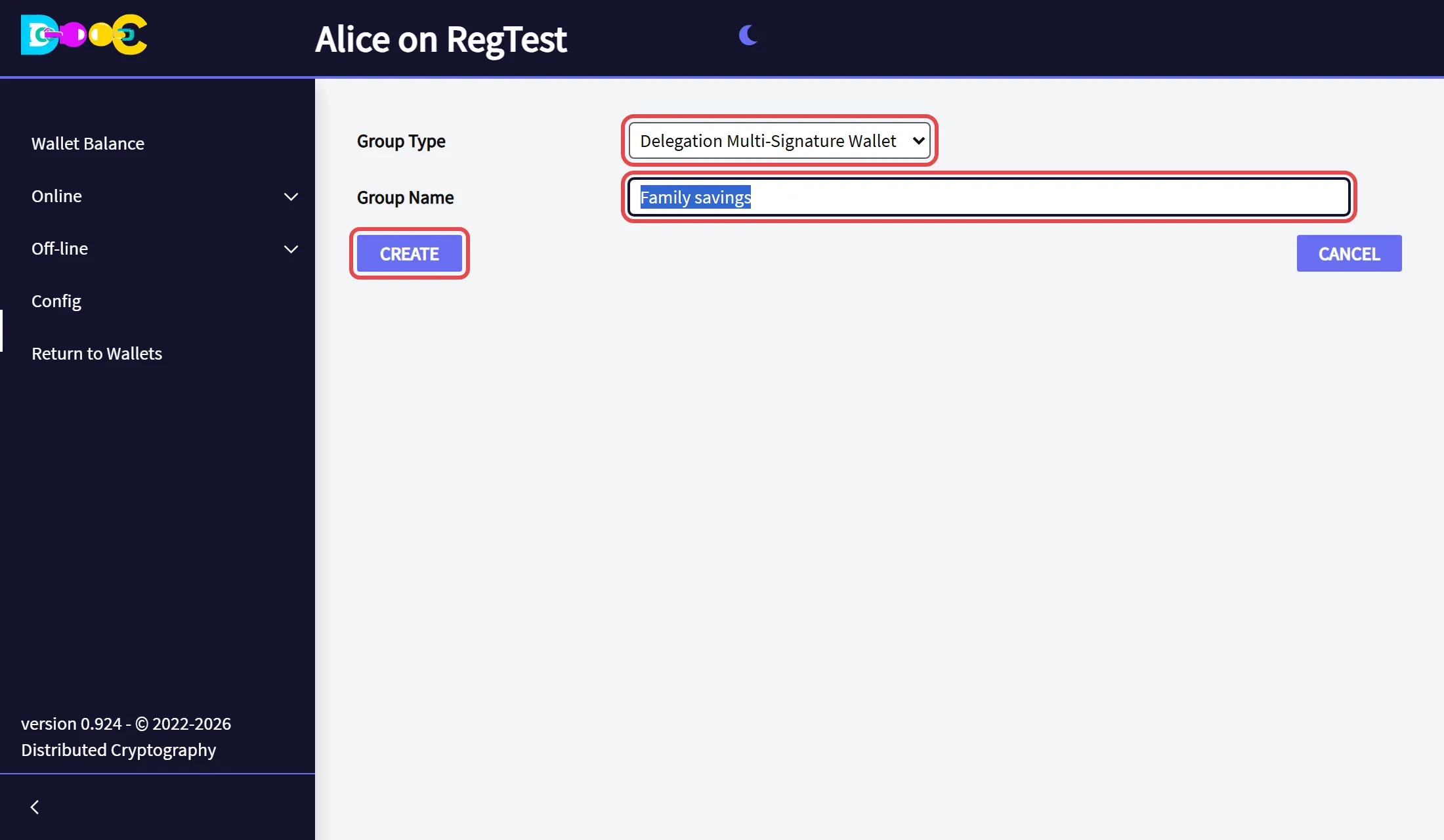
Open Online → Smart Groups and click Create Group. Choose the type Delegation MultiSignature, type a name and click Create.
-
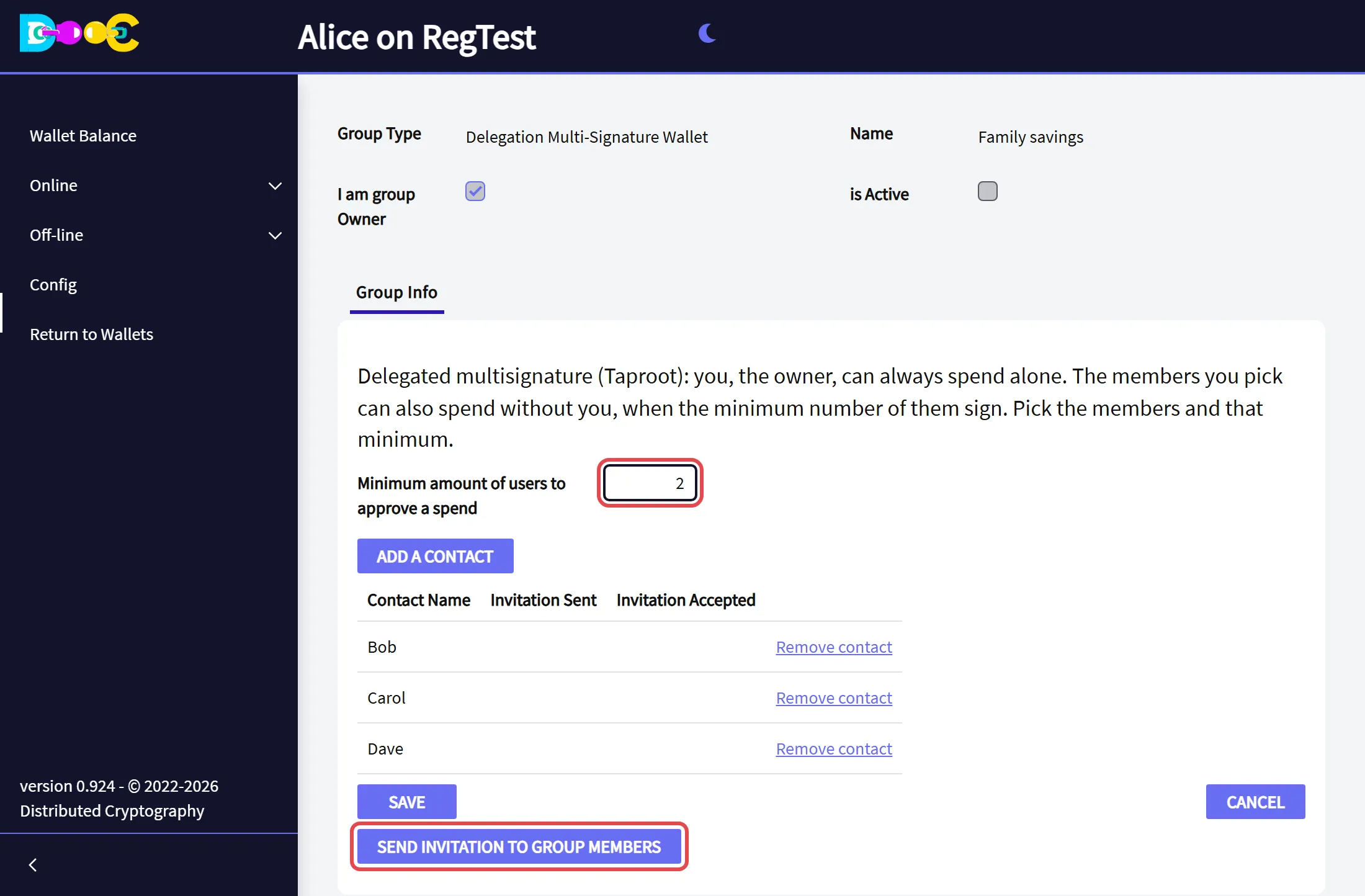
Open the group. Click Add a contact for each member. Set the minimum amount of users to approve a spend: this is the K of “K of N”. You are not one of the N: you pay alone.
The minimum can be anything from 1 (any single member can pay) to all the members.
Then click Send invitation to group members.
2. Accept the invitation (each member)
Section titled “2. Accept the invitation (each member)”Open Online → Smart Groups in your own wallet and click Accept Invitation on the group’s row.
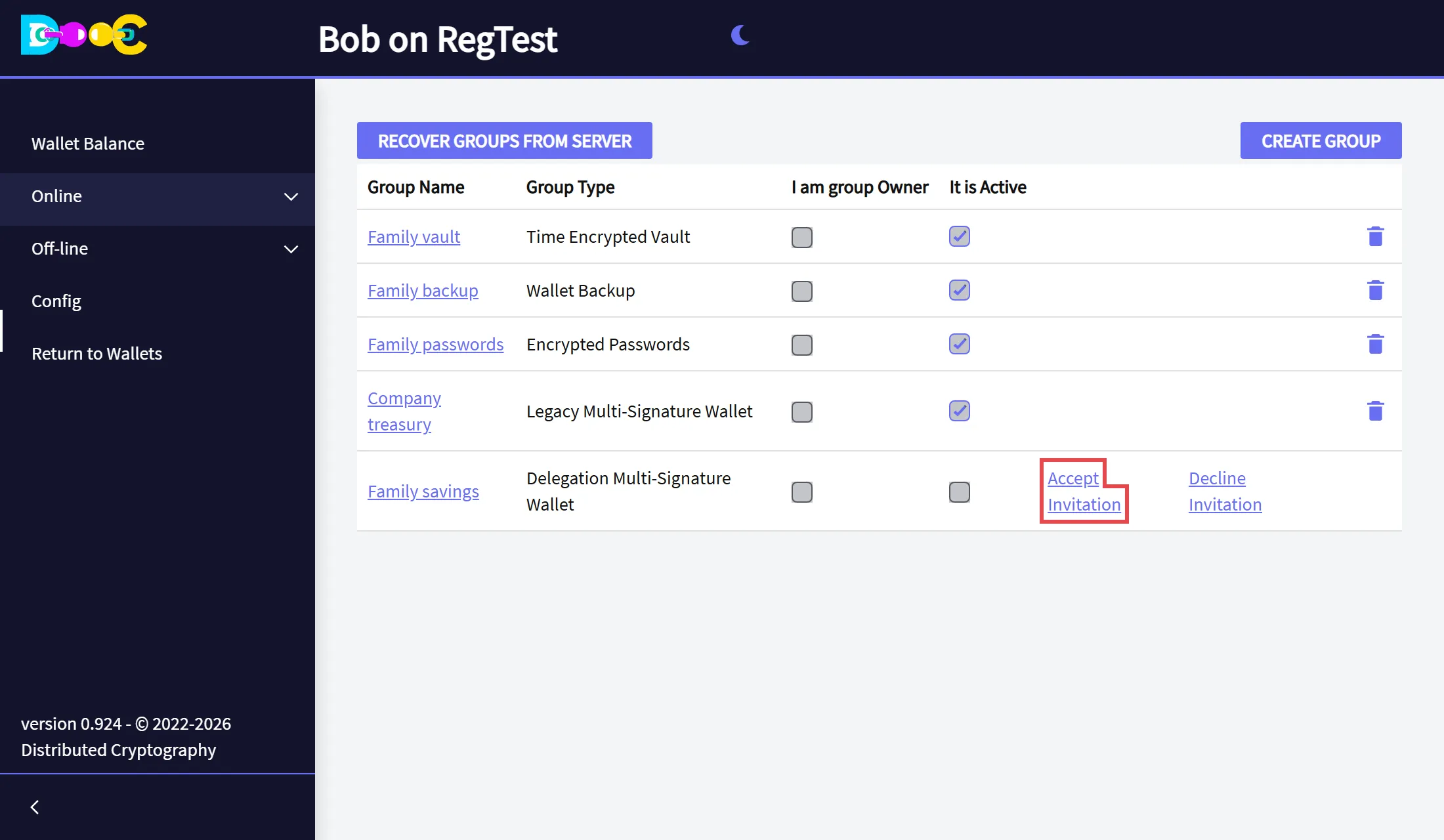
On accepting, your wallet sends the owner the public keys the group needs. No private key ever leaves a member’s wallet.
3. Activate the group (owner)
Section titled “3. Activate the group (owner)”When every member has accepted, open the group and click Activate Group.
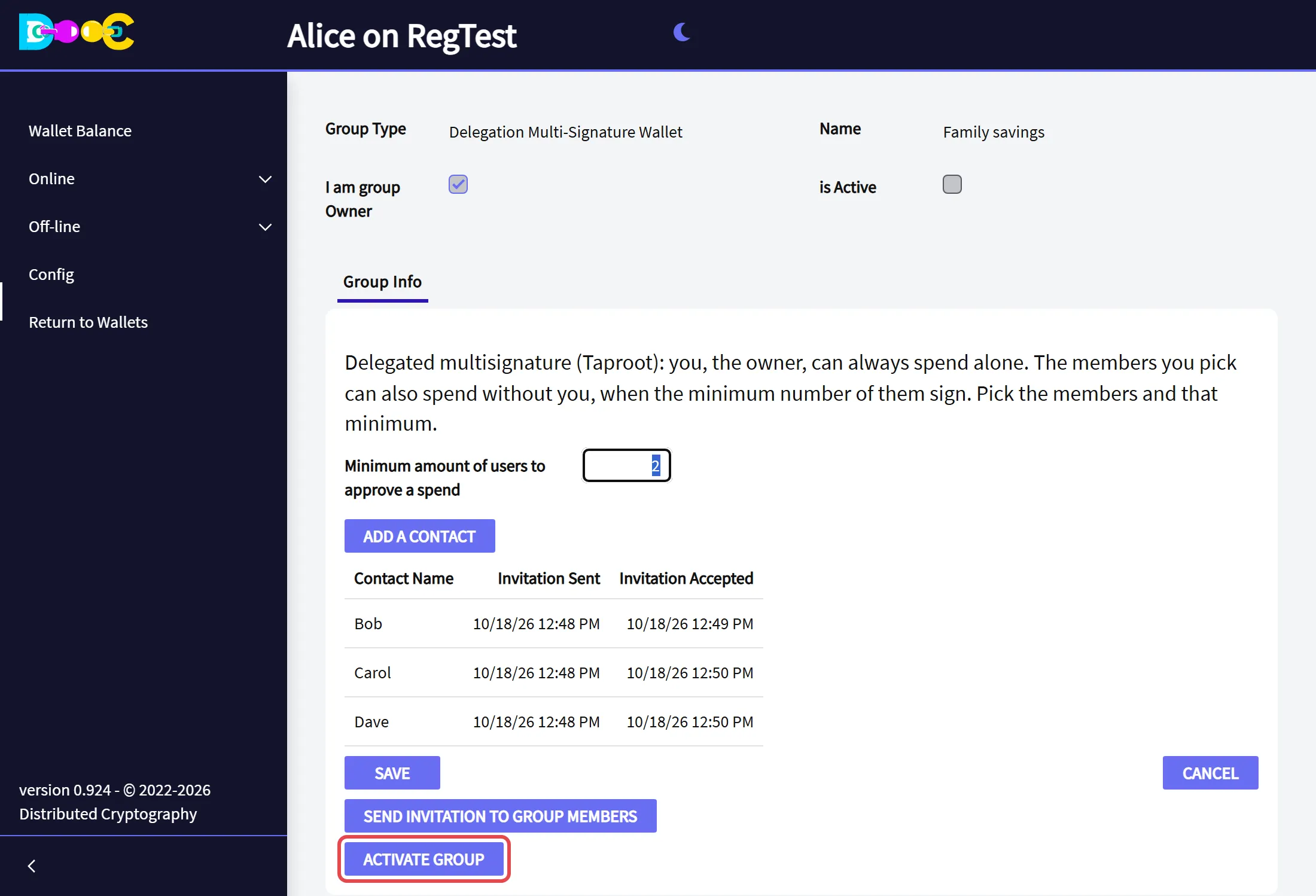
The group now has two more tabs: Wallet Balance and Signatures.
4. Receive
Section titled “4. Receive”Open the group’s Wallet Balance tab. It shows the receiving address of the group, as text and as a QR code. Give it to whoever pays the group.
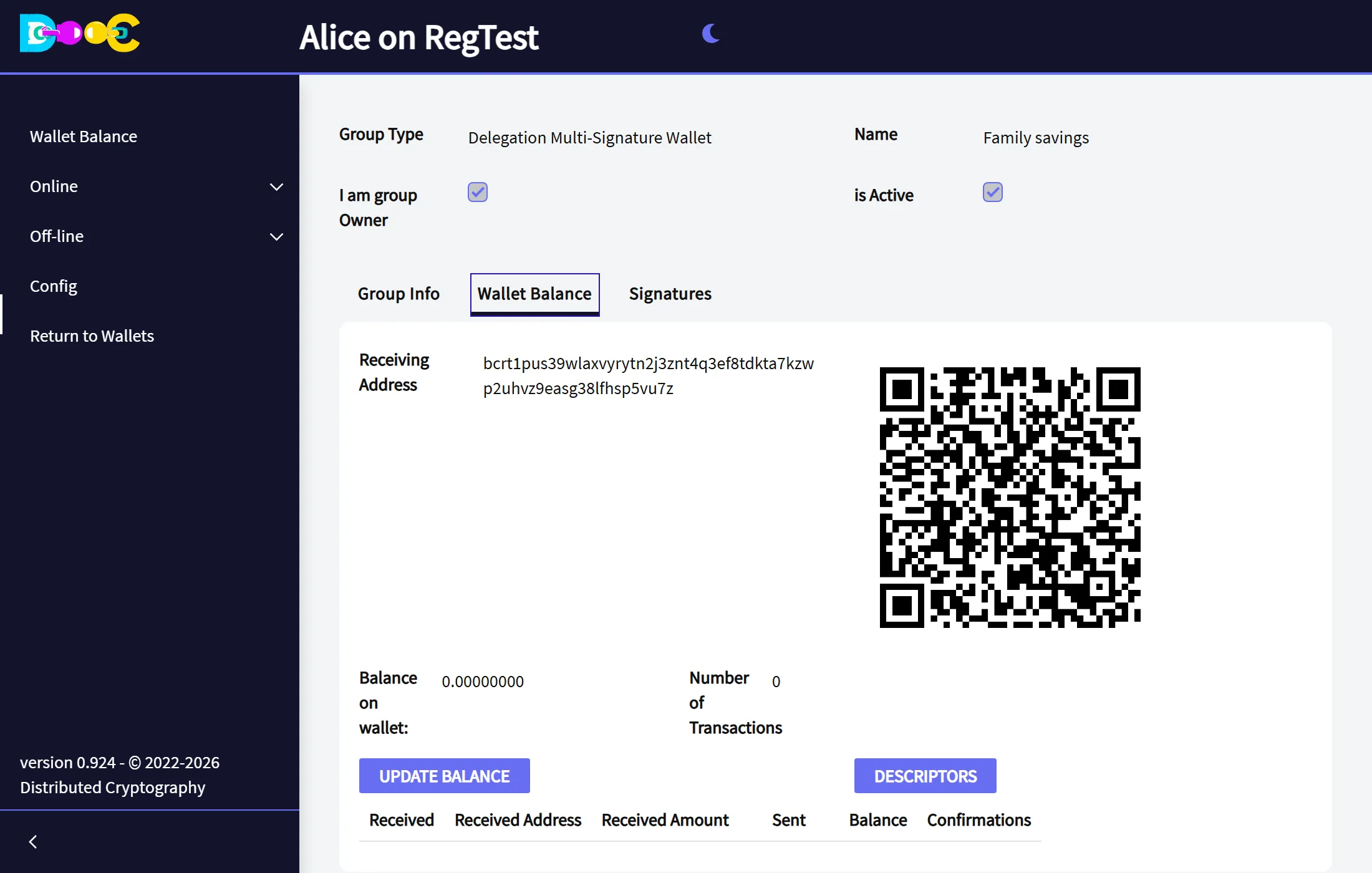
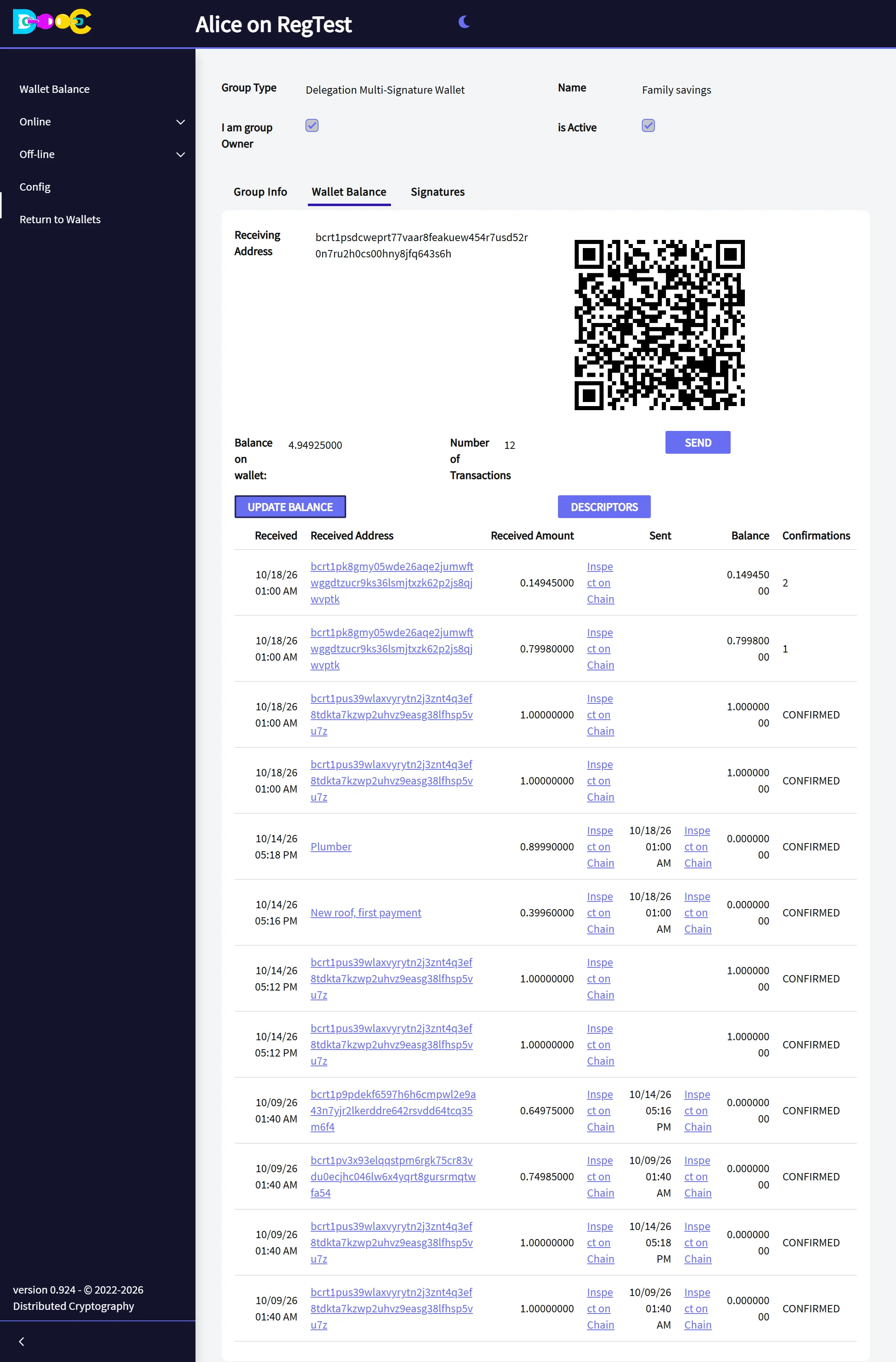
After a payment, click Update Balance. The page shows the balance and one line per payment, and the group moves to a new receiving address.
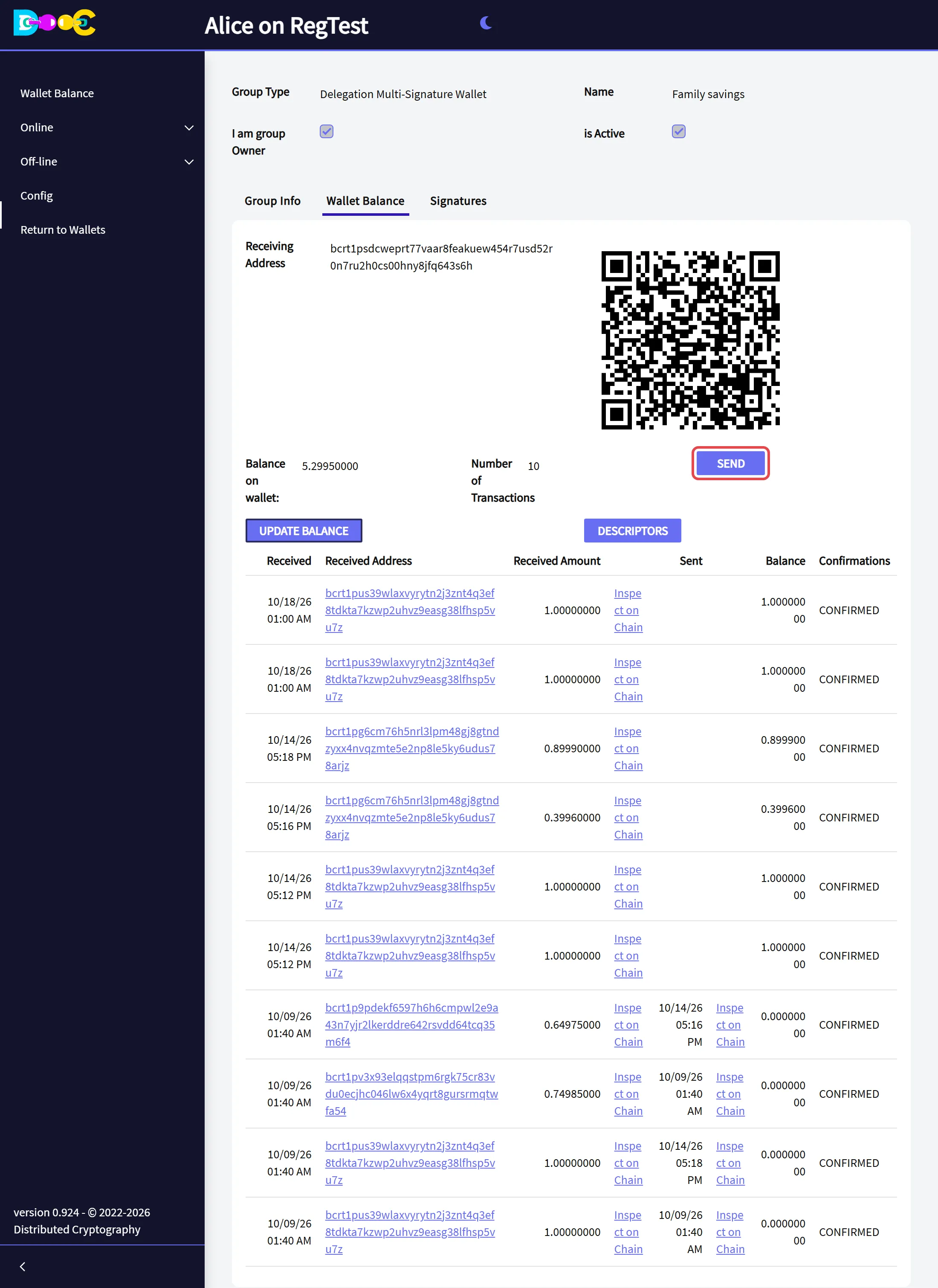
The owner and every member see the same wallet in their own Wallet Balance tab.
5. A member starts a payment (the first signer)
Section titled “5. A member starts a payment (the first signer)”Any member can start a payment.
-
In the Wallet Balance tab click Send.
-
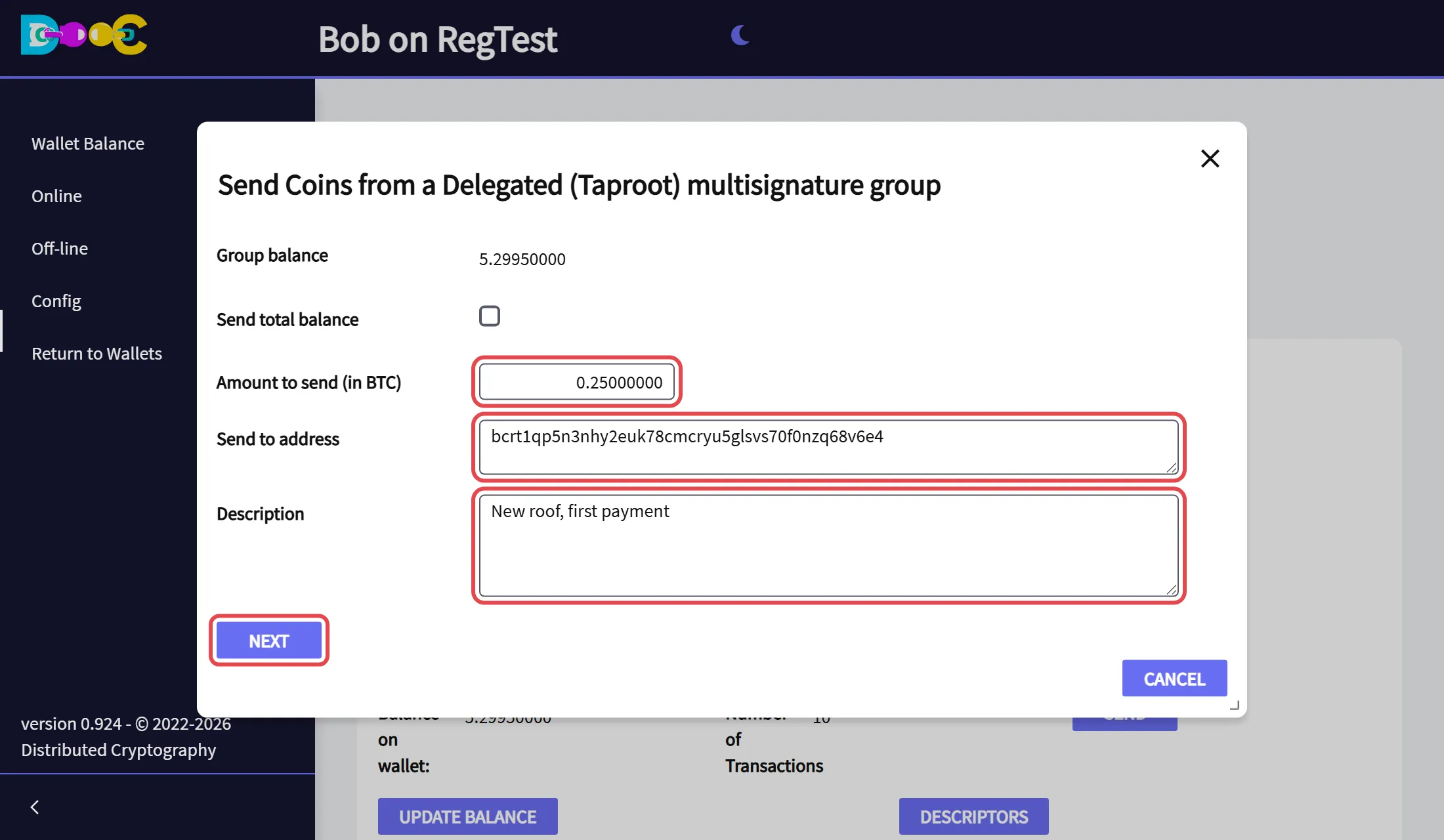
Type the amount, the address to pay and a description. The description is what the other members will see, so say what the payment is for. Click Next.
-
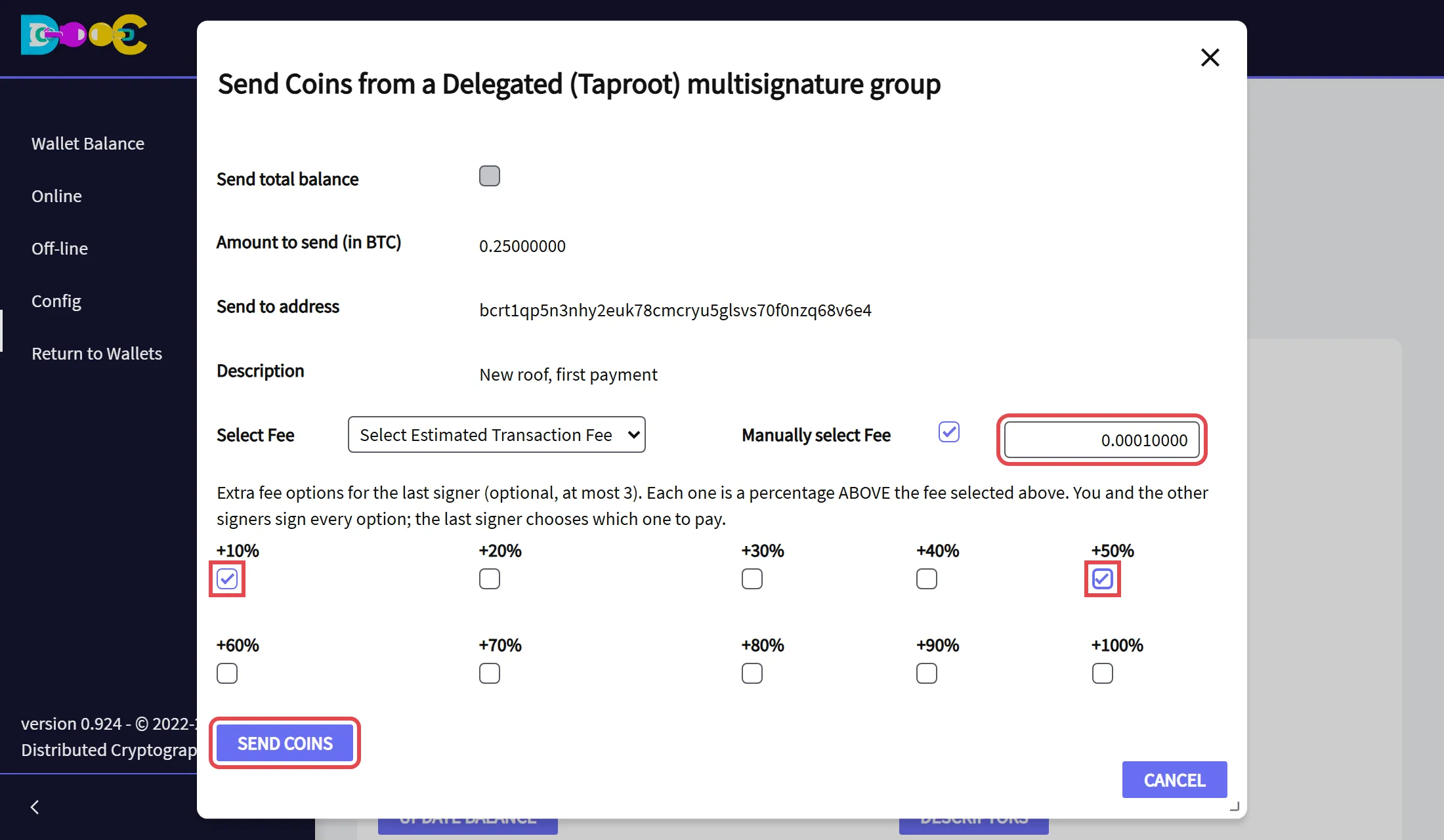
Choose the fee: one of the estimated levels in Select Fee, or tick Manually select Fee and type your own. This is the calculated fee.
-
Optional: tick up to three extra fee options. Each one is a percentage above the calculated fee: +10%, +20% and so on up to +100%.
The members may sign hours or days apart, and by the time the last one signs the network may ask for a higher fee. With these options the last signer can pay more without starting again. You and every following signer sign all the options; only one is ever sent.
Click Send Coins.
-
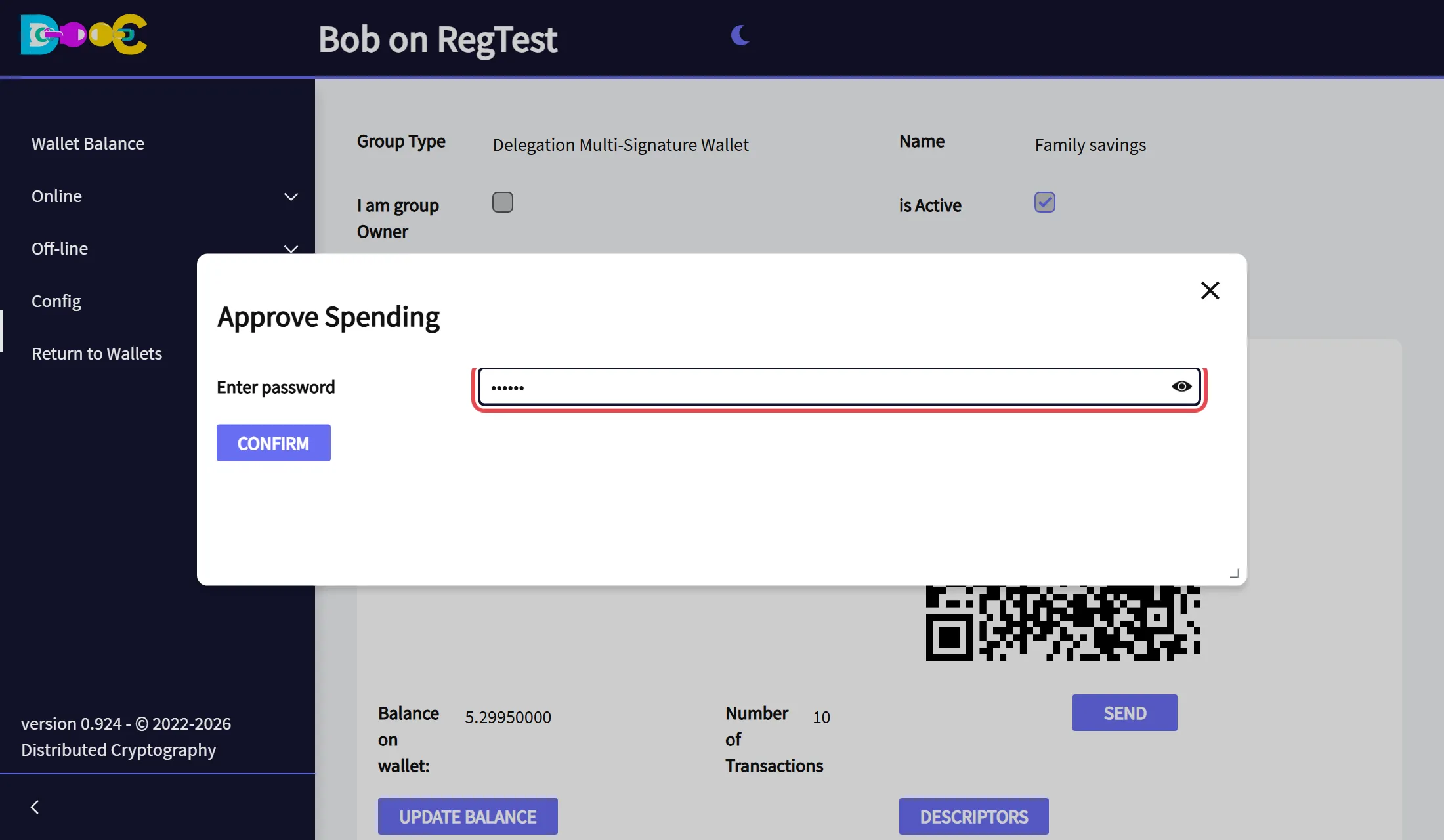
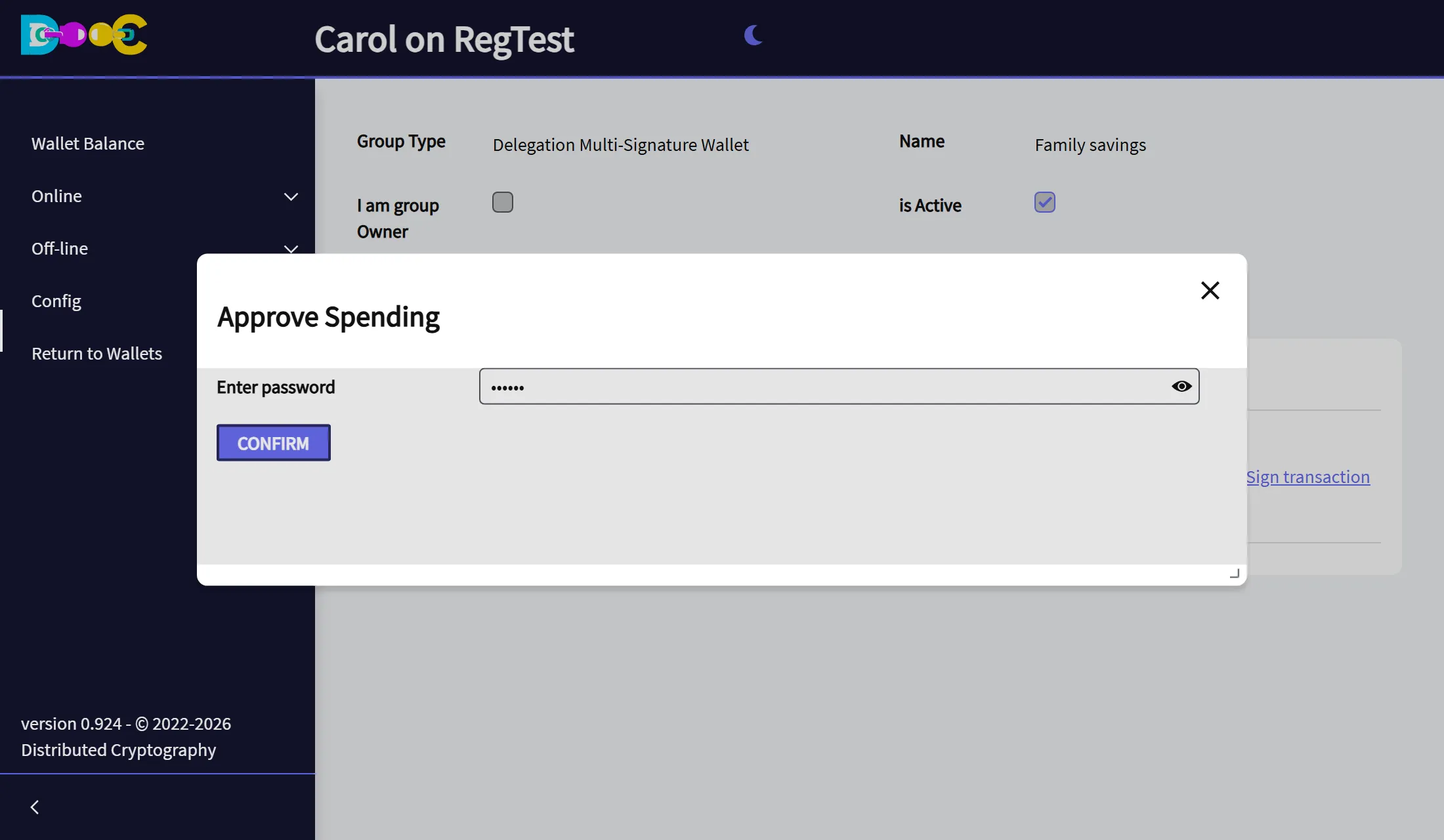
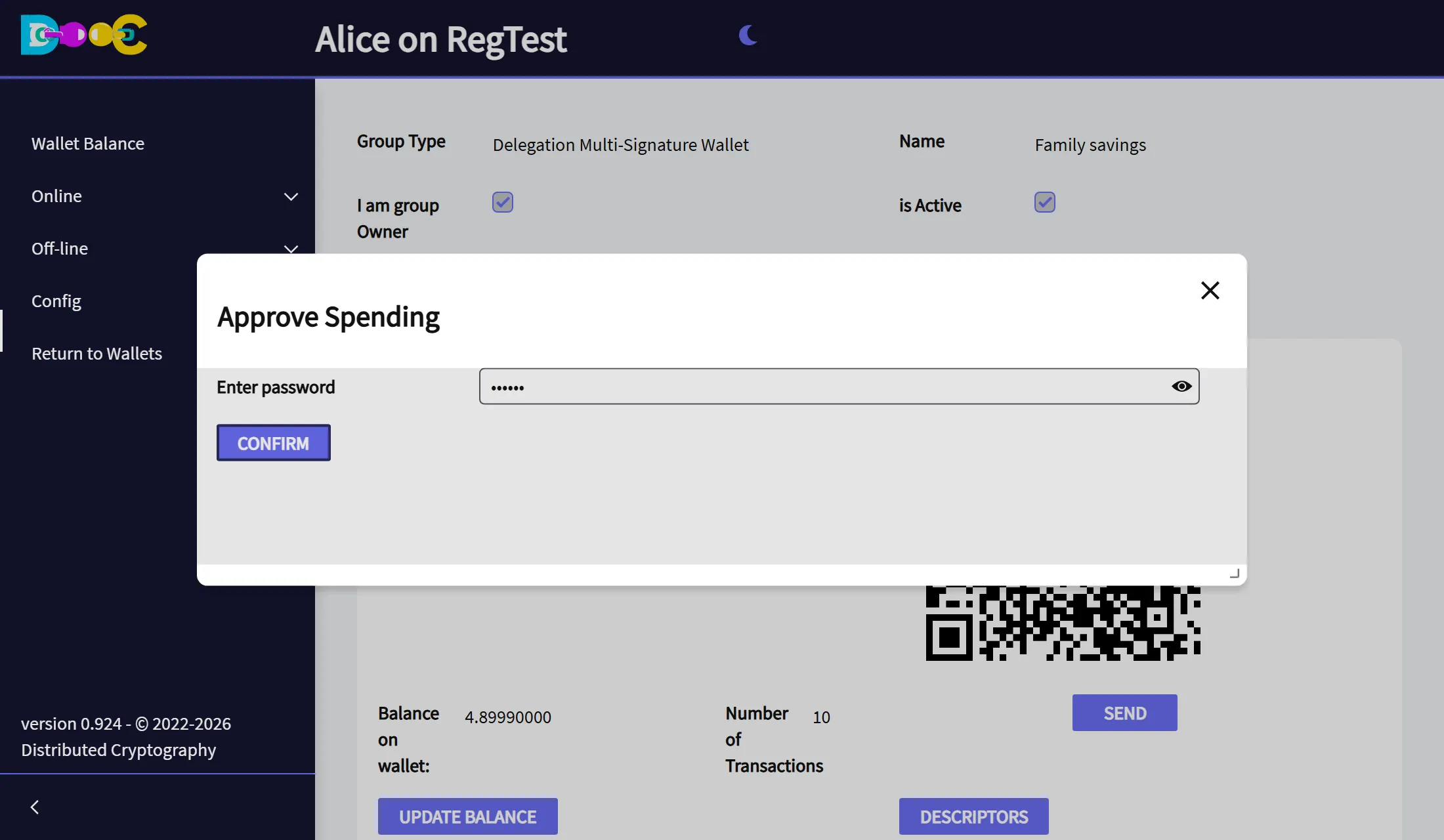
Type your wallet password and click Confirm. Your signature is made now.
-
The app shows Signature added: your signature was added and forwarded to the other signers. Nothing has been sent to the bitcoin network yet: the payment waits for the other signatures.
The payment is now in the Signatures tab:
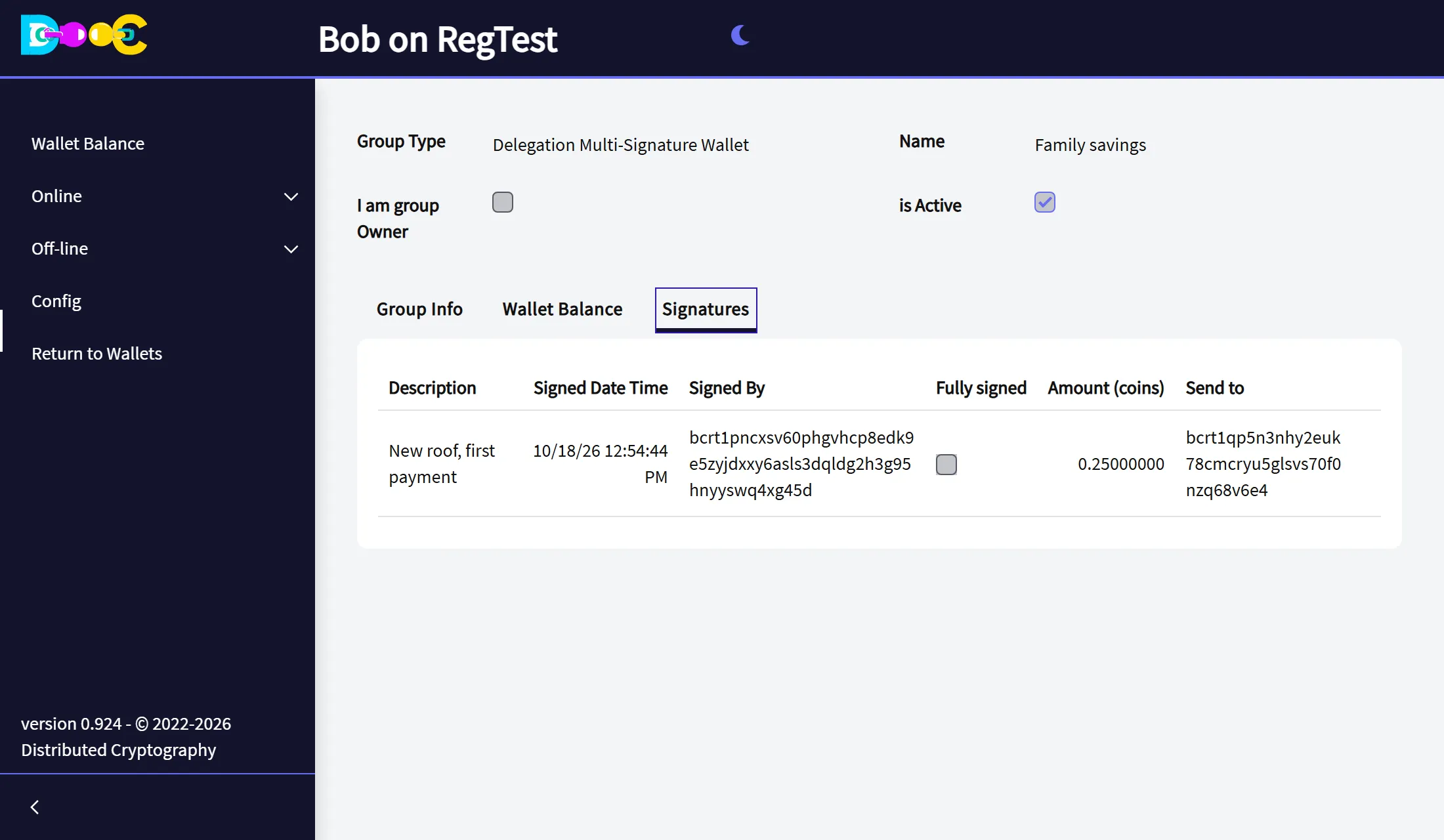
If the minimum of the group is 1, there is nothing to wait for: you see no extra options, and your own signature sends the payment.
6. Sign the payment (the following signers)
Section titled “6. Sign the payment (the following signers)”-
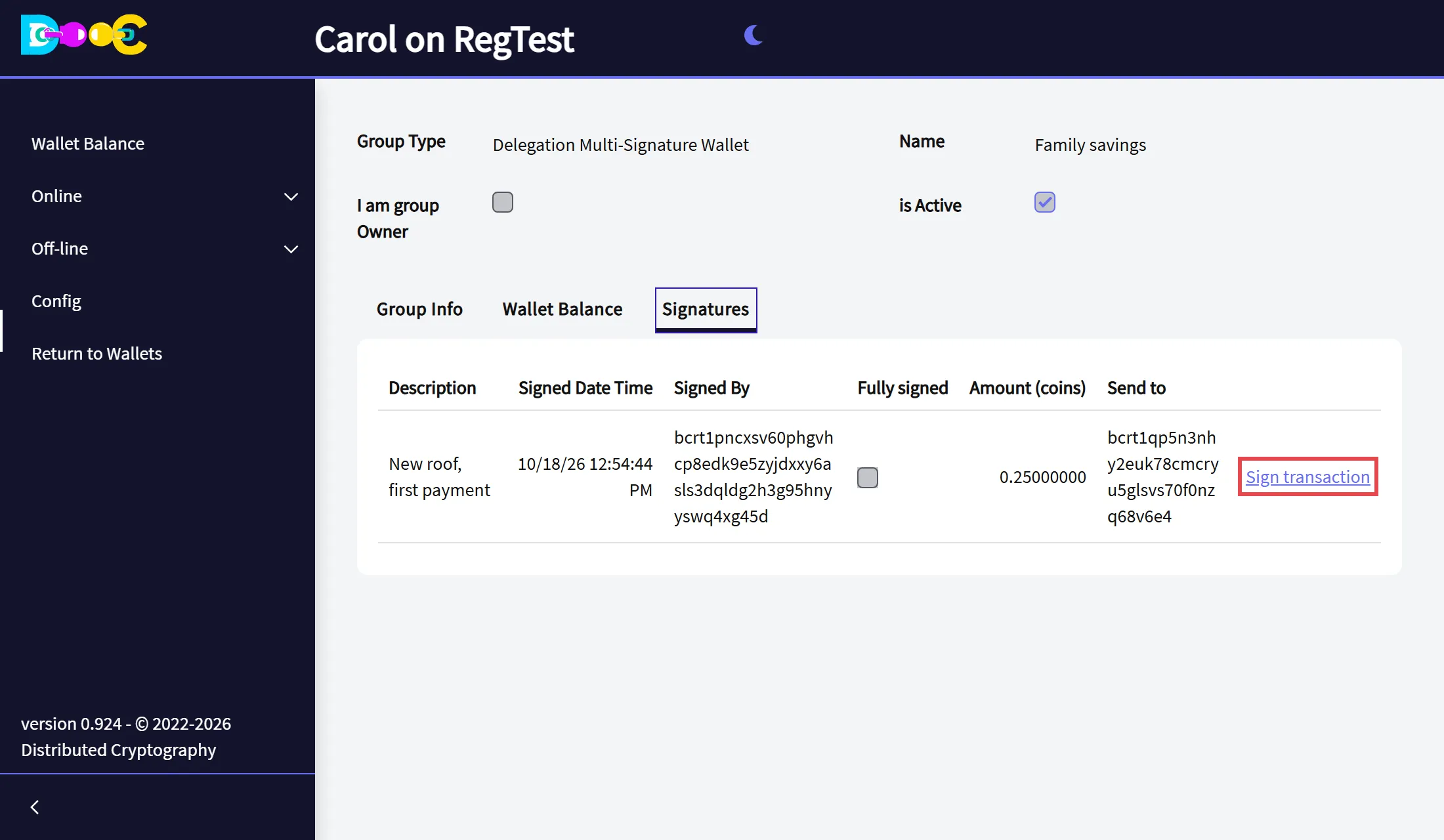
Open your wallet, open the group and go to the Signatures tab. The payment is there with its description, who signed it, the amount and the address. Click Sign transaction.
-
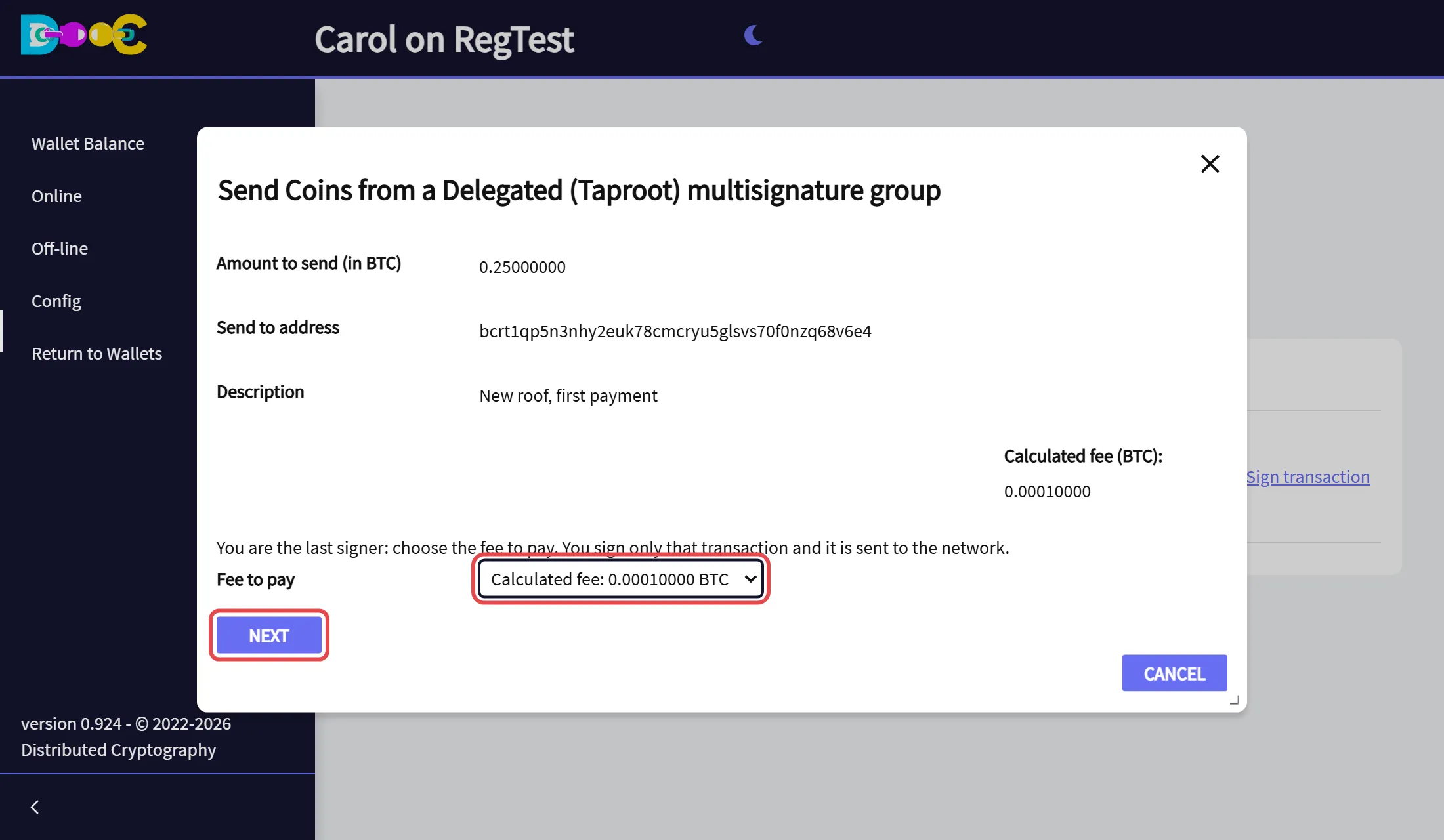
Check the payment: amount, address, description and fee. They cannot be changed, and they are read from the transaction itself, not from the message that brought it. If it is what you agreed to, click Next.
-
What happens next depends on how many signatures are still missing:
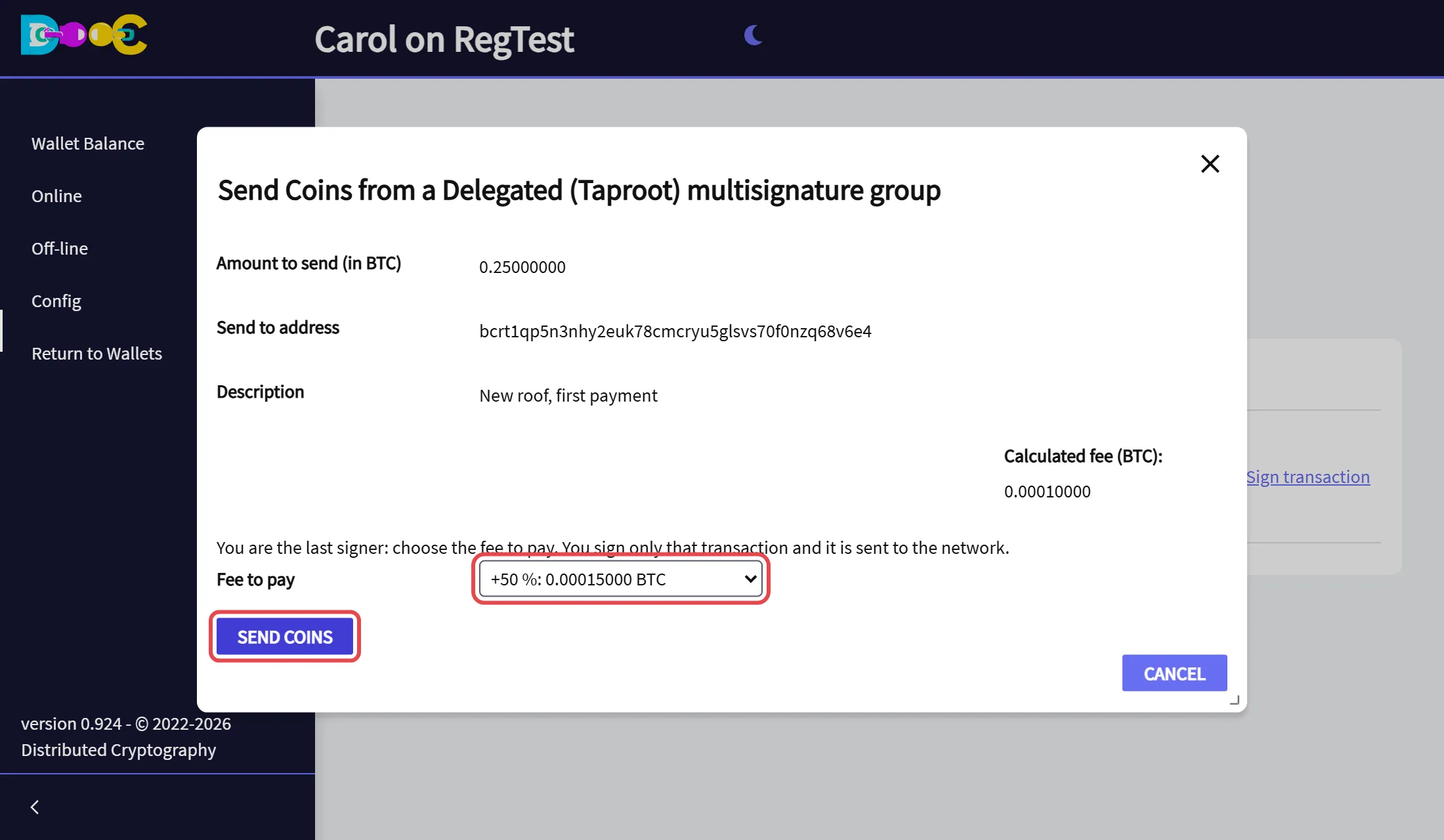
- More signatures are needed after yours. The window lists the fee options the first signer set. You choose nothing: click Send Coins.
- Yours is the last signature. Choose the Fee to pay: the calculated fee, or one of the higher options if the network is busy. Click Send Coins. You sign only that transaction.
-
Type your wallet password and click Confirm. Your signature is made now: the payment goes on to the next signer, or, if yours was the last one, it is sent to the bitcoin network.
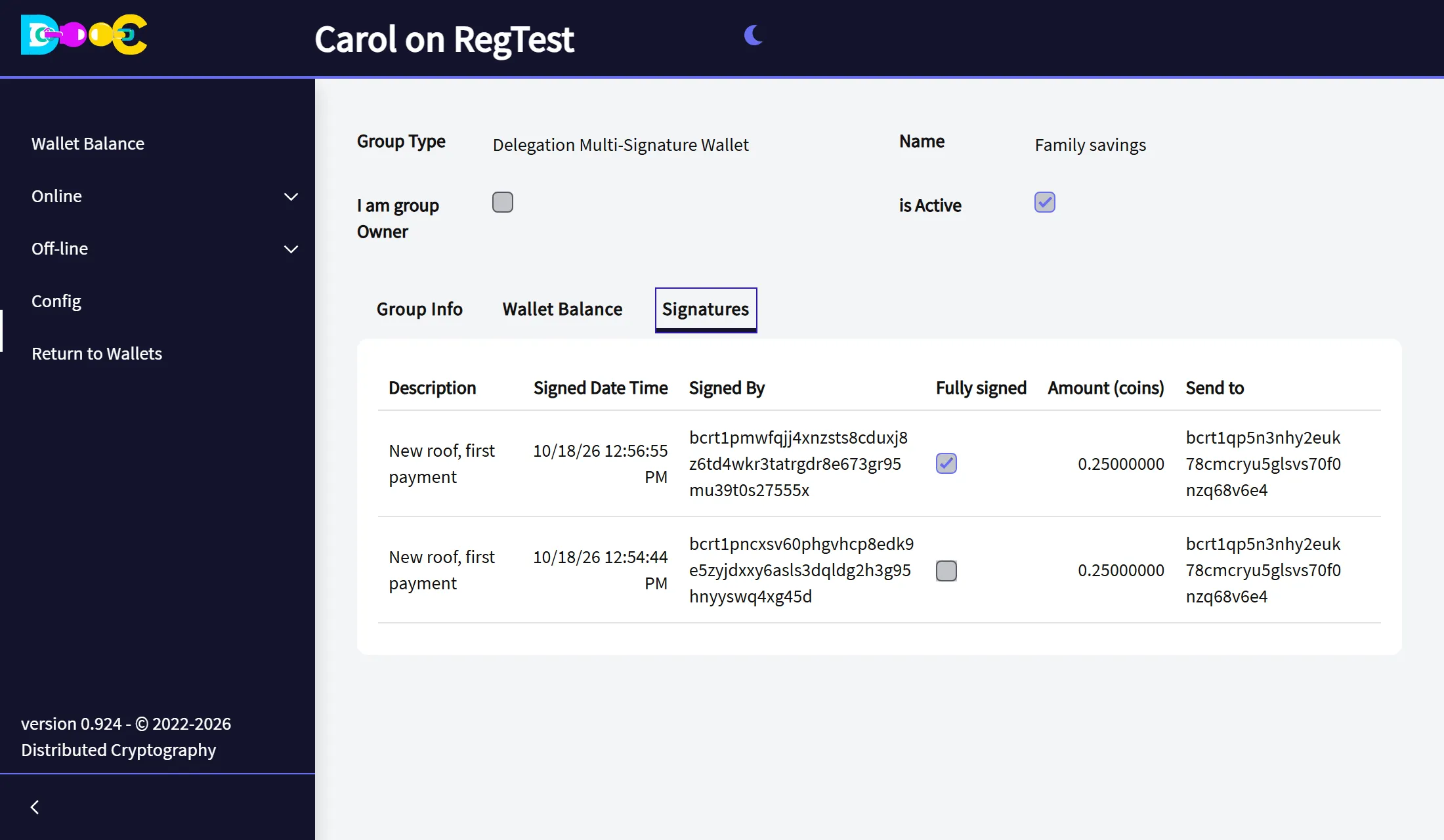
When the last signature is added, the app shows Transaction broadcast: the payment has been sent to the bitcoin network with the fee the last signer chose.
The Signatures tab shows the payment as Fully signed:
7. The owner pays alone
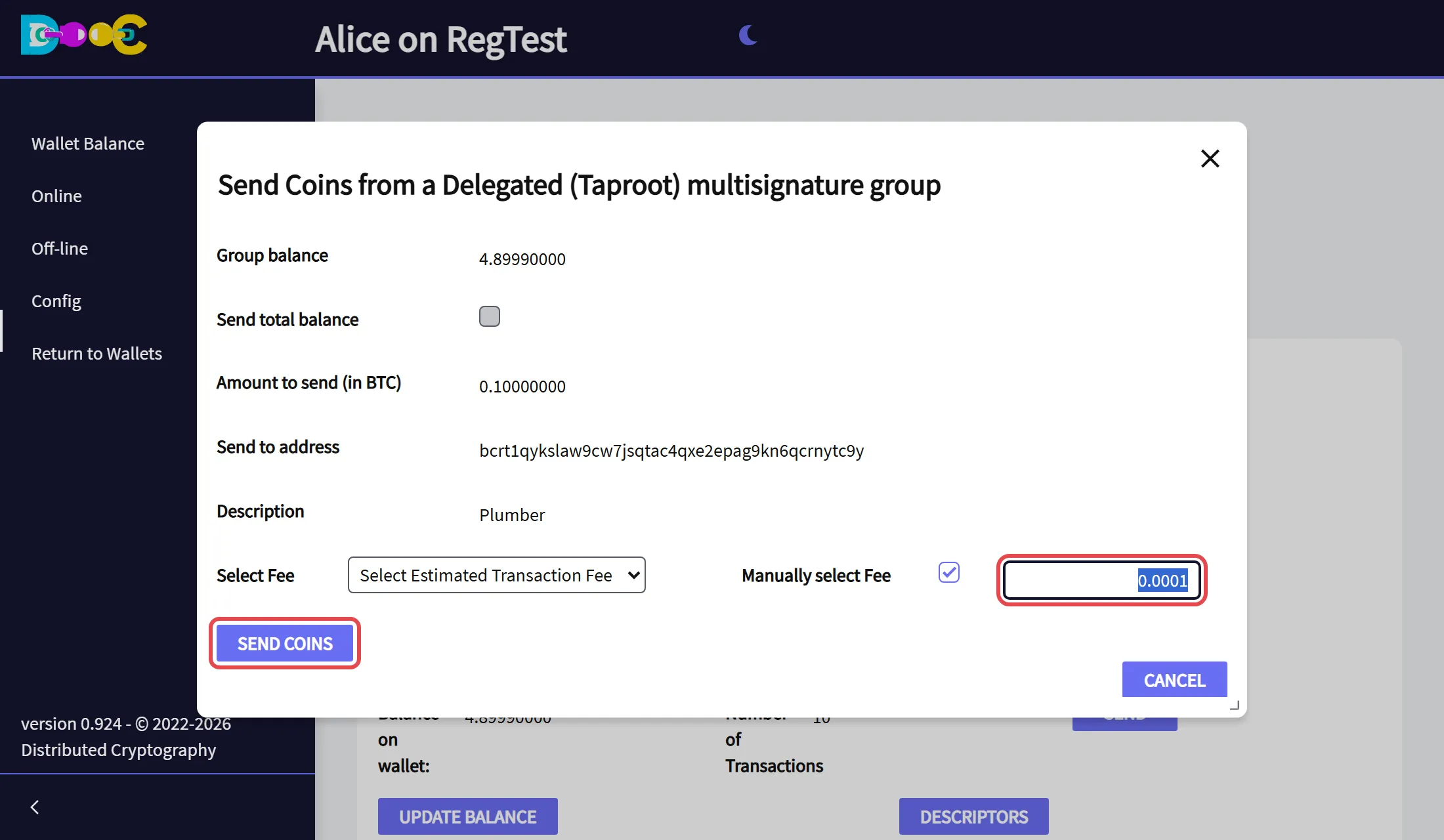
Section titled “7. The owner pays alone”The owner uses the same Send button of the Wallet Balance tab: amount, address, description and fee, then Send Coins and the password. There are no fee options and nobody else signs: the payment is sent at once.
The owner does not sign the payments the members start: in the owner’s Signatures tab they are listed, without the link Sign transaction.
After Update Balance, everybody’s Wallet Balance tab shows the new balance:
8. See the group in another wallet (descriptors)
Section titled “8. See the group in another wallet (descriptors)”A descriptor is a standard text that describes all the addresses of a wallet. With the two descriptors of the group, any wallet that understands descriptors (Bitcoin Core, for example) shows the same addresses and the same coins, without our software. It is your proof that the money does not depend on us.
-
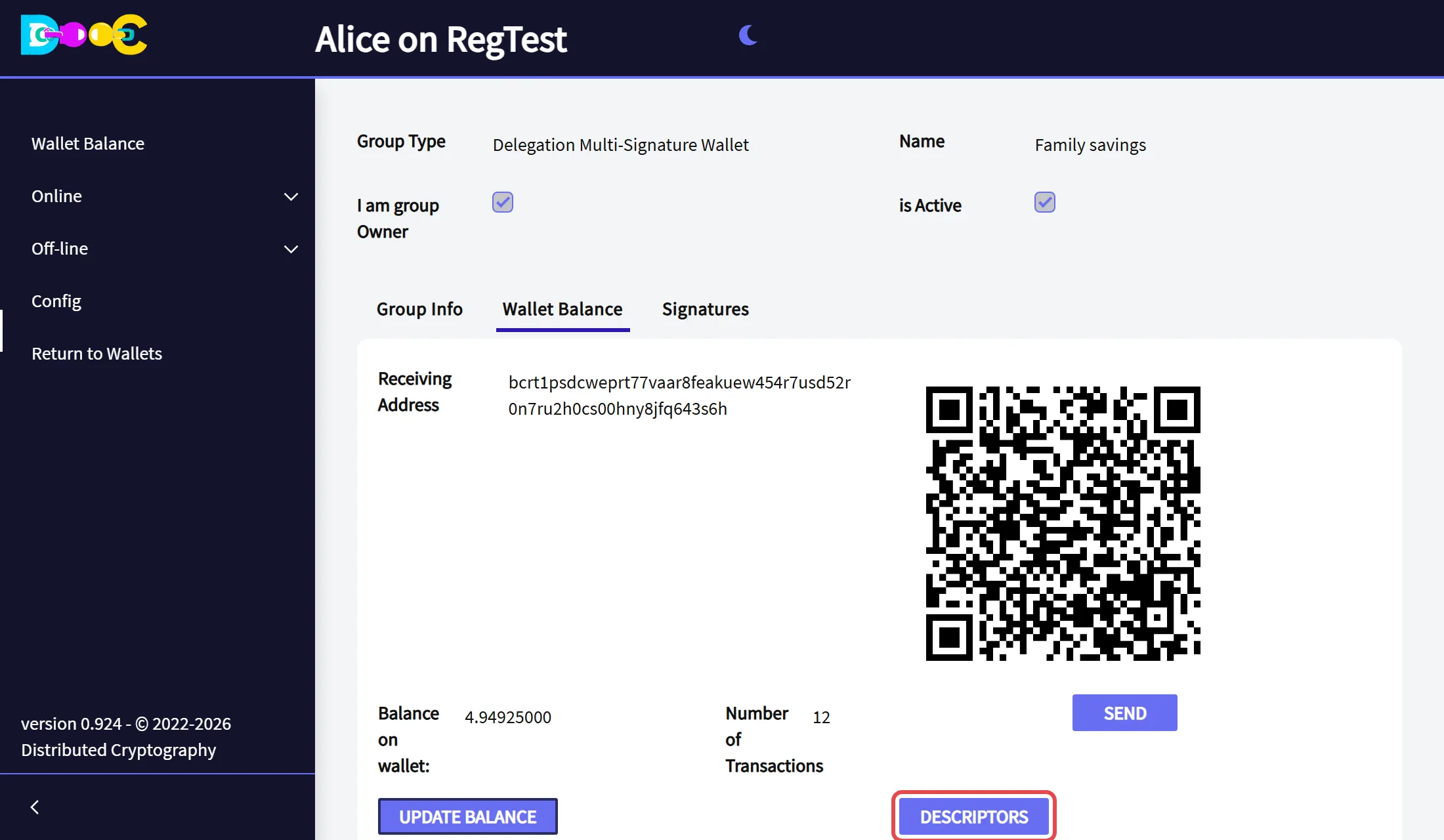
In the Wallet Balance tab click Descriptors.
-
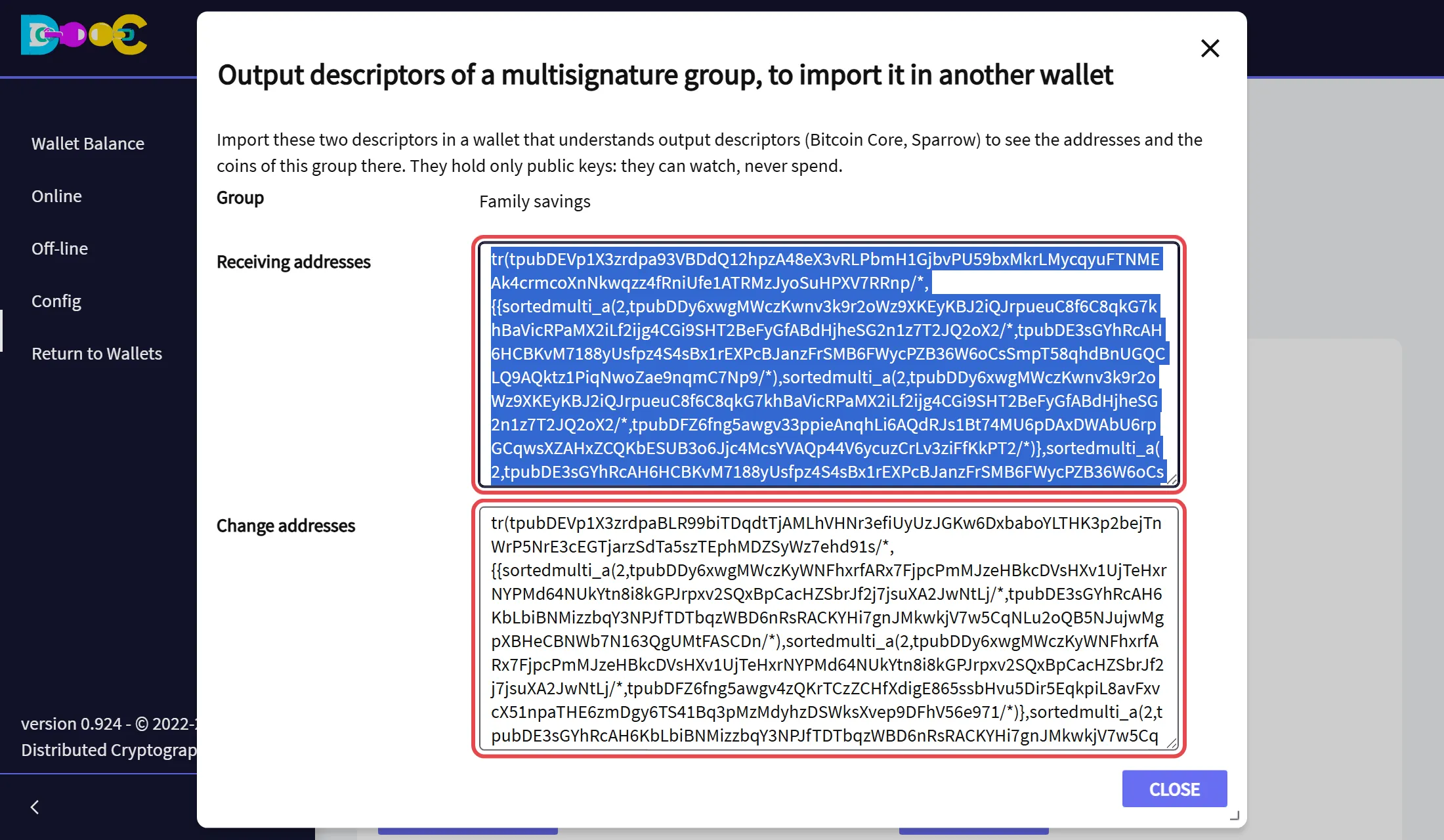
Copy the two texts: one for the receiving addresses, one for the change addresses.
-
Import them in the other wallet. In Bitcoin Core, in a wallet created without private keys:
importdescriptors '[{"desc":"<receiving descriptor>","timestamp":"now","range":[0,100],"active":true,"internal":false},{"desc":"<change descriptor>","timestamp":"now","range":[0,100],"active":true,"internal":true}]'
The descriptors hold only public keys: whoever has them can watch the group, never spend from it. They do show every address of the group, so share them only with people who may see its balance. For a group with many members the texts are long.
Good to know
Section titled “Good to know”- Signers do not have to be connected at the same time. A payment to sign arrives when the member opens their wallet. If it is not in the Signatures tab yet, go back to the wallets page and open the wallet again a little later.
- Check before you sign. Sign only what you agreed to. The window shows the payment as it is in the transaction you are about to sign.
- The owner is the strongest key. Whoever has the owner’s wallet can spend everything alone. Protect it like any wallet that holds the money, and consider a Consensus Backup for it.
- The members are the way in if the owner is gone. Choose N and K so that enough of them can still sign: 2 of 3 survives the loss of one member, 3 of 5 the loss of two.
- Backups. Each person’s keys for the group come from their own wallet. Someone who restores their wallet from their words can sign again.
Related
Section titled “Related”- Legacy Multisignature: the classic kind, where every member is an equal signer and nobody pays alone.
- How every group works: create, invite, accept, activate.