Send encrypted files
Online → File Encryption encrypts a file so that only one user can open it. You then send the encrypted file any way you like: e-mail, a USB drive, a cloud folder. Whoever carries it, or finds it, cannot read it.
The encrypted file has the extension .dcf. Even the original file name is encrypted inside it.
The page has three tabs:
| Tab | Use it for |
|---|---|
| Encrypt for a user | Encrypting a file of up to 1 GB. The file goes through your browser. |
| Received from a User | Opening a .dcf file of up to 1 GB that somebody encrypted for you. |
| Large files (no upload) | Files of any size, in both directions. The files are read and written directly on the disk. |
In this example Alice sends a file to Bob.
Encrypt a file for someone (up to 1 GB)
Section titled “Encrypt a file for someone (up to 1 GB)”You need the user name of the person. They find it in Online → User Info (see Anonymous login). They do not have to be one of your contacts.
-
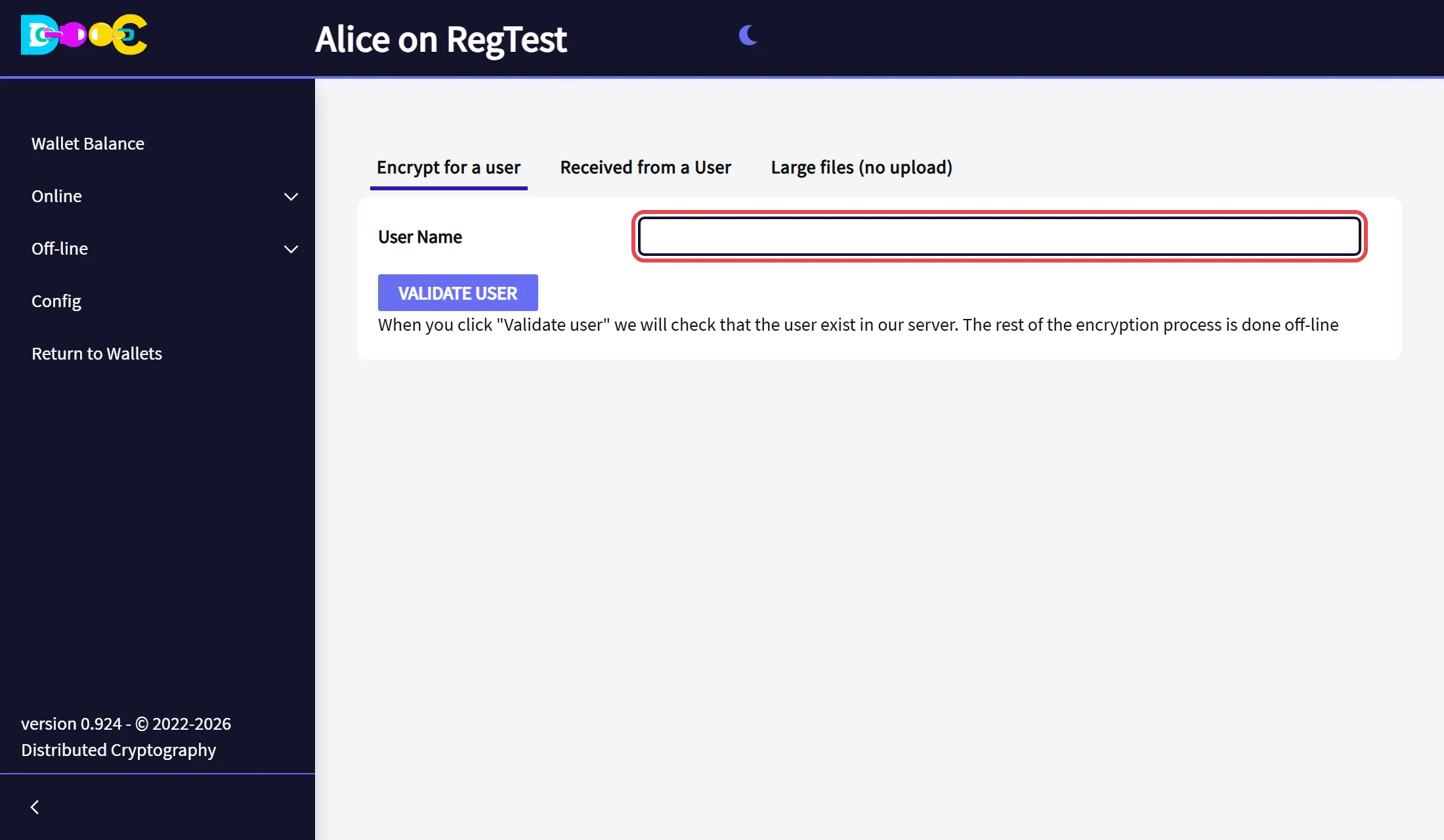
Open your wallet, log in if you have not done so, and open Online → File Encryption. You are on the tab Encrypt for a user.
-
Paste the user name of the person and click Validate user.
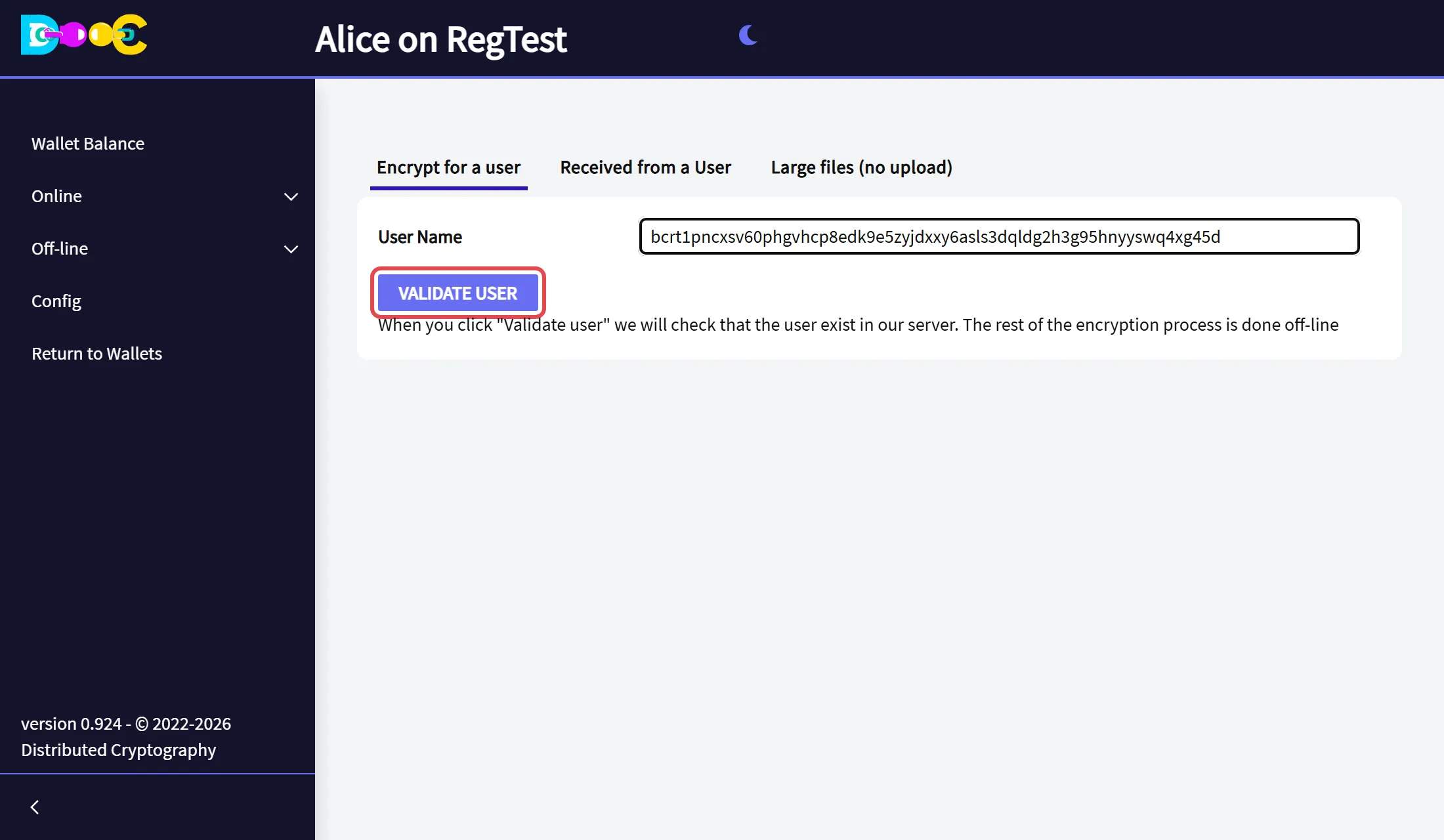
This is the only step that uses our server: it checks that the user exists and gets their public key. The encryption itself is done on your computer.
-
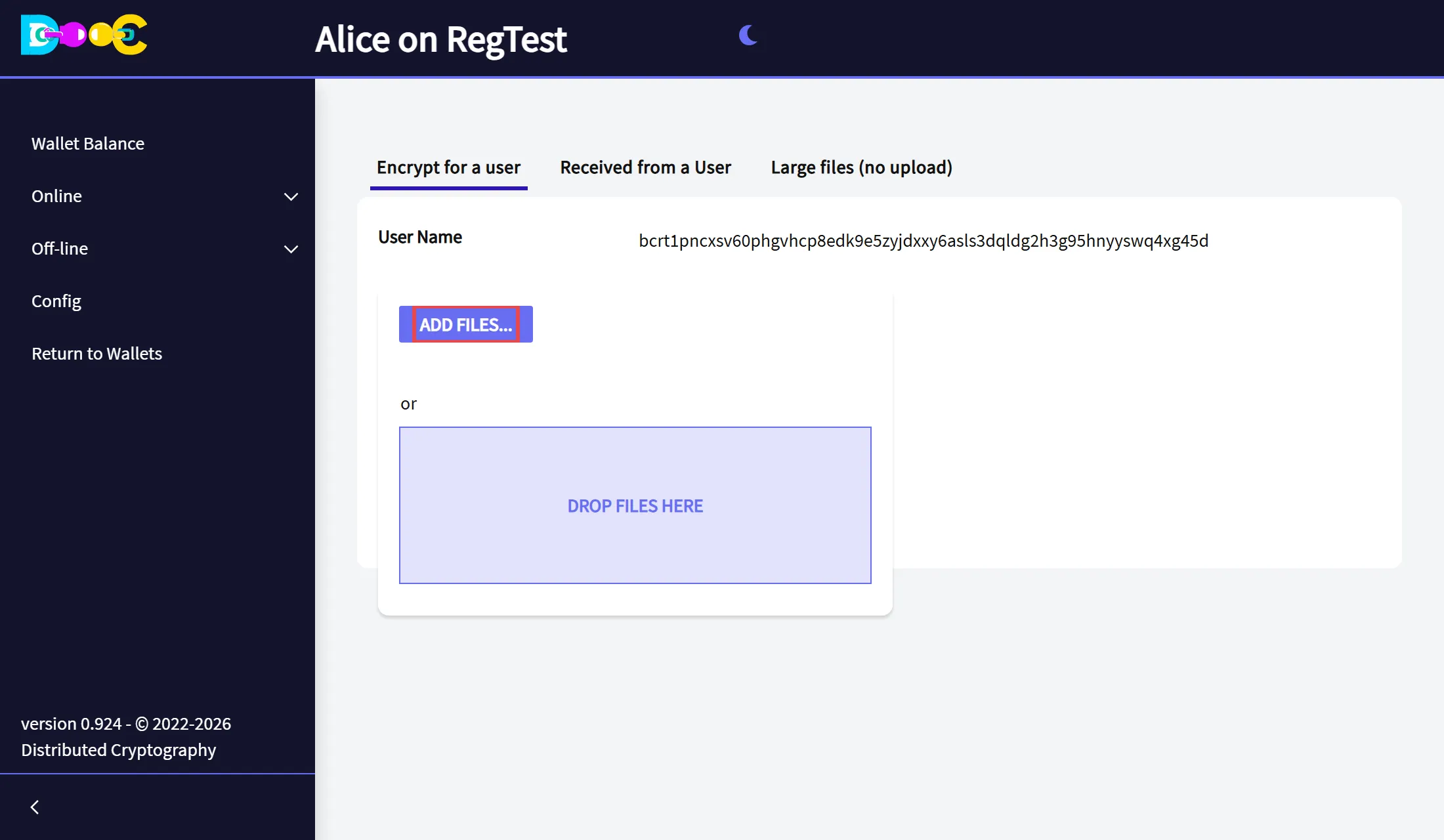
Click Add files… and choose the file, or drop it on Drop files here.
-
The app shows File encrypted! Check your download folder. Your browser has saved
<original name>.dcfin your downloads folder.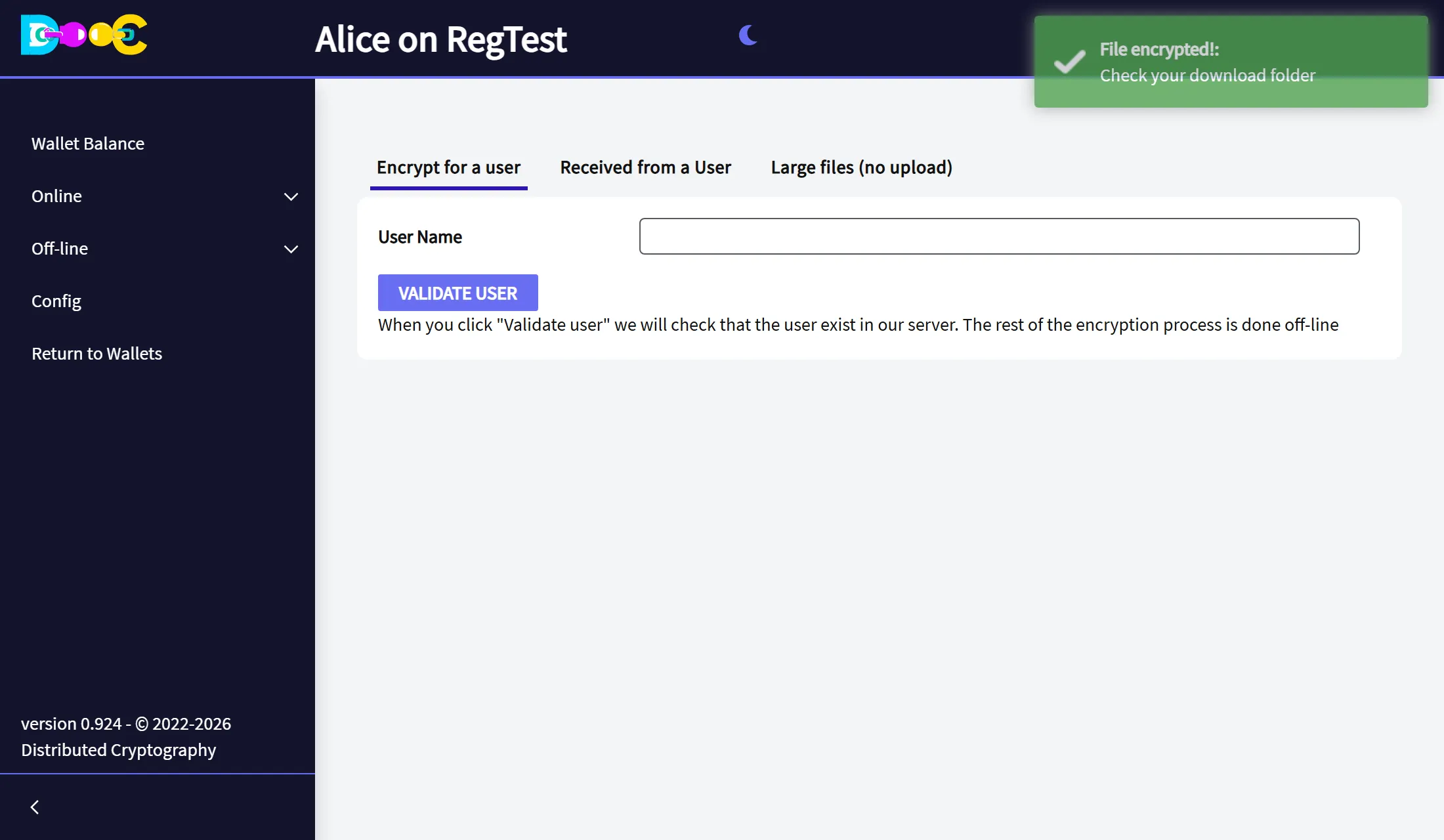
-
Send the
.dcffile to the person, any way you like.
Open a file you received (up to 1 GB)
Section titled “Open a file you received (up to 1 GB)”-
Open the wallet the file was encrypted for. That wallet must have logged in at least once; you do not need a connection to decrypt.
-
Open Online → File Encryption and click the tab Received from a User.
-
Click Add files… and choose the
.dcffile, or drop it on the page.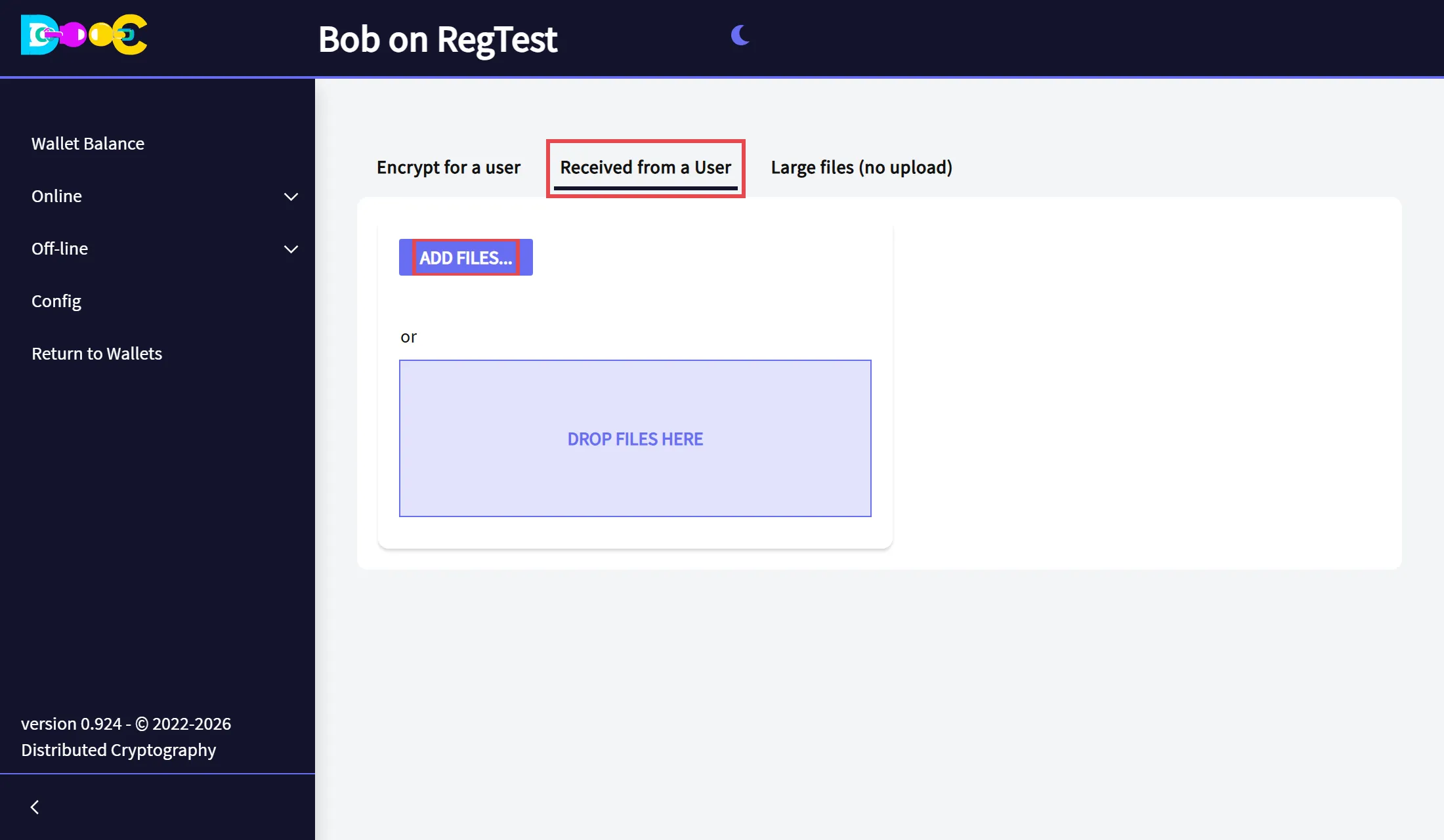
-
The app shows File decrypted! Check your download folder. Your browser has saved the file with its original name.
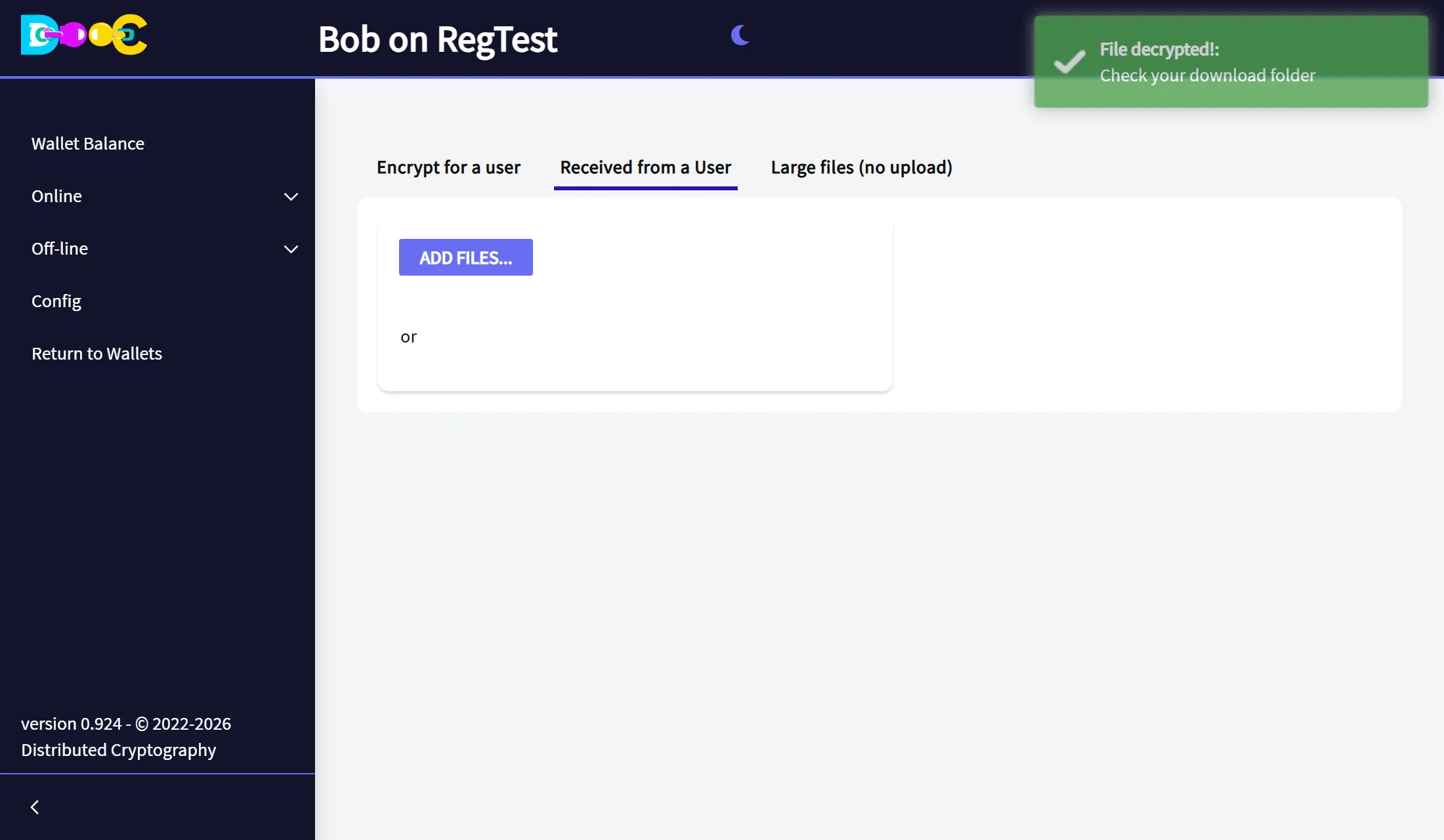
If the file was made for another wallet, or it was changed or damaged, the app says so and nothing is downloaded.
Large files (no upload)
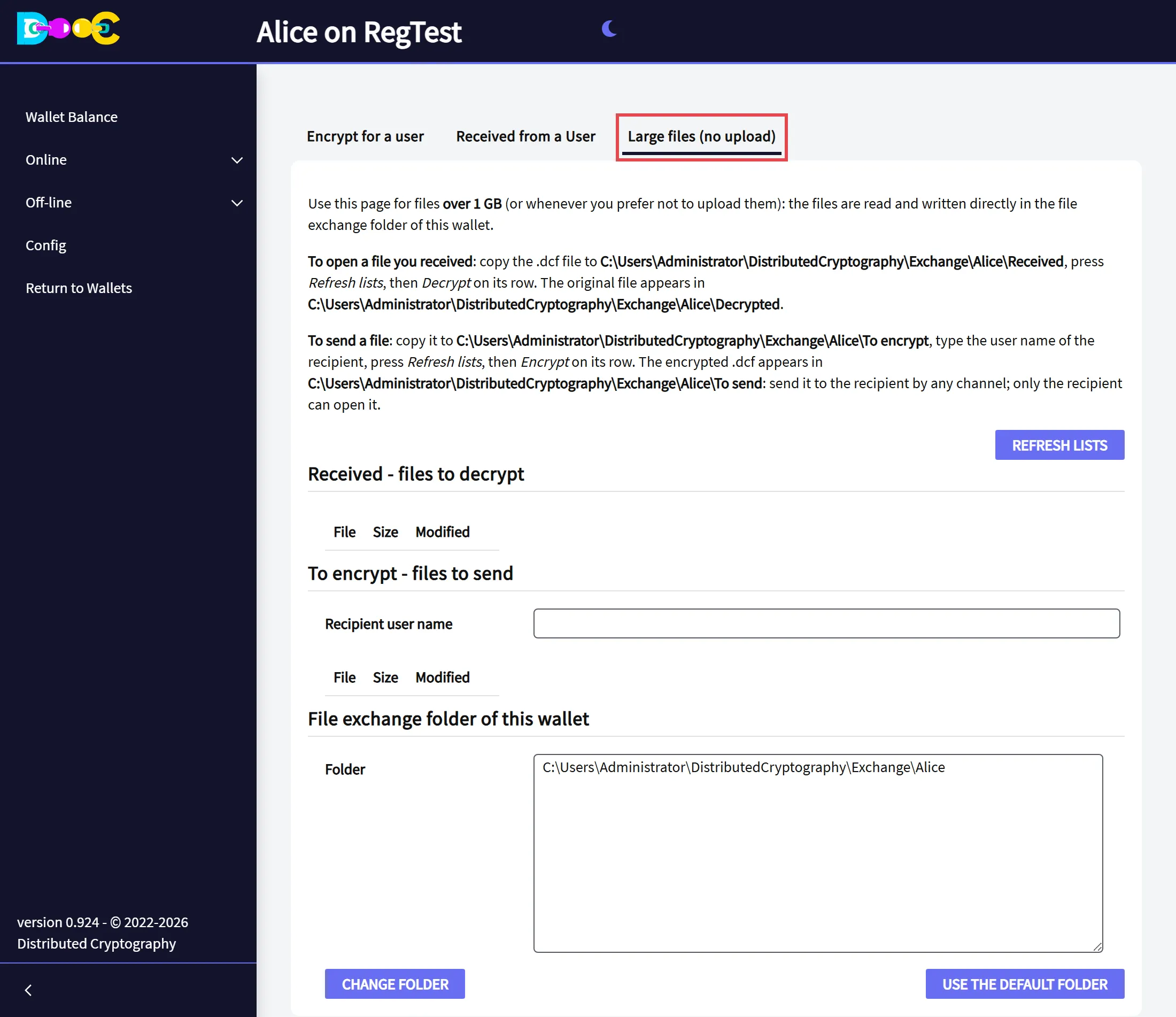
Section titled “Large files (no upload)”A browser cannot upload more than 1 GB. For larger files, or whenever you prefer not to upload them, the app works directly on the disk of the computer that runs it, in the wallet’s file exchange folder:
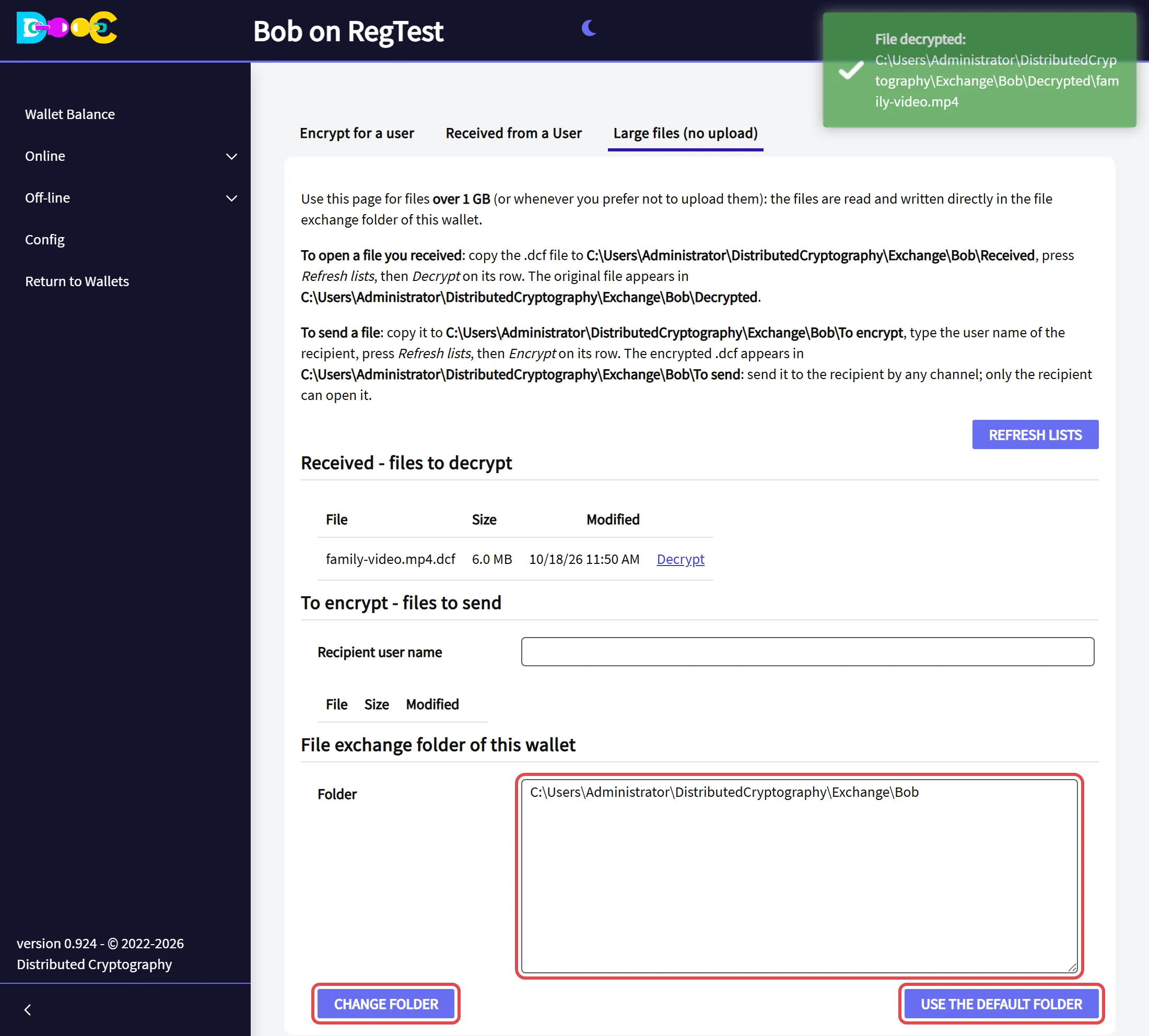
<exchange folder>/ To encrypt/ put here the files you want to send To send/ the app writes the encrypted .dcf files here Received/ put here the .dcf files you received Decrypted/ the app writes the original files hereOpen Online → File Encryption and click the tab Large files (no upload). The text at the top of the tab shows the full path of each folder on your computer.
Encrypt a large file
Section titled “Encrypt a large file”-
With your file manager, copy the file to the folder To encrypt shown on the page.
-
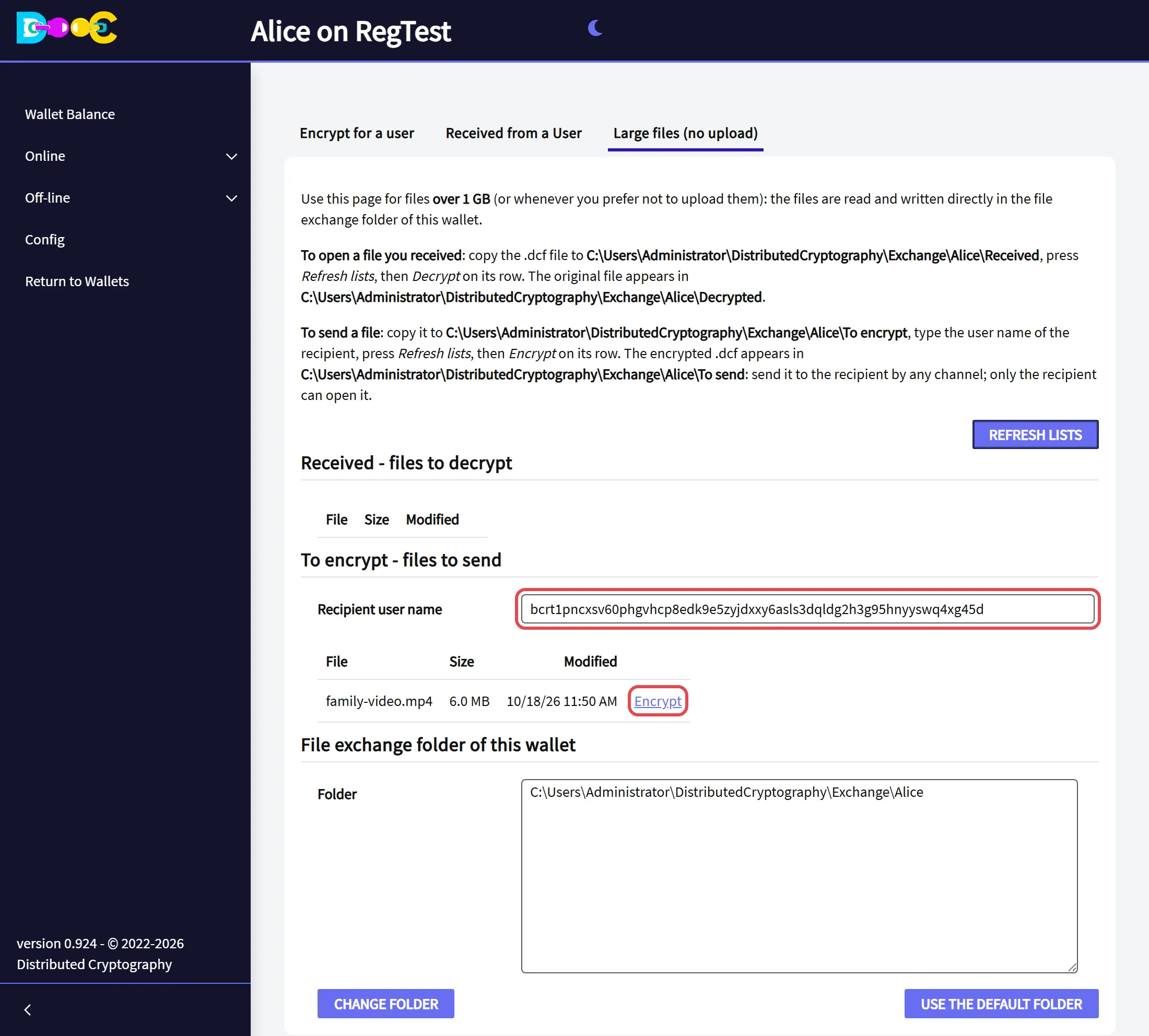
Paste the user name of the person in Recipient user name and click Refresh lists. Your file appears under To encrypt - files to send. Click Encrypt on its row.
-
The app shows File encrypted with the full path of the new file. It is in the folder To send, with the name
<original name>.dcf.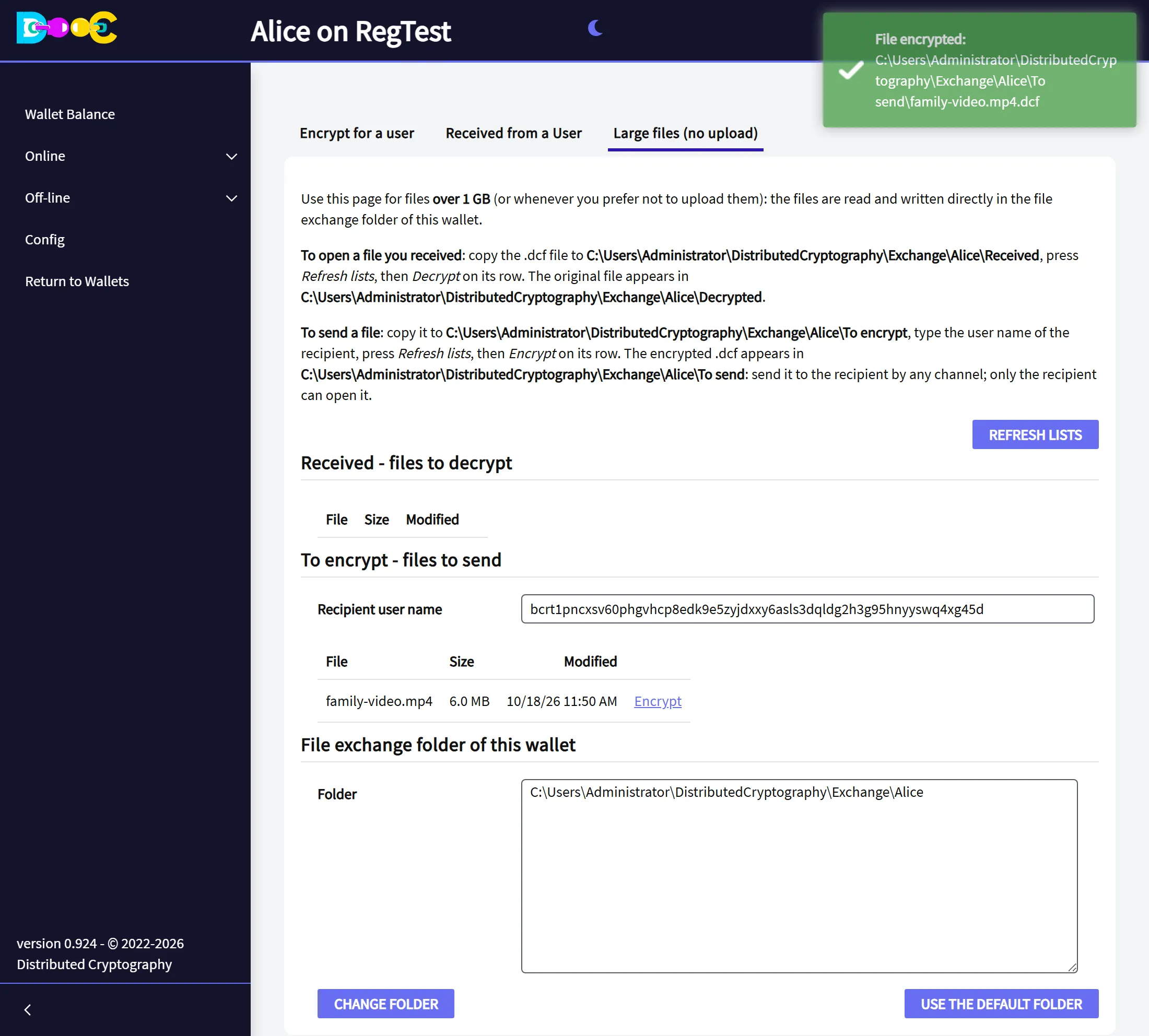
-
Send the
.dcffile to the person, any way you like. The original stays in To encrypt: delete it yourself when you no longer need it there.
Decrypt a large file
Section titled “Decrypt a large file”-
Open the wallet the file was encrypted for and go to the tab Large files (no upload).
-
With your file manager, copy the
.dcffile to the folder Received shown on the page. -
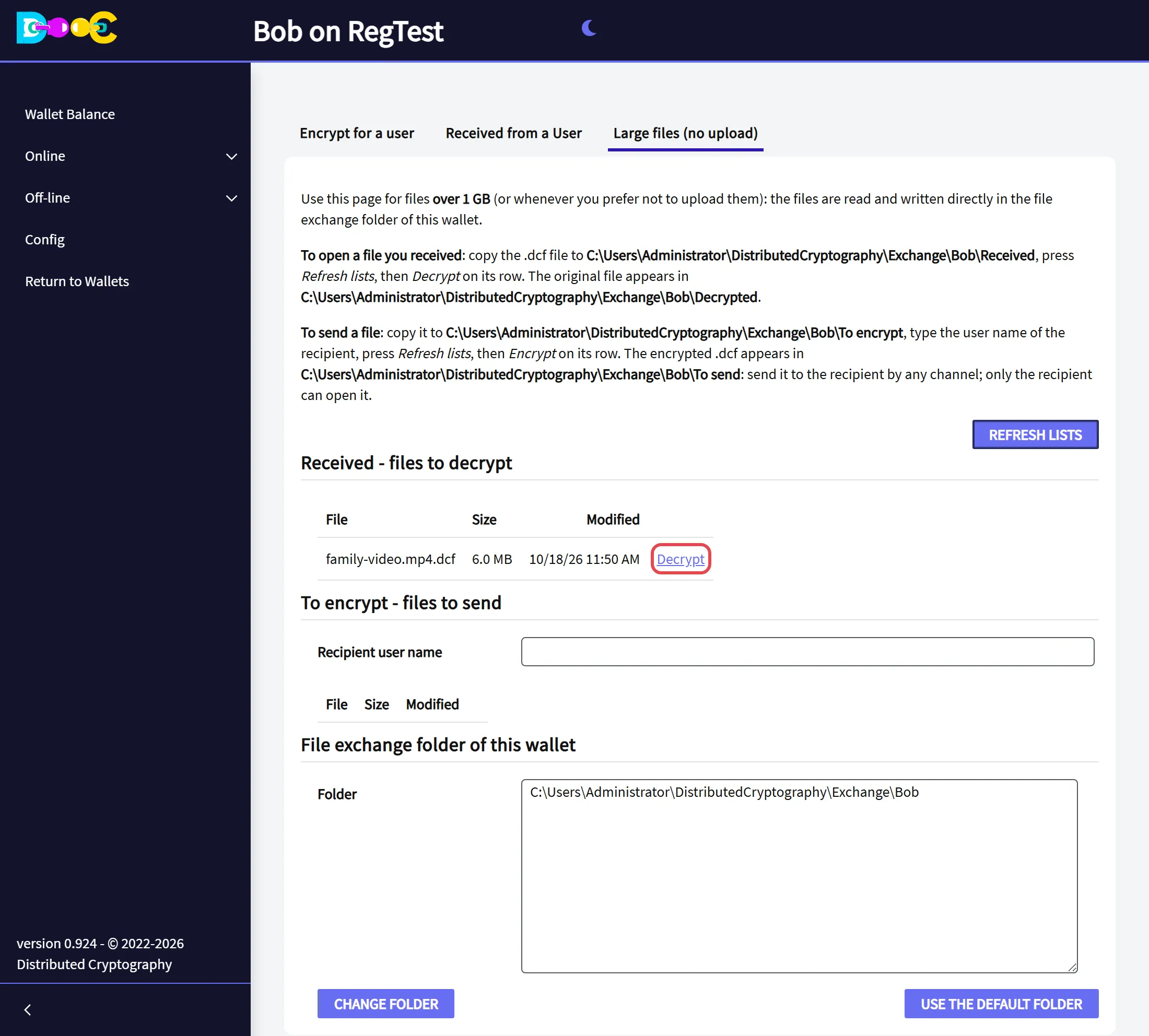
Click Refresh lists. The file appears under Received - files to decrypt. Click Decrypt on its row.
-
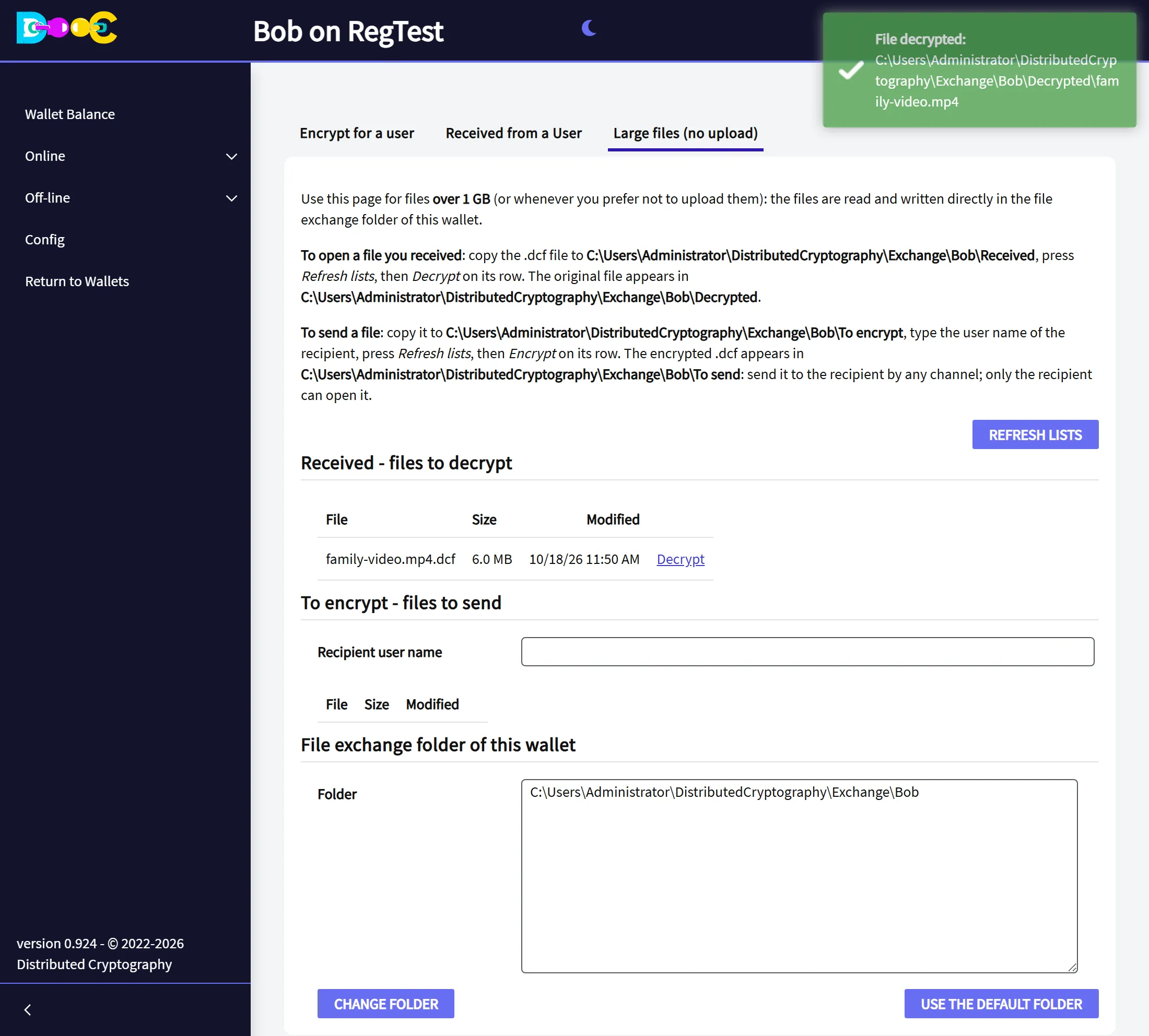
The app shows File decrypted with the full path of the result. The original file is in the folder Decrypted, with its original name.
A file that was made for another wallet, or that was changed or cut, gives a message and leaves nothing in Decrypted.
Where the exchange folder is
Section titled “Where the exchange folder is”By default the exchange folder of a wallet is Exchange/<wallet name> inside the application’s data folder,
which is DistributedCryptography in your user folder:
| System | Data folder |
|---|---|
| Windows | C:\Users\<user>\DistributedCryptography |
| Linux | /home/<user>/DistributedCryptography |
| Mac | /Users/<user>/DistributedCryptography |
To use another folder for one wallet (an external disk, a network share), type its full path in Folder, at the bottom of the tab, and click Change folder. The four folders are created there at once. Use the default folder goes back.
To move all the application’s data, set the environment variable DISTCRYPT_DATA_DIR before starting the
application. In a container, point it to a mounted volume so that the files survive the container and you can
copy files in and out from the host.
An existing file is never overwritten: a second file with the same name is called name (2).ext.
From the command line
Section titled “From the command line”adcfencrypt encrypts a file of any size without opening a wallet. It works offline and only needs the
recipient’s public key, so it is useful in scripts and on servers. It is in the bin folder of the application.
adcfencrypt <publicKey> <source> <destination>| Argument | Meaning |
|---|---|
publicKey |
The recipient’s file-encryption public key: 66 hexadecimal characters |
source |
The file to encrypt |
destination |
The encrypted file to create, or an existing folder (then <source name>.dcf is created in it) |
adcfencrypt 024ca15db1720b... "D:\video.mp4" "D:\video.mp4.dcf"adcfencrypt 024ca15db1720b... backup.zip E:\to-send\It never overwrites an existing file, and an interrupted run leaves nothing behind. Run it without arguments to see the help.
| Exit code | Meaning |
|---|---|
| 0 | Done |
| 1 | Help was shown |
| 2 | An argument is not valid (the key, a missing file or folder) |
| 3 | The destination already exists |
| 4 | The encryption failed |
The file it makes is opened like any other .dcf file, with the tabs described above.
How the file is protected
Section titled “How the file is protected”- A new random key is created for every file and locked with the recipient’s public key. Only the recipient’s wallet can unlock it.
- The content is encrypted in pieces with AES-256-GCM.
- Any change is detected: a file that was modified, cut, extended or rearranged is rejected, and no partial result is written.
- Files you decrypt in the browser are handed over through a private, one-time download and are deleted from the application as soon as they have been sent.
More detail in How your data is protected.